Observational Pen Wash Guide
Turn a storefront photo into observational pen-and-wash illustration without losing architecture
This step-by-step walkthrough uses a real before-and-after pair from Imagild’s public Observational Pen Wash Skill to show how you can convert a street storefront photograph into a hand-drawn pen-and-wash illustration that retains readable architecture, without requiring you to master ink drawing or perspective sketching from scratch.
Fast answer
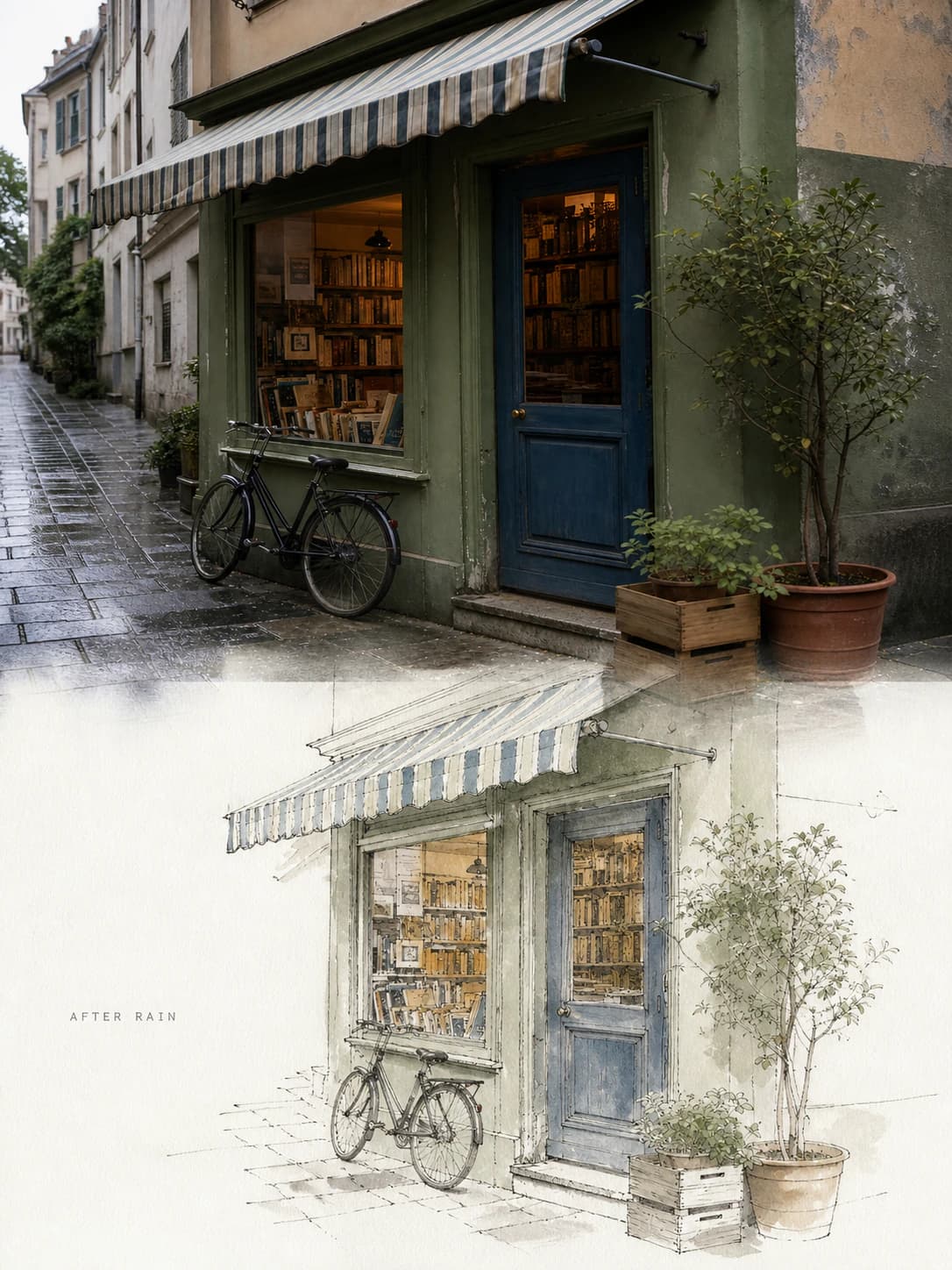
Upload your storefront photo to the Imagild Observational Pen Wash Skill, run the transformation, then verify that key architectural details, perspective, and scene elements remain legible before saving your final illustration to your Library. In the reviewed before-and-after pair, the rainy source shows a compact bookshop storefront with a striped awning, green facade, blue door, display windows, a bicycle, potted plants, pavement, and wet reflections.
What the published before-and-after pair shows
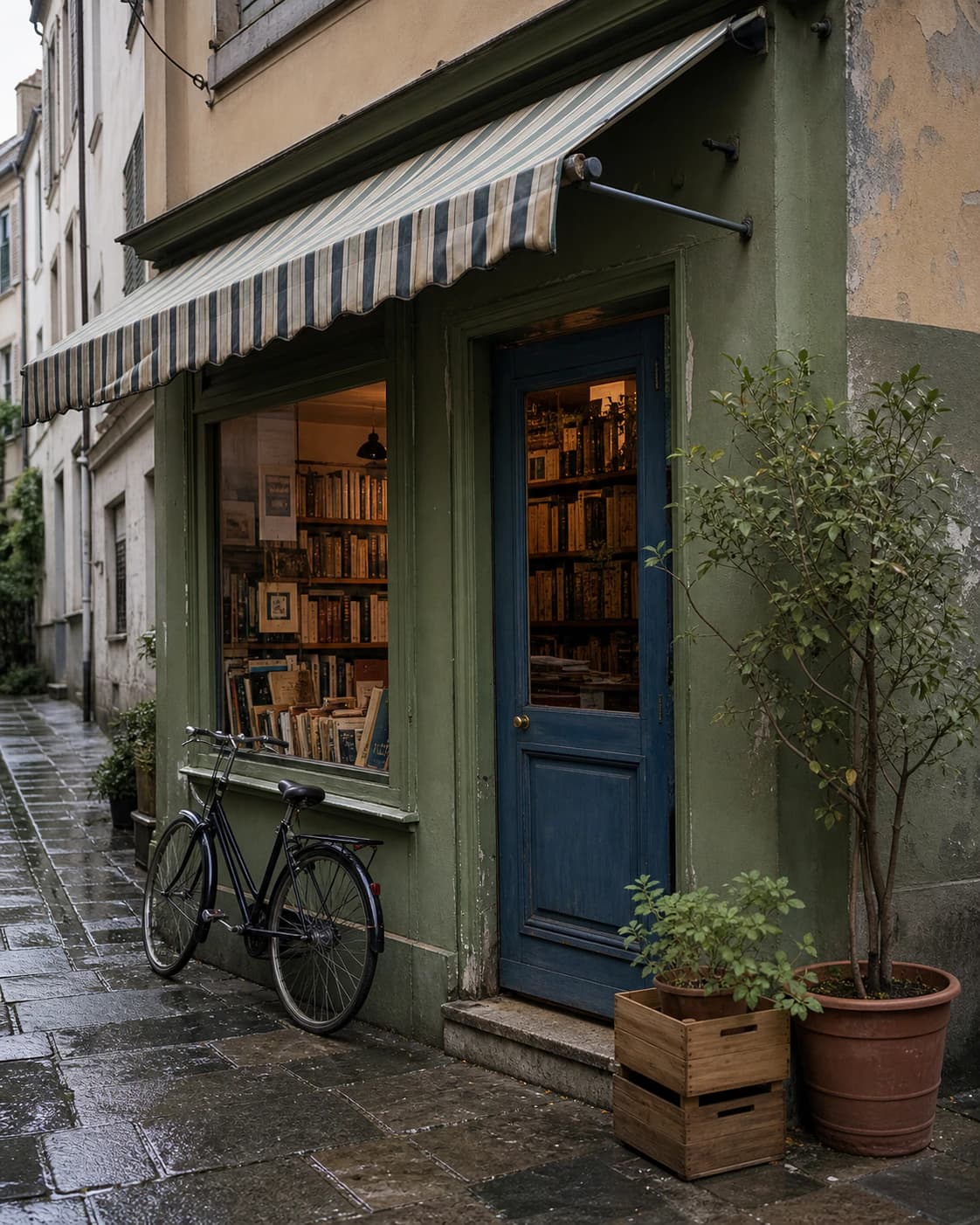
The original source image is a rainy street photograph of a compact bookshop storefront, with a horizontally striped awning, matte green facade, solid blue door, two large display windows, a parked bicycle leaning against the wall, several potted plants along the base of the facade, dark wet pavement, and soft light reflections across the damp street surface. The reviewed generated result replaces all photographic texture with loose, broken ink contours and muted, restrained color washes, while keeping the exact position of the blue door, the repeating stripe rhythm of the awning, the shape and placement of both display windows, the parked bicycle, the potted plants, the street edge, and the full receding one-point perspective of the original scene. The illustration includes small handwritten-style annotations that read AFTER RAIN and other short descriptive phrases, which are generated editorial text rather than transcribed real-world signage. The final output is a sketch-style observational drawing, not a measured architectural elevation, professional survey document, or fully editable vector line drawing.
Step-by-step workflow
- 01
Open the public Observational Pen Wash Skill
Navigate to the published Skill at /skills/observational-pen-wash from your Imagild browser session. You do not need to install any additional software, and you can review the public before-and-after sample directly on the Skill page before you begin, to confirm the visual direction matches what you want to create. This Skill is designed for source photographs of real-world scenes, so use a clear, well-lit storefront photo that shows the full facade and surrounding street context without heavy obstructions that hide key architectural features.
- 02
Upload your storefront source photo and run the transformation
Use the Skill’s source photo input mode to upload your storefront image, then start the generative transformation. The Skill will produce one independent pen-and-wash result per run, using one image credit if you are working outside the free public preview. The process does not require you to adjust manual drawing parameters, select brush presets, or trace over your original image by hand, and the output will be saved automatically to your signed-in user Library once generation completes.
- 03
Review your result and save or re-run as needed
Compare the generated illustration side by side with your original photo to confirm the architectural elements you care about are still readable. If the awning pattern, door position, or perspective does not match your preference, you can run the Skill again with the same source photo to produce a new variation. Once you are satisfied with the output, you can export it from your Library in JPEG, PNG, or WebP format at your chosen size and quality level.
Key practical decisions before you start
- Choose which architectural details you need to preserve
- Decide before you run the Skill whether you need the exact shape of every storefront opening, the full receding street perspective, the specific color of the facade and door, or secondary elements like a parked bicycle and potted plants to remain legible. If your source photo crops out part of the awning or cuts off the far edge of the sidewalk, the generated illustration will not invent missing architectural details, so frame your original shot to include every element you want to keep.
- Understand what the transformation deliberately changes
- This Skill replaces photographic texture, sharp reflections, and fine surface detail with broken, hand-drawn ink lines and soft, limited washes. It is not designed to produce a crisp technical line drawing or a measured architectural survey, and it will not preserve tiny, hard-to-read signage lettering exactly. Any text that appears in the final illustration is generated descriptive annotation, not a transcription of real storefront text, so do not rely on this Skill to reproduce accurate business names or address numbers.
- Verify your result before you export or share
- Because every generative run produces a unique illustration, take 30 seconds after generation to check that no critical architectural feature has been simplified beyond recognition, that the perspective does not feel distorted, and that any generated handwritten annotations do not overlap the parts of the drawing you want to keep clear. You can open the result in the photo workbench at /editor to make reversible adjustments to contrast, saturation, or sharpness if you want to refine the wash tone after generation.
Official sources checked
Frequently asked questions
Can I use this Skill to turn any existing storefront photo into a pen-and-wash illustration that keeps the building’s architecture recognizable?
Most clear, well-framed storefront photos will produce a usable result, but photos taken at extreme angles, heavily blurred, or partially blocked by large crowds will make it harder for the Skill to retain readable architecture. For the most consistent outcome, use a photo taken from a standing street-level position that shows the full facade, the ground level, and a portion of the adjacent sidewalk or street.
Is the output a vector file that I can edit in external illustration software?
No, the generated pen-and-wash illustration is a raster image saved to your Imagild Library, not a layered or fully editable vector line drawing. You can export it in standard raster formats like JPEG, PNG, or WebP, but you will not be able to separate individual ink lines or wash layers for independent editing in external design tools.
What should I do if the generated illustration loses a key detail like the striped awning pattern?
First, double-check your original source photo to confirm the awning stripes are clearly visible and not obscured by glare or shadows. If the original detail is clear, run the Skill again with the same source image to generate a new variation. If the detail is still not legible in the second result, you can open the image in the Imagild photo workbench to make manual contrast or sharpness adjustments to help the pattern stand out more clearly.