Skill Guide
Simplify Waterfront Photos to Bold Vector-Style Color Fields With Dopamine Ribbon
This step-by-step walkthrough shows you how to transform a busy daylight waterfront photograph into a graphic, vector-inspired artwork that retains the scene’s core horizontal structure, without requiring manual illustration work.
Quick Answer
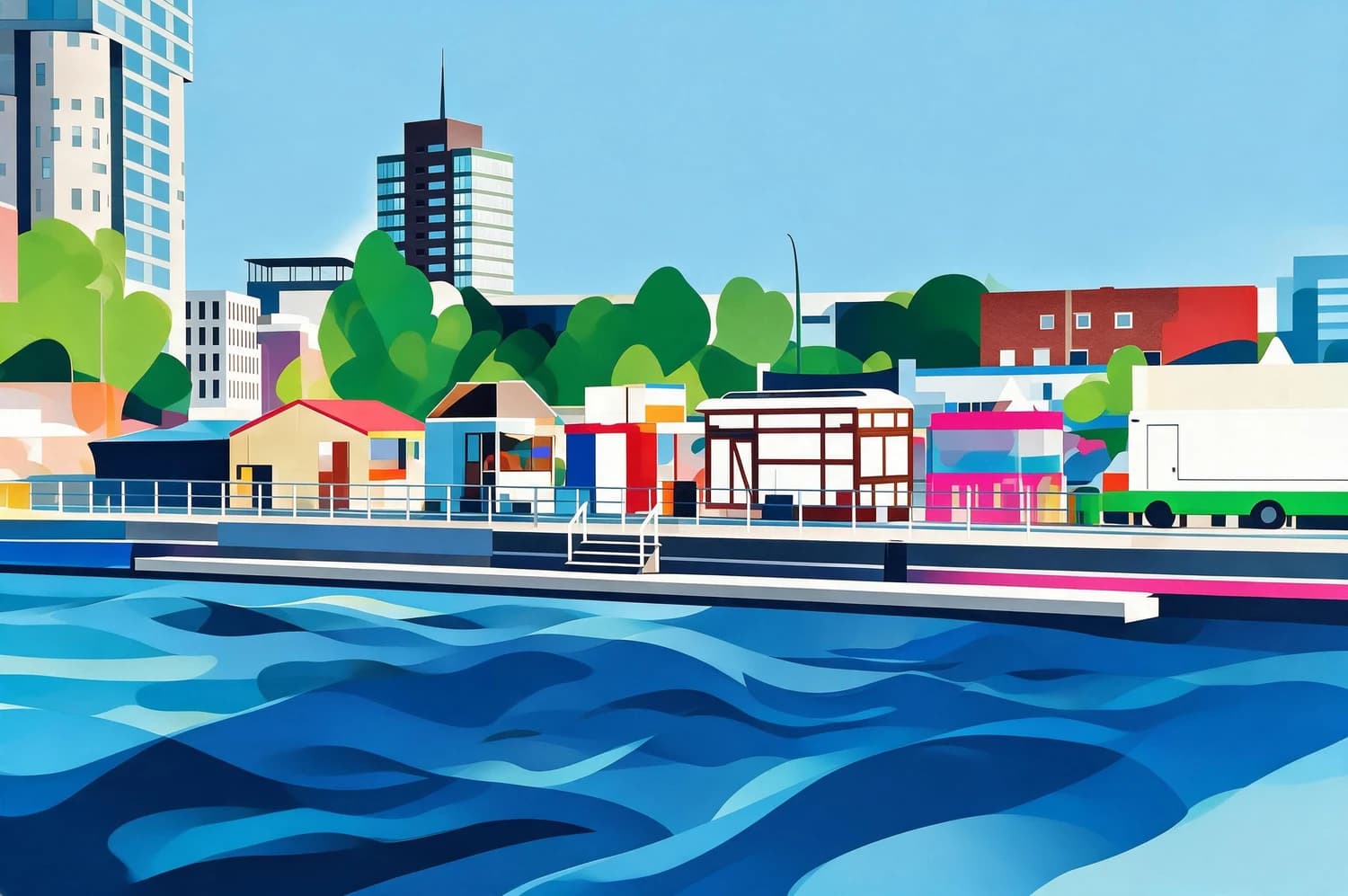
The Dopamine Ribbon Skill converts your detailed waterfront photo into broad, bold color fields that preserve the horizontal order of water, quay, stalls, trees, low buildings, and skyline blocks, while removing fine texture to create a graphic vector-style raster image.
Verified Before-and-After Evidence
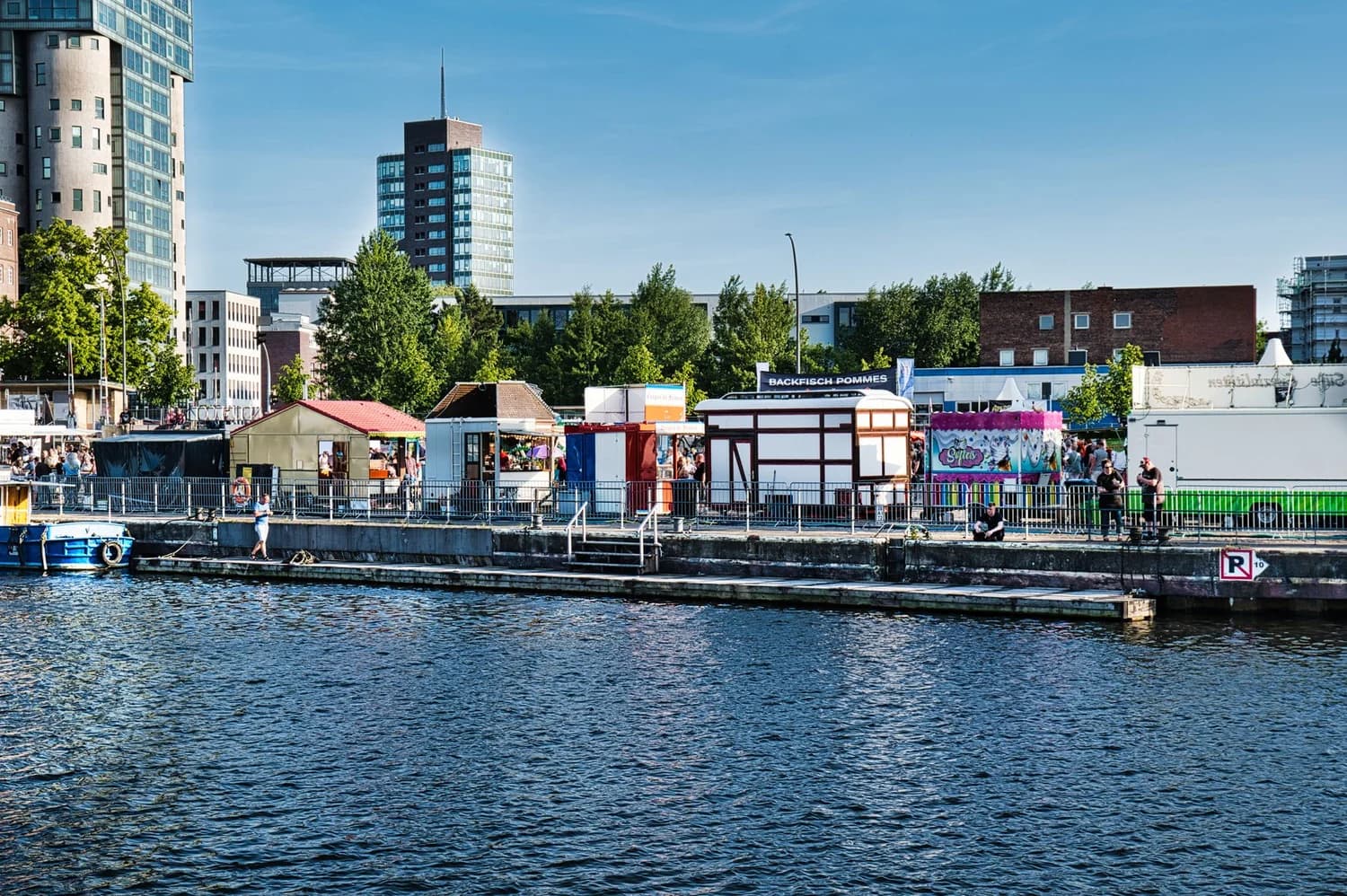
The official source photograph is a wide daylight waterfront scene with rippled blue water, a concrete quay, railings, small stalls and vehicles, a distinct band of trees and low buildings, and several taller buildings set against a soft blue sky. The reviewed Dopamine Ribbon result keeps the exact horizontal layering of these large scene elements intact, but collapses all fine photographic detail into broad, flat color shapes in blue, green, red, pink, cream, and charcoal. People, small signage, fine railing details, window texture, and realistic water reflections that were visible in the original photo are simplified or removed entirely. The final output is a raster artwork, not an editable SVG, EPS, or path-based vector file.
Step-by-Step Workflow
- 01
Open the Dopamine Ribbon Skill
Navigate directly to the public Dopamine Ribbon Skill page at /skills/dopamine-ribbon in your browser. You can review the official before-and-after sample pair on that page to confirm the visual direction matches what you want to create before you begin working with your own photo.
- 02
Upload and run your waterfront source photo
Upload your own detailed waterfront photograph as the source input for the Skill. Confirm the image is well-lit and clearly shows the large horizontal spatial bands you want to preserve, then start the generative transformation. The Skill will process your photo and return a new graphic raster artwork.
- 03
Review, verify, and save your accepted result
Compare the generated output side by side with your original photo to confirm the large spatial bands are ordered correctly and the simplified color palette works for your intended use. If you are satisfied with the result, save it to your signed-in Imagild Library where it will be stored for the platform’s stated retention period.
Key Pre-Use Decisions
- Choose which large spatial bands you want to prioritize
- Before you upload your photo, identify the core horizontal or large-scale scene elements you want the Skill to retain. For a typical waterfront scene, this usually means the water, quay, public spaces, tree line, low-rise buildings, and distant skyline. Photos where these large bands are clearly separated will produce the most consistent graphic results.
- Accept that fine photographic details will not be preserved
- Understand that small elements including individual people, handwritten or printed signage, fine railing components, window texture, and subtle water reflections are not retained in the final output. If any of these fine details are critical to your final design, you will need to plan for manual refinement in the Imagild photo workbench after you generate the initial result.
- Verify the output format before using it for vector workflows
- The Dopamine Ribbon Skill produces a raster artwork, not an editable path-based vector file. If you need a true scalable vector file for large-format print production, you will need to run the generated raster result through a separate vector tracing step in your design tool of choice. You can review Adobe’s official guidance on vector file characteristics to confirm the difference between your raster output and a true SVG or EPS file.
Official sources checked
Frequently Asked Questions
Will the Dopamine Ribbon Skill turn my photo into an editable SVG file?
No. The output is a raster graphic made of colored pixels, not an editable SVG, EPS, or path-based vector file. It has a bold vector-inspired visual style, but it does not contain separate editable shape paths that you can adjust individually in vector editing software.
What kinds of photos work best with this Skill?
Photos with clear, distinct large spatial bands and strong separation between major scene elements work best. Wide landscape shots, waterfront scenes, city skyline views, and layered outdoor environments will produce the most coherent graphic results with the Dopamine Ribbon transformation.
Can I adjust the colors or refine details after I generate my result?
Once you have saved your generated result to your Library, you can open it in the public Imagild photo workbench to make reversible adjustments including contrast, saturation, warmth, crop, and sharpness before exporting JPEG, PNG, or WebP. Manual browser adjustments and export do not require a monthly plan; controlled cloud AI requires sign-in and uses one image credit per completed result.