Photo export decisions
JPEG vs PNG vs WebP: choose the right photo export
Format, pixel dimensions, and encoding quality are separate choices. A good export matches the destination, keeps enough detail for that use, and avoids unnecessary file weight or repeated lossy saves.
Quick answer
Choose JPEG for broadly compatible photographic delivery, PNG when transparency or lossless pixel reproduction matters, and WebP for efficient modern web use. Then choose the pixel size required by the destination and preview quality at actual display size. A larger dimension or 100 quality cannot restore detail missing from a small, compressed, blurred, or already edited source.
Export is a three-part decision
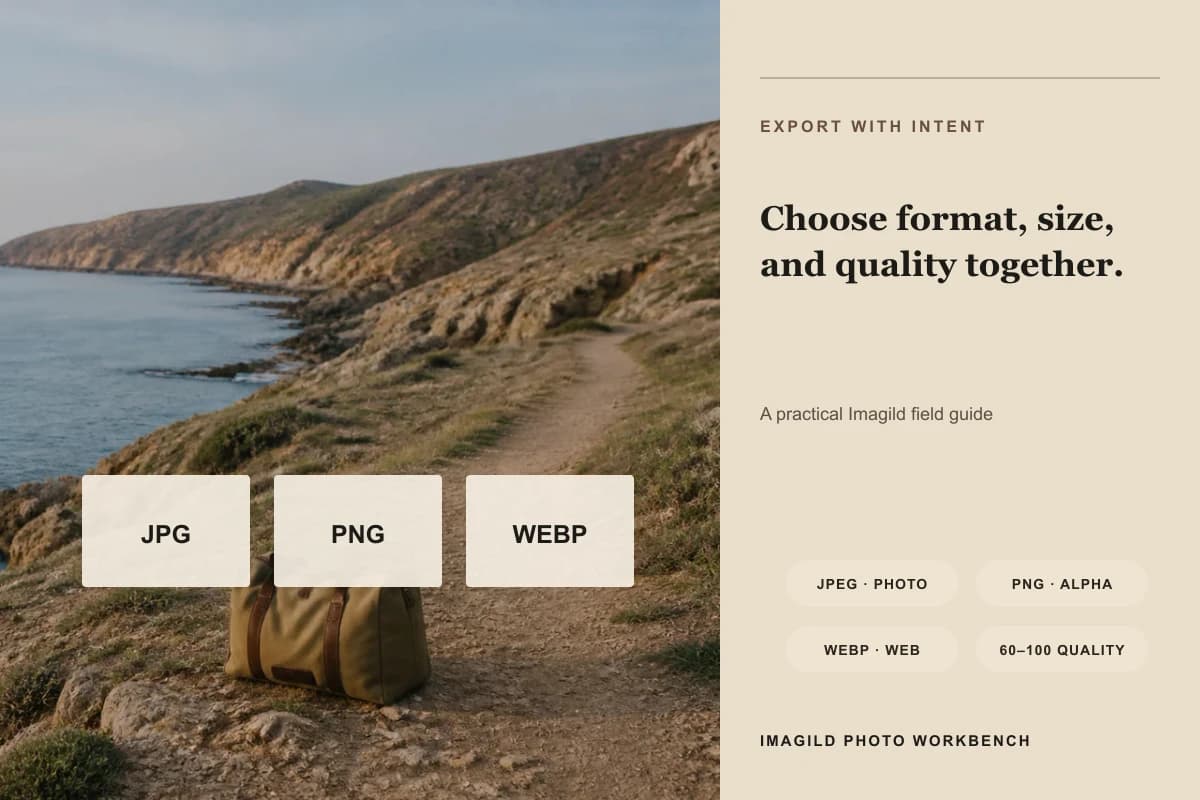
Imagild currently offers JPEG, PNG, and WebP, maximum dimensions of Original, 4096, 2048, or 1080, and a quality control from 60 to 100. The guide visual separates those decisions instead of presenting one universal “best” button. MDN documents JPEG as lossy and widely compatible for photographs, PNG as lossless with transparency, and WebP as supporting lossy or lossless compression and transparency. The right choice still depends on the receiving app, website, printer, or archive.

A controlled three-step workflow
- 01
Start with the destination, not the format name
For a social post or broadly compatible photo download, begin with JPEG. For transparent backgrounds, screenshots with sharp text, or an editing handoff that must avoid another lossy step, begin with PNG. For a modern website that accepts it, WebP can reduce delivery weight. Confirm the destination supports your choice before exporting.
- 02
Choose pixel dimensions for the real display
Use Original when another editor or archive needs the available source dimensions. Choose 4096 or 2048 for larger displays and flexible reuse, and 1080 for a compact destination that does not need more. Pixel count is not physical print size by itself, and upscaling a small source does not create missing texture or focus.
- 03
Preview quality and avoid repeated lossy saves
For JPEG or lossy WebP, lower quality can reduce file size but may introduce block artifacts, ringing, banding, and soft text. Inspect faces, gradients, hair, edges, and typography at actual size. Keep a high-quality master, export a delivery copy once, and return to the master rather than repeatedly opening and resaving the compressed copy.
What to inspect before accepting the edit
- JPEG for ordinary photographs
- JPEG is widely supported and efficient for continuous-tone photographs, but it is lossy and has no alpha transparency. It is a practical delivery choice when compatibility matters and transparent pixels are unnecessary. Check fine hair, text, high-contrast edges, and smooth skies for compression artifacts.
- PNG for transparency or precise pixels
- PNG uses lossless compression and supports alpha transparency, making it useful for cutouts, overlays, screenshots, graphics, and a handoff that should not add lossy damage. Full photographic PNG files can be much larger than JPEG or WebP, so do not use PNG automatically when the destination only needs an ordinary opaque photo.
- WebP for efficient web delivery
- WebP can encode photographs with lossy compression or preserve pixels losslessly, and it supports transparency. It is a strong choice for modern browsers and web assets when the receiving workflow accepts it. For older software, print vendors, or platforms with uncertain support, keep a JPEG or PNG fallback.
Official sources checked
Frequently asked questions
Is 100 quality always better?
It usually keeps more encoded detail but also increases file size, and it cannot recover information absent from the source. Compare the intended display size and choose the lowest setting that shows no meaningful visible damage. Keep an original or high-quality master for future exports.
Does PNG always have better quality than JPEG?
PNG is lossless, but “better” depends on use. It preserves exact encoded pixels and transparency, while JPEG can deliver photographs at much smaller sizes with acceptable visual quality. A badly edited or low-resolution image remains bad in PNG, and a huge file is not automatically more useful.
Should I export WebP for social media?
Only when the platform explicitly accepts WebP and keeps it correctly. Many social and messaging services expect JPEG or PNG and may recompress uploads. For a website you control, WebP is often useful; for an unknown recipient, JPEG is safer for photos and PNG for transparency.