Skill Guide
Turn a Sunset Photo Into a Fictional Vinyl Release Concept
This step-by-step walkthrough shows how a single orange sunset over a city skyline and river becomes a cohesive four-piece vinyl packaging concept, and explains exactly what you need to verify before treating the output as usable creative material.
Quick Answer
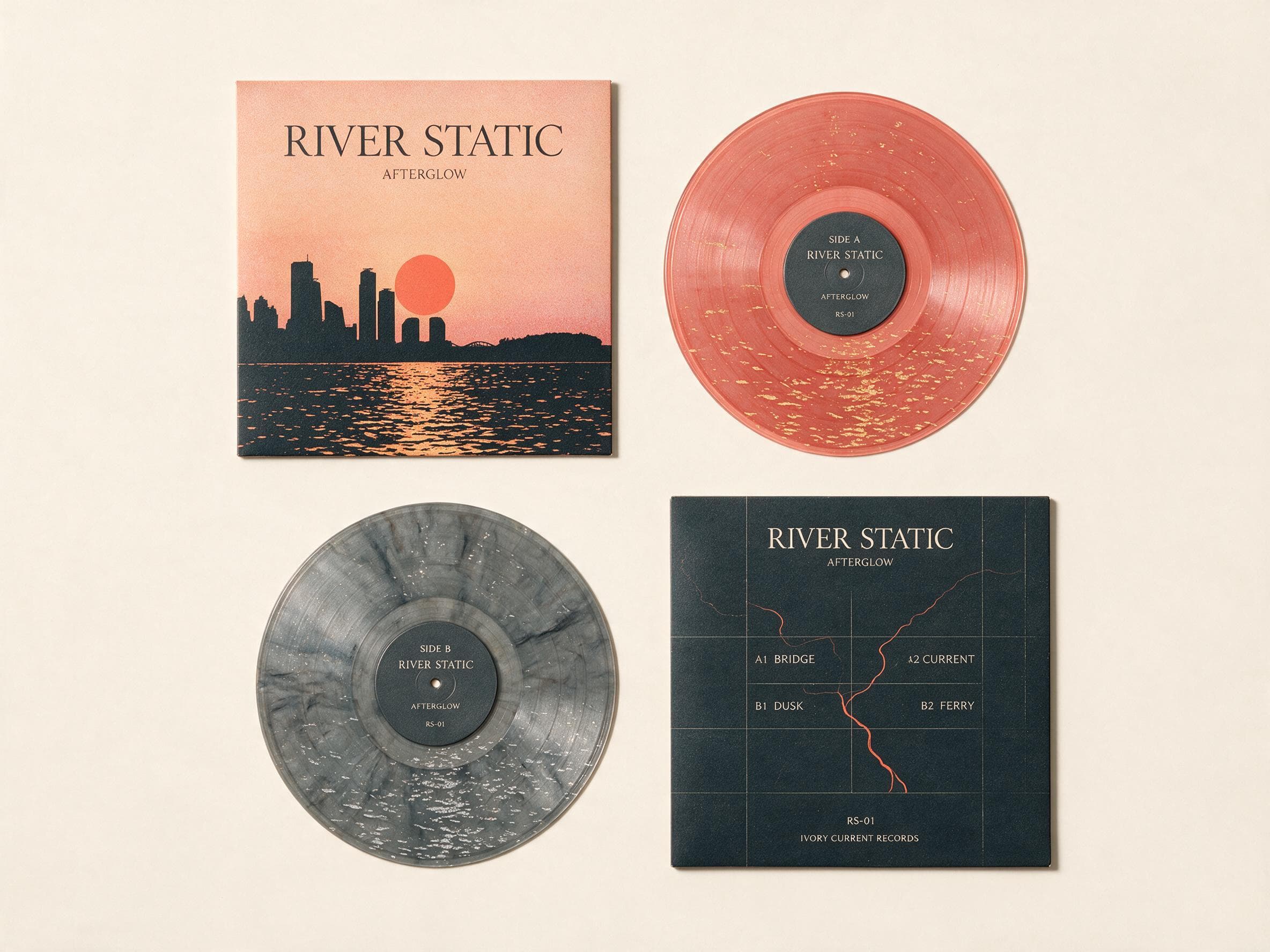
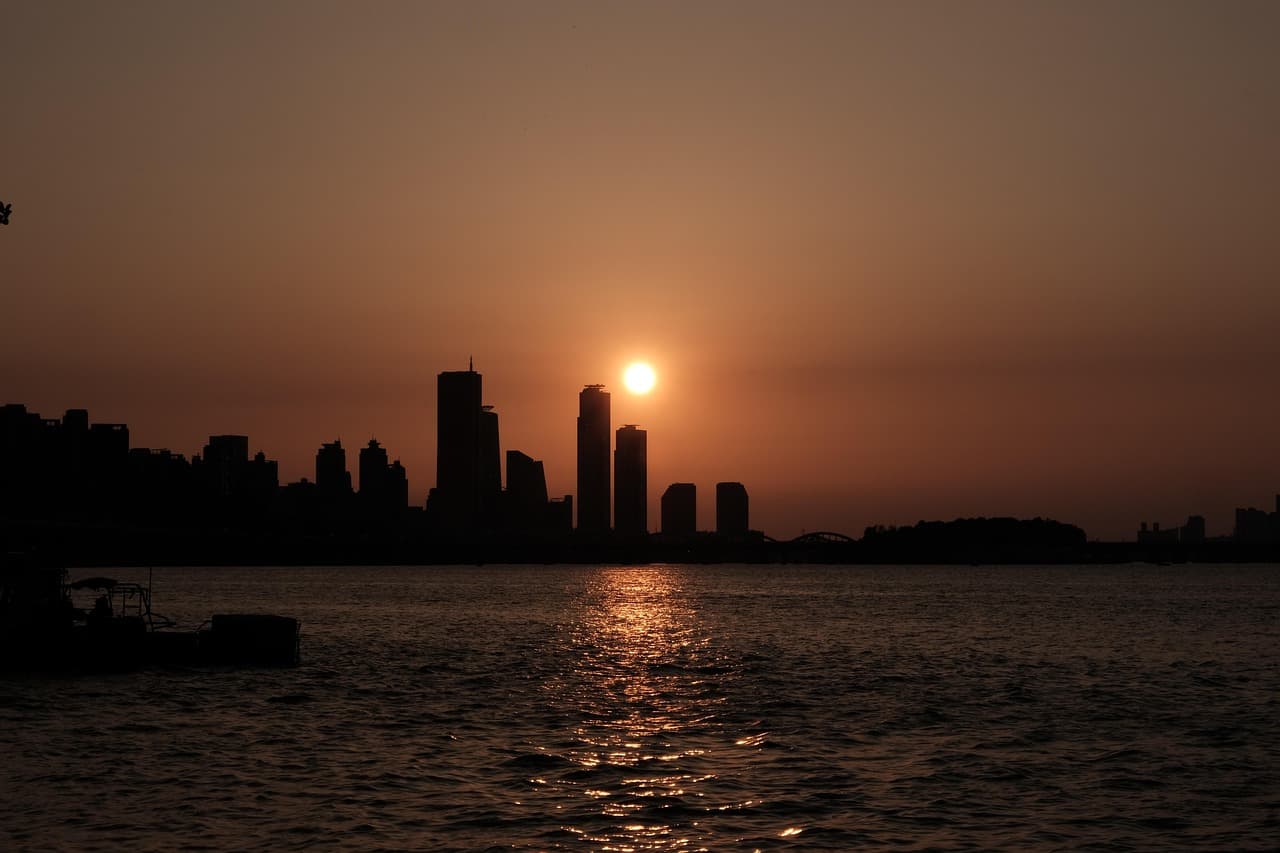
This guide walks you through using the Vinyl Memory Release Skill to turn one sunset photo into a four-part vinyl concept, with notes on recurring visual elements and the need to re-typeset all generated fictional text. In the reviewed before-and-after pair, the source is an orange sunset over a dark city skyline and river, with the sun above the central towers and a bright reflection running toward the camera.
Verified Before-and-After Sample
The original source photo shows an orange sunset hanging low over a dark city skyline and wide river, with the sun positioned directly above the central towers and a bright, unbroken reflection stretching across the water toward the camera. The published result arranges four distinct objects in a neat two-by-two archive layout: a front sleeve, a coral side-A record, a gray side-B record, and a dark back sleeve. The warm orange skyline, circular sun shape, rippled water texture, and palette of coral-orange, charcoal, and ivory tones are carried across all four pieces, but every line of album, track, catalog, side, and label wording in the result is generated fictional text that does not match any real release.
Step-by-Step Workflow
- 01
Open the Vinyl Memory Release Skill
Navigate to the public Vinyl Memory Release Skill page at /skills/vinyl-memory-release from Imagild’s public Skill directory. This page displays the full published before-and-after sample so you can preview the exact visual direction before you begin, no account required to review the reference pair. Take a moment to compare the source sunset photo and the sample vinyl result to confirm the style aligns with the creative direction you have in mind for your own photo before you move to the next step.
- 02
Upload your source sunset photo and run the transformation
From the Skill page, launch the workflow in Imagild Studio and provide your chosen sunset photo as the source input. Run the transformation, then compare the output with the source to check whether the skyline, sun shape, water reflection, and dusk palette remain useful for your concept.
- 03
Review, verify, and save your accepted result
Once the generation completes, compare the output directly to your original source photo to confirm the core visual elements you wanted to carry over are present. Check every piece of generated text on the sleeve, record labels, and back cover carefully, as all of it is fictional and will need full re-typesetting later. If you are satisfied with the overall concept, save the result to your signed-in Imagild Library, where it will remain stored for the platform’s stated retention period for your later access and reference.
Key Creative Decisions to Make First
- Choose which core visual elements you want to carry across all four pieces
- Before you provide the photo, decide which elements matter most: the sun shape, orange-to-purple gradient, reflection texture, or skyline silhouette. Use that list to evaluate the output; the four-piece consistency visible in the published result is evidence for that sample only.
- Understand that generated text and fine details may not match your exact intent
- The reviewed result contains album, track, catalog, side, and label wording that is absent from the source and must be treated as fictional. Read every visible string in your own result and replace it with verified, intentionally typeset wording before any real release use.
- Confirm you are creating a packaging concept, not press-ready artwork
- The output you receive from this Skill is a creative conceptual layout, not a press-ready file that meets professional print resolution standards. If you intend to eventually turn the concept into physical vinyl packaging, you will need to follow Adobe’s official print-resolution guidance to review raster artwork, rebuild the layout in a dedicated design tool, adjust resolution to meet your printer’s specifications, and replace all generated text with properly typeset, print-safe typography. Do not send the raw generated output directly to a print provider without completing this full production review process.
Official sources checked
Frequently Asked Questions
Can I use a photo that does not include a sunset, skyline, or water to create a vinyl release concept with this Skill?
The published evidence covers one sunset skyline source. Other source types are not evidenced here. Preview the pair, test your own image, and review the resulting concept before investing time in post-processing.
Will every output from this Skill include exactly four separate objects arranged in a two-by-two layout?
The reviewed sample displays exactly four pieces — a front sleeve, coral side-A record, gray side-B record, and dark back sleeve — in a two-by-two layout. That count and layout describe this sample only. Inspect your own result to confirm how many usable pieces it contains and whether its structure fits your project.
What do I do if the generated vinyl concept does not carry over the specific colors I loved from my original sunset photo?
First, double-check that your source photo is uploaded in its original unedited form without heavy compression that could wash out its color palette. If the result still does not reflect the tones you wanted, you can run the Skill again with the same source photo to produce a new generative iteration. Since this is a generative transformation rather than a deterministic filter, each run can produce a slightly different interpretation of your source image’s colors and composition.