Impasto Miniature Diptych Guide
Turn a Still-Life Photo Into an Impasto Miniature Diptych
This step-by-step walkthrough uses a verified before-and-after pair to show how a greenhouse still life with a blue watering can, terracotta pot, and mixed flowers becomes a two-panel impasto-style diptych, with clear guidance on what the transformation preserves, what it changes, and what you need to check before saving your final file.
Quick Answer
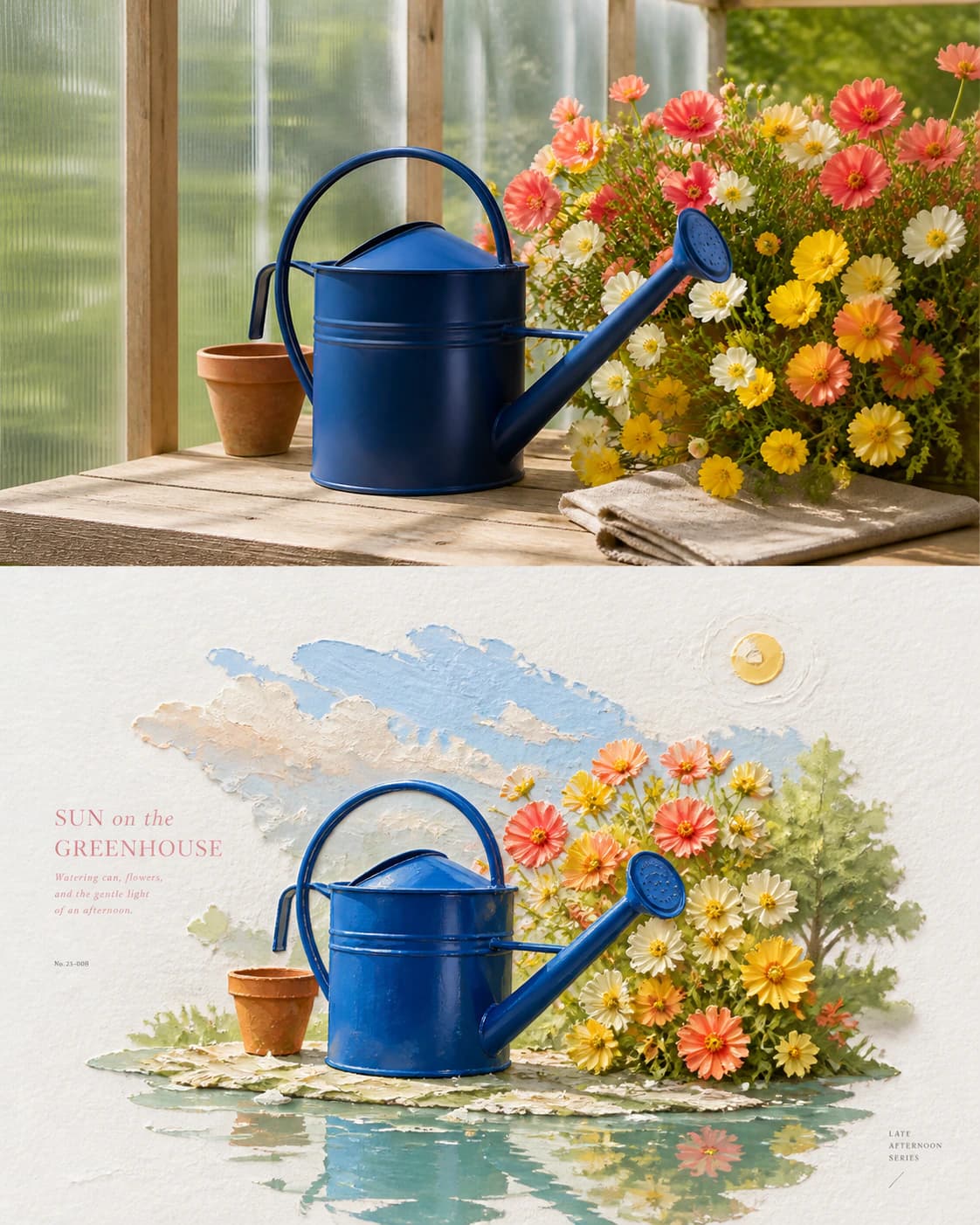
This Skill generates a two-panel layout that keeps your original still life photo intact above, then renders the same arrangement below with simulated impasto brush marks, so you can compare the source and painterly result side by side without losing readability.
Verified Before-and-After Evidence
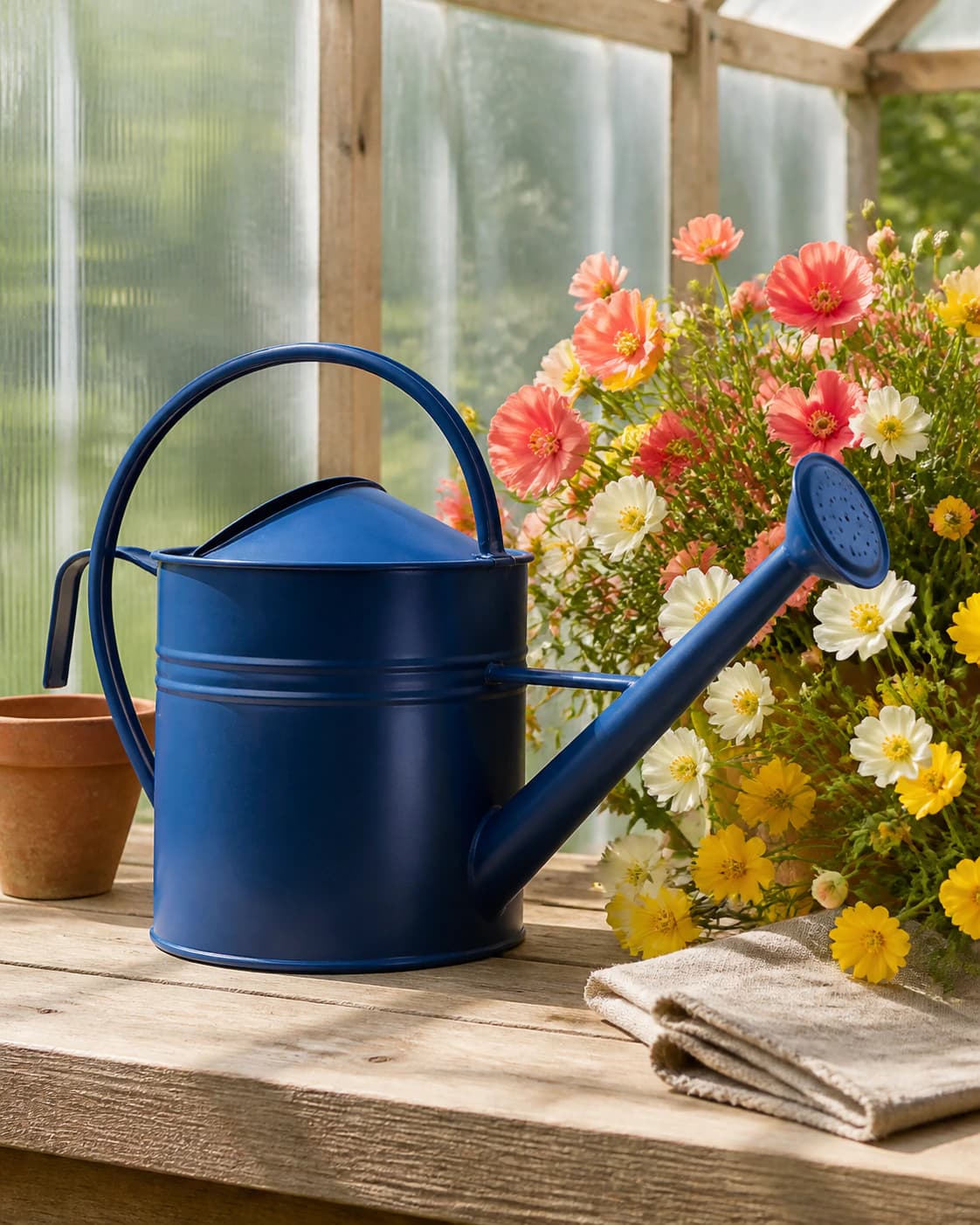
The reviewed source still life shows a blue watering can positioned next to a terracotta pot filled with pink, white, and yellow flowers, set inside a bright greenhouse-style space with a smooth reflective lower surface. The published diptych result places the unmodified original photograph on the top half of the frame, while the bottom half reconstructs every core element of that arrangement using thick, raised-looking brush and palette-knife marks. The watering can’s distinct blue shape, the terracotta pot’s warm earth tone, the clustered flower group, the bright diffused greenhouse lighting, and the soft reflection on the lower surface are all clearly recognizable in the painterly lower panel. No elements from outside the original scene were added, and no major object was moved or removed during the transformation.
Step-by-Step Workflow
- 01
Open the Impasto Miniature Diptych Skill
Navigate directly to the public Skill path at /skills/impasto-miniature-diptych on Imagild’s web platform. You can browse the published sample before-and-after pair on the Skill landing page to confirm the visual direction matches what you want to create before you begin. No additional tools or complex setup are required to access the Skill, and you do not need a membership to preview the public example results.
- 02
Upload your still-life source photograph
Select a clear, well-lit still-life photo where your core objects are arranged in a stable, readable layout. For best results, make sure there are no heavily obscured elements that would make it hard for you to confirm the final arrangement later. The Skill accepts standard image uploads, and you should keep a separate backup copy of your original source photo stored safely, following the Library of Congress guidance for preserving original photographic materials separate from derivative artwork.
- 03
Run the transformation and review your output
Start the generative transformation to produce your diptych. Once the result loads, compare the top original panel and the bottom impasto panel side by side to confirm your object arrangement is intact. Check for any unexpected tiny painterly details, generated labels, or small rendering inconsistencies that do not match your original scene. If you are satisfied with the output, save it to your signed-in Imagild Library for the platform’s stated retention period.
Key Creative Decisions to Make Before You Start
- Choose what core arrangement you need to preserve
- Decide which elements of your still life are non-negotiable for readability before you run the Skill. For most users, this means confirming the relative position of every main object, the general lighting mood of the scene, and the presence of any key reflective or textural surfaces you want to carry through to the impasto panel. If your still life includes small, easily lost items, position them near larger, more distinct objects in your source photo to help keep them recognizable in the painterly render.
- Understand what the simulated impasto effect will change
- The Skill does not produce a physical painting, a layered paint document, or a print-ready proof. The apparent paint thickness is a raster visual simulation that mimics the impasto effect defined in the National Gallery’s official glossary, with visible brush and palette-knife texture that replaces fine photographic detail. Sharp photographic edges will be softened into thick, textured strokes, and subtle photographic gradients will be reworked into bold, layered paint marks that match the impasto style.
- Plan your post-generation verification step
- Set aside 30 to 60 seconds after your result generates to systematically check every part of the diptych. First confirm the top panel is your unmodified original photo, then scan the bottom impasto panel to verify no main objects have been moved, distorted, or removed. Look for any unintended tiny painterly flourishes, misrendered small details, or odd color shifts that do not align with your source. If you find issues that break the readability of your arrangement, you can run the Skill again with the same source photo to generate a new independent result.
Official sources checked
Frequently Asked Questions
Is this generated impasto diptych a physical painting or a layered file I can edit in external paint software?
No. The output is a standard raster image file with a simulated visual impasto effect. It is not a physical artwork, it does not contain separate editable paint layers, and it is not pre-formatted as a print-ready proof. You can export it from Imagild in JPEG, PNG, or WebP formats using the platform’s standard export controls, but you will not be able to isolate or adjust individual simulated brush strokes in external software.
What should I do if the impasto panel rearranges some of my smaller still-life objects?
First, double-check your source photo to confirm the exact position of the elements that shifted. Small, delicate objects are the most likely to be repositioned or merged into surrounding paint strokes during the generative process. If the result does not meet your needs, you can run the Skill again with the exact same source photo to generate a new independent result. Each run produces one unique output, so subsequent attempts may preserve your original arrangement more closely.
Can I use this Skill on non-still-life photos like travel snapshots or pet portraits?
This Skill was published and verified using a still-life source, and the documented sample focuses on a greenhouse still life with a watering can, terracotta pot, and flowers. Imagild has not released verified editorial evidence showing consistent, reliable results for other subject types, so you may get unexpected layouts, lost key details, or unrecognizable subjects if you use it on photos outside the still-life use case it was designed for.