Portrait Transformation
Make an Early Smartphone-Inspired Indoor Portrait Without Vintage Device Provenance
This step-by-step guide walks you through using Imagild's iPhone 5s Millennium Room Skill to reimagine a full-body indoor portrait with the tight, flash-lit, low-light character of early 2010s smartphone photography, while making it clear the output is a generated aesthetic interpretation, not a photo captured on a physical iPhone 5s.

Fast Answer
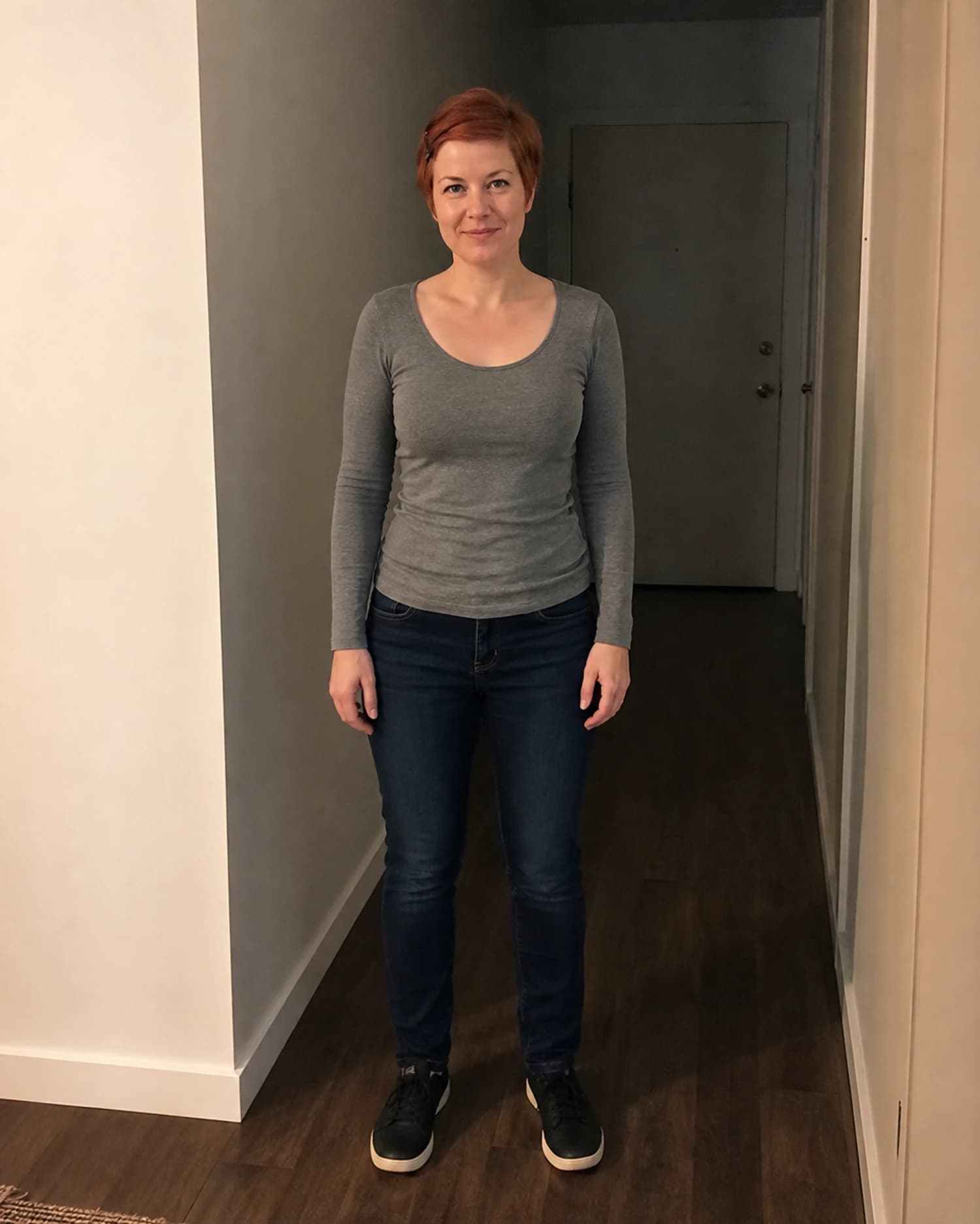
This Skill reworks your full-body indoor portrait into a close, dark-room, frontal-flash headshot with new accessories and pose tweaks, no physical vintage camera required, so you review identity and details before saving. In the reviewed before-and-after pair, the source is a full-body indoor portrait of one adult subject with short auburn hair, a gray long-sleeve top, blue jeans, and dark sneakers standing in a hallway.
Reviewed Before-and-After Evidence
The curated source image is a full-body indoor portrait of one adult subject with short auburn hair, a gray long-sleeve top, blue jeans, and dark sneakers standing in a brightly lit hallway. The reviewed generated result shifts the composition to a tight head-and-shoulders frame, replaces the short auburn hair with long straight black hair, adds a burgundy hair clip, red glasses, and a hand resting gently against the subject's cheek, keeps the gray long-sleeve top visible, darkens the entire background significantly, and lights the face directly from the camera direction to mimic a frontal on-camera flash. There is no visual evidence that the result was captured on an iPhone 5s or any physical camera; it is a fully generated raster aesthetic interpretation.
Step-by-Step Workflow
- 01
Open Custom Studio from this guide
Upload your portrait first. Describe only the observed early-smartphone qualities you want—direct flash, modest dynamic range, restrained sharpness, and natural room light—while explicitly preserving identity, pose, framing, and room layout.
- 02
Upload Your Full-Body Indoor Portrait and Run the Skill
Select a full-body indoor portrait of a single subject that you own or have full explicit consent to transform, in line with the Imagild Acceptable Use Policy. Upload the file directly through the Skill's upload interface, then initiate the generative transformation. The Skill will process your source image and generate a new raster interpretation that applies the early-smartphone flash aesthetic, adjusted framing, and accessory changes defined by the published visual method. No additional editing tools are required at this stage of the process.
- 03
Review, Refine if Needed, and Save Your Accepted Result
Once the generated result loads, compare it side by side with your original source photo to confirm you are happy with the overall aesthetic direction. You can open the result in the photo workbench to make reversible deterministic adjustments to exposure, contrast, warmth, or grain, or use the restrained portrait repair tools to fix small temporary blemishes if desired. When you are satisfied with the final output, save it to your signed-in Imagild Library before exporting it at your preferred size and quality level.
Key Pre-Use Decisions
- Choose Which Core Element to Preserve From Your Source
- Before you run the Skill, decide which element of your original photo you most want to carry through to the final result. The reviewed sample preserves the subject's gray long-sleeve top as a recognizable link to the source, but you may prioritize keeping a specific piece of clothing, a familiar facial expression, or a small personal detail that matters most to you. This decision will help you evaluate whether the output meets your personal goal, and it will give you a clear benchmark to use when you compare the generated result against your original image.
- Confirm Which Deliberate Changes Match Your Creative Goal
- This Skill is designed to apply a specific set of creative changes that go far beyond a simple color or lighting adjustment. You should confirm in advance that you are comfortable with a tighter head-and-shoulders crop, a much darker indoor background, frontal flash-style lighting, and the addition of new accessories such as red glasses and a hair clip, plus a new hand-to-cheek pose. If you only want to adjust lighting without altering hair, accessories, or framing, this Skill is not the right fit, and you should use a deterministic preset workflow in the photo workbench instead.
- Plan Your Post-Generation Verification Routine to Avoid Unwanted Outputs
- Because this is a generative transformation and not a deterministic filter, you must set aside time after generation to check critical details that may not render perfectly. Closely inspect the subject's identity to confirm it still matches the person in your source photo, verify that the hand pose looks natural and does not contain odd or inconsistent details, and double-check any fine lettering on clothing or background objects, as generated text can often be inaccurate. If any detail falls short of your standard, you can run the Skill again for a new candidate or move the image to the photo workbench for targeted manual adjustments.
Official sources checked
Frequently Asked Questions
Will this Skill prove that my final photo was captured on a real iPhone 5s?
No. This Skill produces a generated aesthetic interpretation that draws on the visual character of early 2010s smartphone portraits, including the kind of direct frontal flash and low-light grain associated with devices like the iPhone 5s, which Apple's official technical specifications note includes an 8-megapixel camera and True Tone flash. There is no visual evidence in the output that proves the photo was captured on a physical vintage device, and you should never present the result as authentic device-captured media in a misleading way.
Can I use this Skill on a close-cropped headshot instead of a full-body source photo?
The curated published sample uses a full-body indoor portrait as its source, and the Skill's transformation is calibrated to rework that wide framing into a tighter head-and-shoulders composition. If you upload a pre-cropped close-up photo, the Skill will not have the same amount of visual context to work with, and you are far more likely to get inconsistent or unexpected results that do not match the sample pair shown on the Skill page. For the most reliable outcome, stick to a full-body indoor portrait of one subject shot in a well-lit indoor space.
What should I do if the generated result changes the subject's identity in an unwanted way?
If the output alters the subject's recognizable features so they no longer look like the person in your source photo, first run the Skill one more time to generate a fresh candidate, as each generative pass can produce a different interpretation. If the second result still does not preserve the subject's identity correctly, export your original source photo and use the photo workbench's deterministic adjustment tools to manually build the dark-room flash aesthetic without using the generative Skill, since those tools will not introduce large, unplanned changes to the subject's face or overall identity.