Tiny Hands Takeover Guide
Add Tiny Doodle Characters to a Real Food Photo Without Repainting the Food
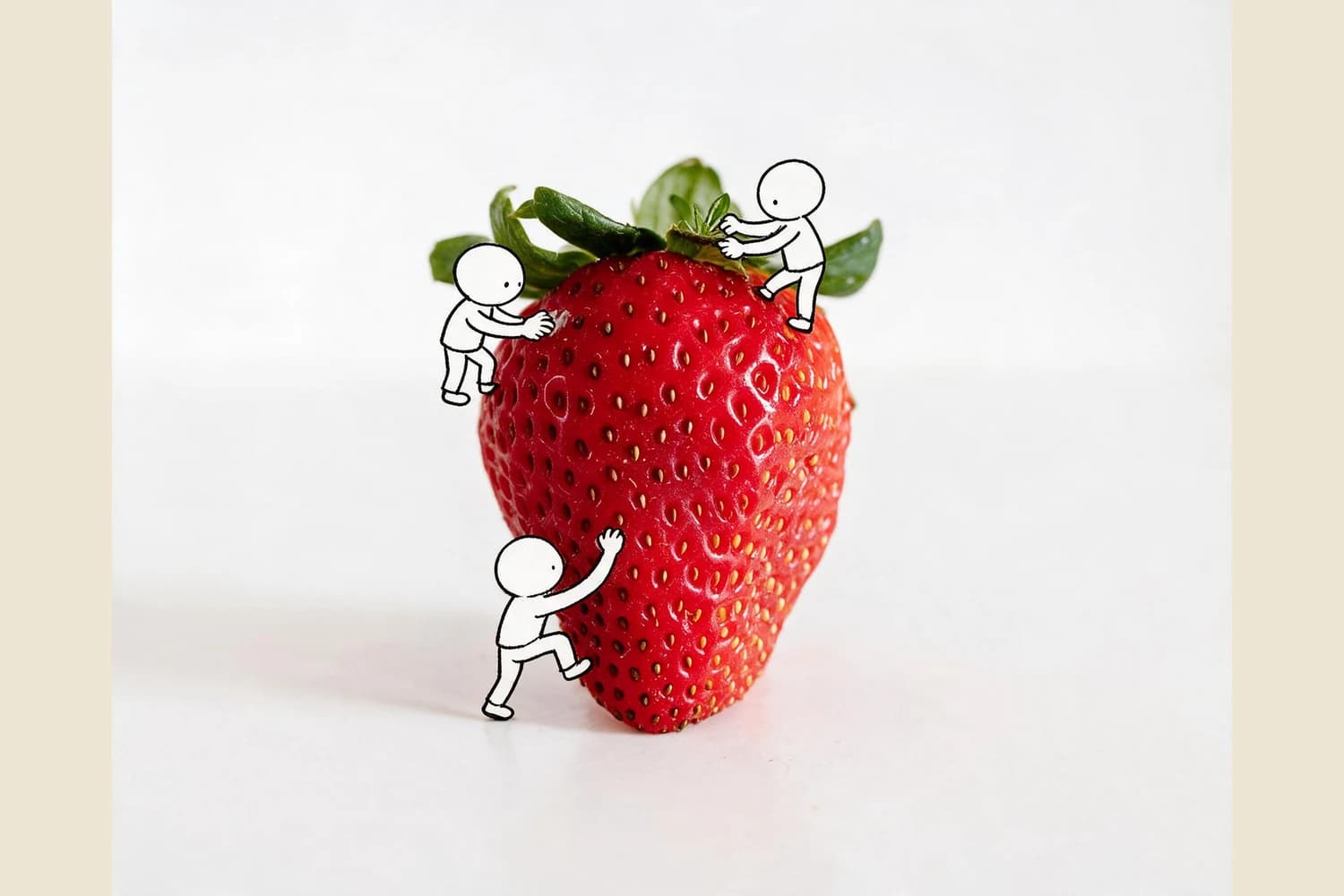
This walkthrough uses a curated strawberry source and result pair to show you how to place tiny hand-drawn characters on real food photos so the composite feels naturally integrated, not like a cheap sticker overlay.
Fast Walkthrough
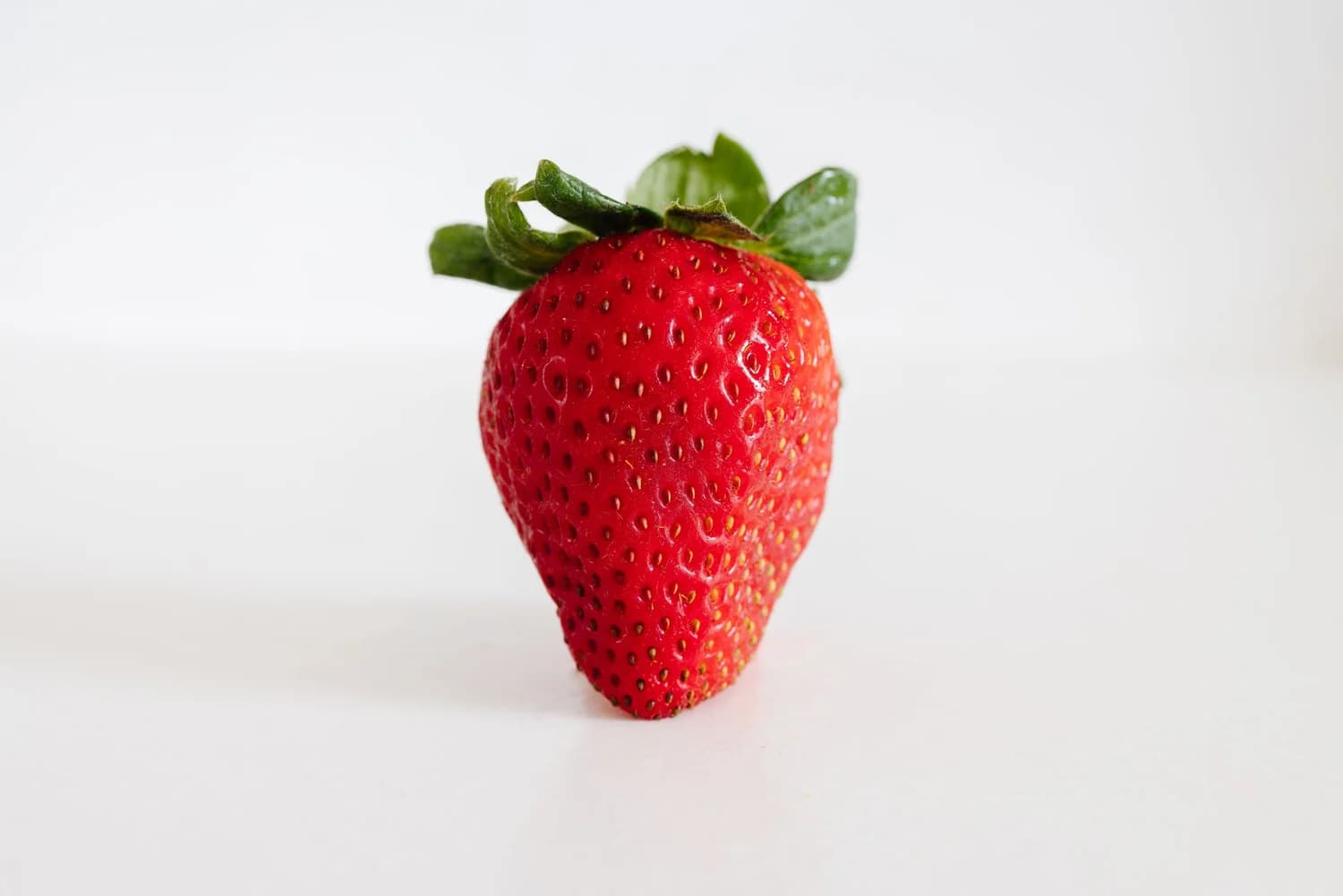
Open the Tiny Hands Takeover Skill in Imagild, upload your real food photo with clear negative space, run the transformation, review the output to confirm your food is untouched, and save the result to your Library. In the reviewed before-and-after pair, the source is one upright strawberry photographed against a pale background with a visible contact shadow and ample empty space.
Verified Source and Result Pair
The original source image is one upright fresh strawberry shot against a soft pale background, with a soft contact shadow beneath the fruit and plenty of empty surrounding space. The published result keeps the full photographic detail of the strawberry completely intact, adds exactly three small black-line doodle workers whose hands and feet rest on or overlap the fruit, and places each worker on a separate side of the strawberry. No text, branding, extra food items, or fully illustrated replacement background appears in the final composite.
Step-by-Step Workflow
- 01
Open the Published Tiny Hands Takeover Skill
Navigate directly to /skills/tiny-hands-takeover from Imagild's public Skills gallery. You can preview the curated before-and-after strawberry pair on the Skill landing page to confirm the expected visual direction before you begin, no account required for preview access.
- 02
Upload Your Eligible Source Photo
Select a real food photo that keeps the main food subject fully visible, includes natural lighting and a clear contact shadow, and leaves ample empty negative space around the edges. Avoid heavily cropped shots where there is no room for small doodle characters to sit naturally without crowding the food.
- 03
Run the Transformation and Save Your Output
Start the generative transformation, wait for the process to complete, then compare the new result side by side with your original source. Once you confirm the food detail is preserved and the doodle placement works for your use case, save the accepted final image to your signed-in Imagild Library.
Key Pre-Use Decisions
- Choose What Photographic Detail to Preserve
- Before you run the Skill, decide which parts of your food photo you want to remain fully photographic. The curated sample preserves the entire strawberry, its natural texture, its highlight, and its soft contact shadow, so you can reference that pair to set a clear expectation for your own output before you start.
- Plan for How Doodle Placement May Shift
- The small black-line characters will be placed to make physical contact with your food subject, but their exact positions, poses, and the exact number of visible limbs that touch the surface can vary between runs. If you need a specific pose for a social media post, run the Skill a second time to generate an alternate version that better matches your preferred layout.
- Verify No Unwanted Content Was Added
- Every time you generate a new result, take 10 seconds to check for unintended additions that do not match the curated sample. Confirm no extra text, branding, unrelated food items, or fully illustrated background elements have been inserted, and re-run the transformation if any of these unwanted details appear.
Official sources checked
Frequently Asked Questions
Will this Skill repaint or alter the photographic texture of my food?
The curated strawberry sample keeps the original photographic texture of the fruit completely untouched, but you should always compare your output directly against your source photo to confirm no unintended smoothing, recoloring, or detail loss has occurred on your specific food subject.
What kind of source photo works best for this transformation?
Photos with a single clear food subject, soft natural lighting, a visible contact shadow, and generous empty negative space around the edges produce the most readable, sticker-free composites. Overcrowded shots, heavily filtered images, or photos where the food fills every pixel of the frame are far less likely to produce a clean, natural-looking result.
Can I use this Skill for non-food subjects?
The published curated sample only demonstrates the transformation working on a single fresh strawberry. Imagild has not published verified before-and-after pairs for non-food subjects, so you will need to test your specific non-food source to see if the doodle integration behaves the way you want it to.