Skill Guide
Casting Triptych: Turn One Portrait Into a Three-Frame Phone Wallpaper With Lock-Screen Clock Space
This walkthrough shows you how to use the published Casting Triptych Skill to generate a 9:20 canvas with three equal vertical portrait frames below a dedicated empty area for your lock-screen clock, so you can set a custom wallpaper that stays readable even when the time and widgets are visible.
Quick Answer
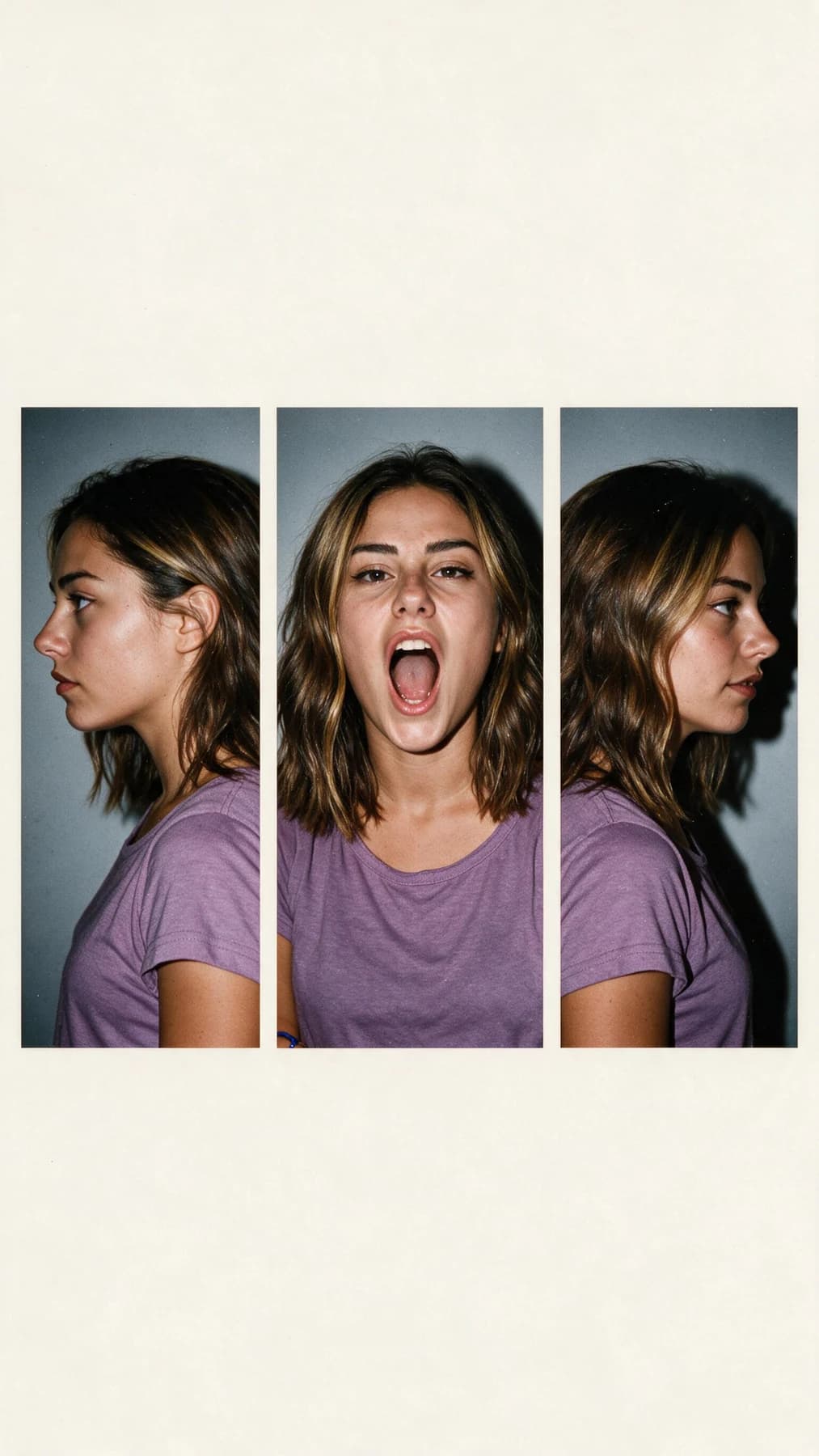
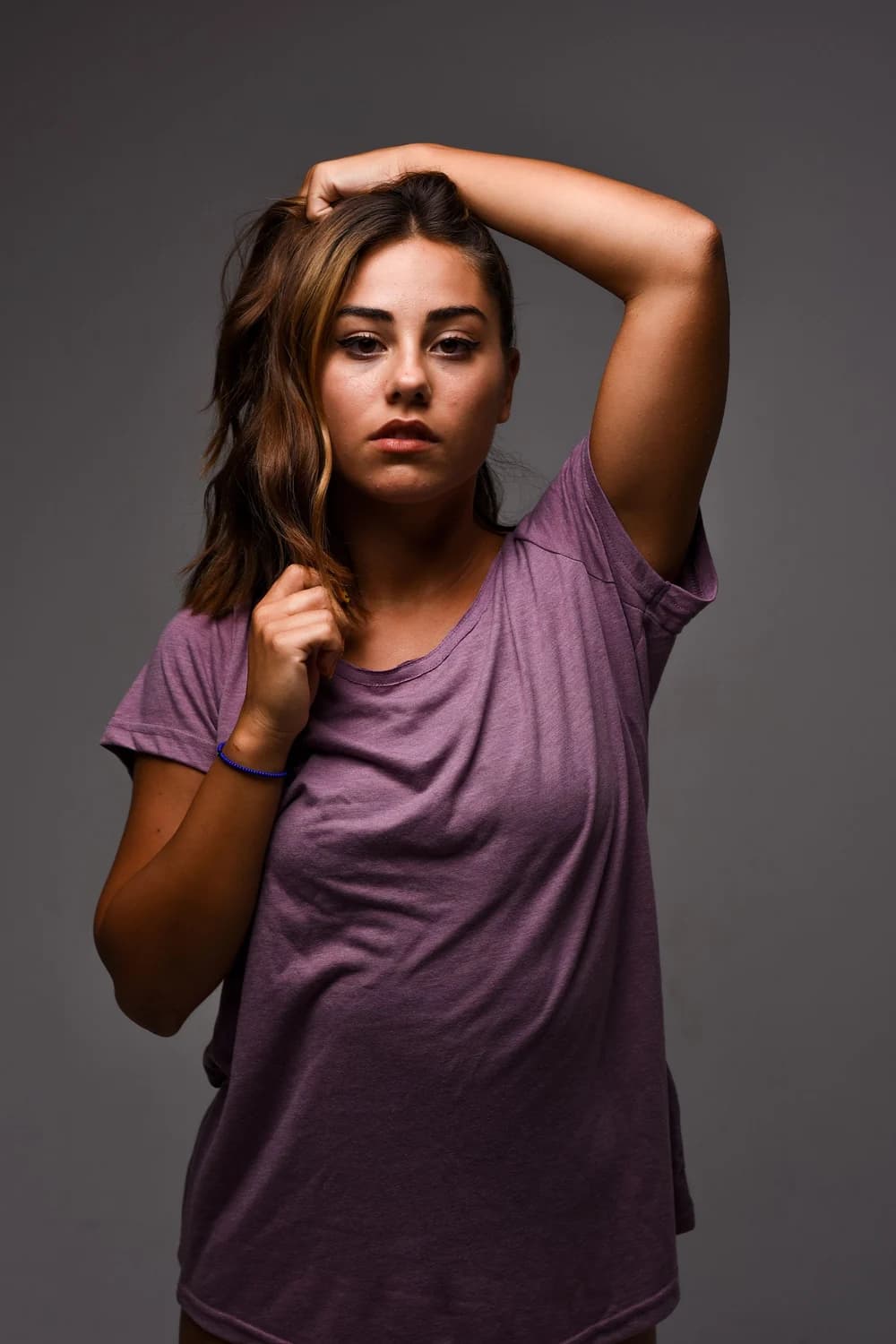
The Casting Triptych Skill transforms one uploaded portrait into three equal vertical frames on a 9:20 canvas, with blank space at the top reserved for your lock-screen clock, so you get a cohesive triptych wallpaper without overlapping text. In the reviewed before-and-after pair, the source is one front-facing portrait with visible facial proportions, shoulder-length highlighted hair, a purple shirt, and a blue wrist band.
Real Source and Result Verification
The published before-and-after pair shows a clear, observable set of changes and consistencies. The original source is a single front-facing portrait that includes distinct facial proportions, shoulder-length highlighted hair, a purple shirt, and a blue wrist band. The generated result arranges exactly three equal vertical frames on a 9:20 canvas, with a large blank area at the top for the lock-screen clock. Each frame shows a similar-looking person facing left, front, and right respectively, with consistent shirt color, similar hair mass, a uniform gray backdrop, matching crop framing, and the same direct-flash lighting treatment across all three panels. The side-facing frames and their expressions are new generated interpretations that do not match the exact biometric detail of the original front-facing source photo.
Step-by-Step Workflow
- 01
Open the Published Casting Triptych Skill
Open the public Skill at /skills/casting-triptych and review its sample source and result. Check the three-frame portrait arrangement, neutral background, direct-flash look, and blank upper area so you understand the output structure before providing your own portrait.
- 02
Upload Your Single Source Portrait
Select one clear front-facing portrait as your source image. For best results, choose a photo that shows your full face, visible upper body, and no heavy obstructions over your features. The Skill is designed to work from one single portrait input, so you do not need to upload multiple reference photos or additional assets to complete the transformation.
- 03
Run the Transformation and Save Your Accepted Result
Start the generative transformation and wait for the process to complete. Once the result loads, review it carefully before saving. If you are satisfied with the output, save the final triptych wallpaper to your signed-in Imagild Library, where it will be stored for the platform's stated retention period so you can access it later for download and use on your device.
Key Pre-Use Decisions
- Choose What Visual Details You Want to Keep Consistent
- Before you upload, decide which elements of your source portrait matter most to you for the final triptych. The published sample shows consistent shirt color, similar hair mass, uniform backdrop, and matching direct-flash treatment across all three frames, so prioritize a source photo where those elements are clearly visible if you want them carried through the transformation.
- Understand That Side Views Are New Interpretations
- Accept that the left-facing and right-facing frames are new creative interpretations, not biometric reconstructions of the person from those angles. Expressions, fine facial details, and pose alignment in the side views may differ from the front-facing source, so compare every frame before use.
- Verify Clock Space and Frame Balance Before Export
- After your result generates, check two critical details before you save it to your library. First, confirm that the top blank area is large enough to fully contain your lock-screen clock and standard widgets without overlapping any of the three portrait frames. Second, confirm that all three vertical frames are evenly sized and spaced to create the balanced triptych look you want for your wallpaper.
Official sources checked
Frequently Asked Questions
Can I use this Skill to make a triptych wallpaper from a group photo or a pet portrait?
The published Casting Triptych Skill sample uses a single individual front-facing human portrait as its source. There is no confirmed support for group photos, pet portraits, or other non-human subjects, so you may get inconsistent framing, unexpected subject rendering, or unbalanced frame geometry if you use an unsupported source type.
Will the generated side-facing frames look exactly like me from those real-life angles?
No. The side-facing frames are creative generative interpretations, not accurate biometric records of how you would appear if you turned your face to the left or right in the original source photo. Fine facial structure, exact expressions, and small details from the original photo may shift or change in the new generated views.
How do I set my finished triptych as my iPhone lock screen wallpaper?
Once you have downloaded your saved result from your Imagild Library, you can follow the official steps published by Apple Support to change and customize your iPhone wallpaper. The 9:20 canvas aspect ratio is designed to fit modern iPhone screen dimensions, and the dedicated top blank area helps ensure your lock-screen clock does not cover any part of your three portrait frames.