Stitched Landscape Diptych
Turn a Landscape Photo Into a Stitched Fabric Collage Diptych
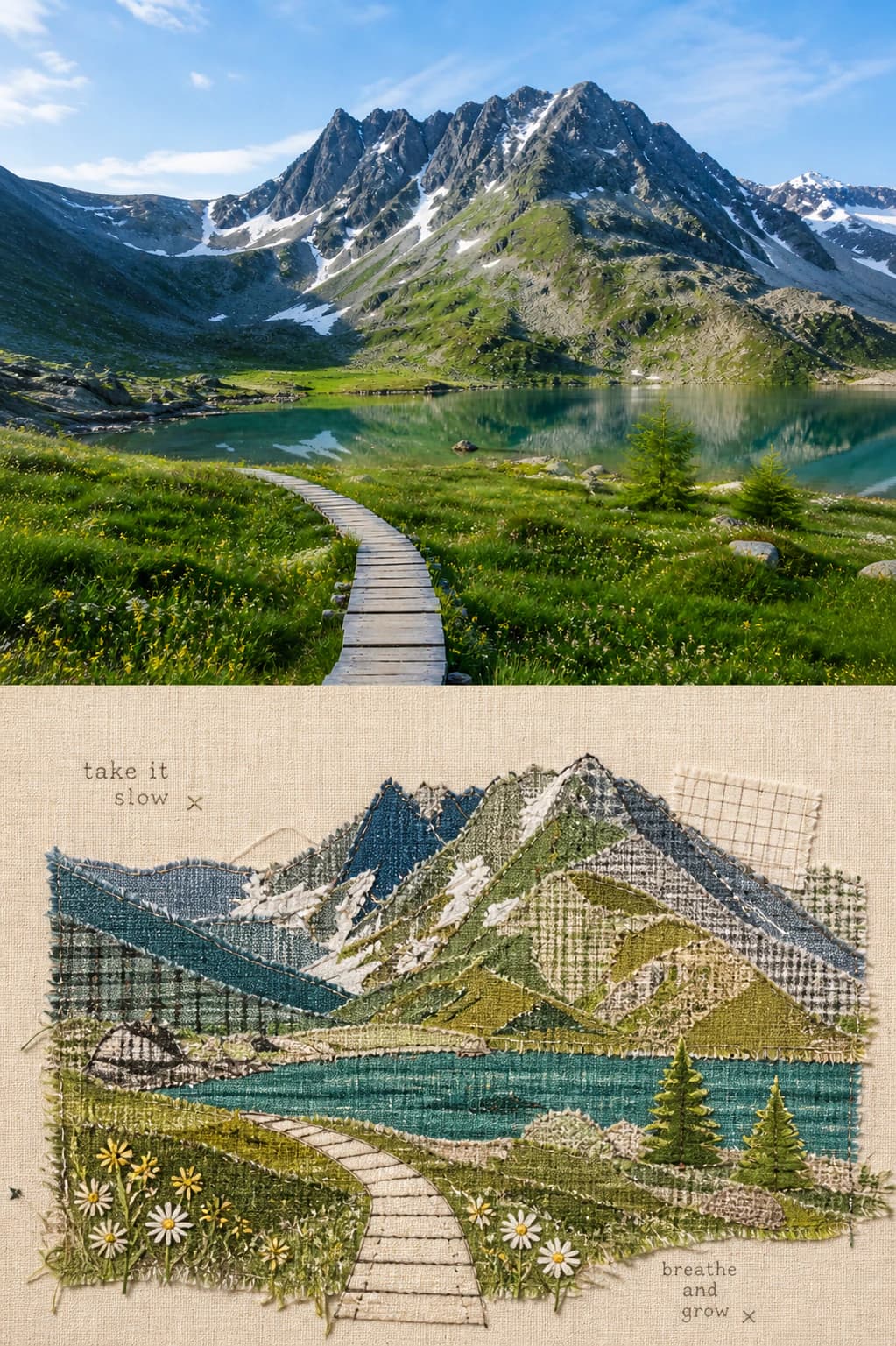
This Skill splits your landscape photograph into a two-panel diptych that keeps the upper half of your original photo untouched while reimagining the lower half as a layered patchwork of distinct fabric pieces, complete with visible stitch lines, woven grain, and subtle decorative details that read like a hand-assembled textile artwork rather than a physical sewing pattern or fabrication file.
Fast Walkthrough
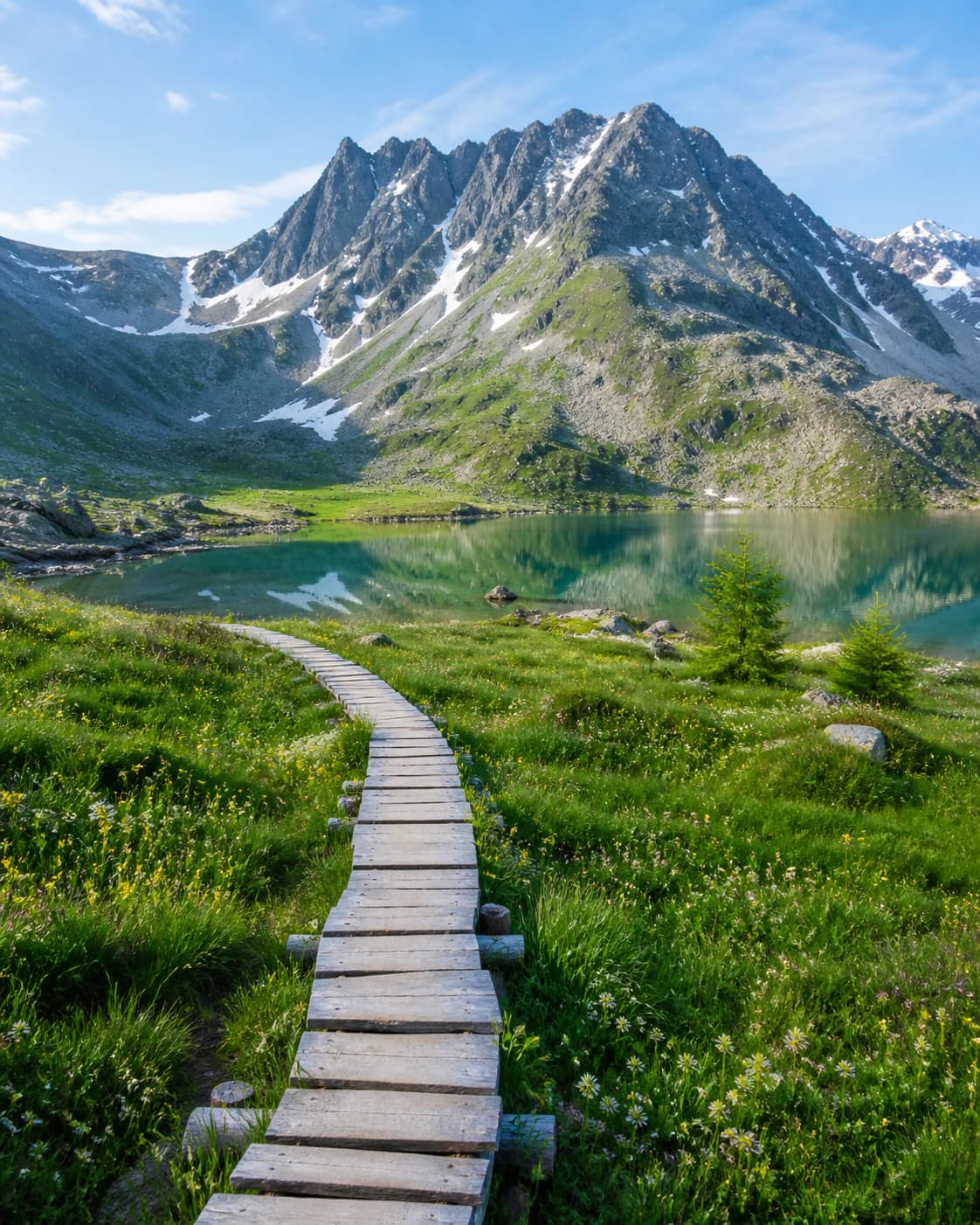
Upload your landscape photo to the Stitched Landscape Diptych Skill, run the transformation, and review the generated raster diptych to confirm your core geographic features are preserved before saving to your Imagild Library. In the reviewed before-and-after pair, the source is a vertical alpine landscape with a wooden boardwalk entering from the lower edge, blue-green lake water, dark evergreen bands, jagged snow-marked peaks, and open sky.
Verified Before-and-After Comparison
The reviewed source image is a vertical alpine landscape with a wooden boardwalk entering from the lower edge, blue-green lake water, dark evergreen bands, jagged snow-marked peaks, and open sky. The corresponding generated result retains the complete original photograph in the upper half of the diptych, and reconstructs the entire lower half using visibly separate fabric pieces for the lake surface, mountain ridge, walking path, scattered wildflowers, and fir trees. The source's original depth order and the directional line of the boardwalk are clearly preserved, while new editorial additions including running stitch lines, woven fabric grain texture, small daisy motifs, and generated English text phrases appear only in the fabric collage section. The final output is a raster image, not a physical quilt, paper cutting template, machine embroidery file, or verified transcription of any text that may have appeared in your original source photo.
Step-by-Step Workflow
- 01
Open the Stitched Landscape Diptych Skill
Navigate directly to the public Skill at /skills/stitched-landscape-diptych on the Imagild web platform. You can browse the published sample before-and-after pair on the Skill landing page to confirm the visual direction matches what you want to create, no account required to preview the transformation style. If you are signed in, you can immediately move to the input stage without extra navigation steps.
- 02
Upload your landscape source photograph
Select a landscape photo where the core place-defining features you want to keep are clearly visible: a distinct shoreline, boardwalk or trail line, recognizable mountain ridge, continuous tree band, and open sky work best for this specific diptych format. The Skill is designed for landscape imagery, so photos focused on close-up subjects, indoor scenes, or heavily cropped details are less likely to produce a coherent fabric collage that preserves your intended geographic structure.
- 03
Run the transformation, review, and save
Start the generative Skill to produce your diptych. Once the result loads, compare it side by side with your original source to verify that the upper half of the diptych matches your original photo and that the lower fabric collage half retains the correct depth order and directional flow of your scene. If you are satisfied with the output, save it to your signed-in Imagild Library where it will remain stored for the platform's stated retention period.
Key Pre-Use Decisions
- Choose which core geographic features you need to preserve
- Before you upload your photo, identify the non-negotiable place-defining elements that made you capture the original shot: this could be the exact curve of a lake edge, the specific angle of a boardwalk leading toward the water, the unique jagged shape of a distant mountain ridge, or the layered band of evergreen trees between the shore and the peaks. Having these features clearly in mind makes your post-generation review much faster and helps you decide if a result is worth keeping.
- Accept that decorative editorial additions will appear in the collage half
- Understand that the generated lower half of the diptych will include intentional added details that were not present in your original photo: visible stitch lines between fabric patches, simulated woven fabric grain, small daisy or wildflower motifs, and short generated English text phrases. These details are part of the textile collage aesthetic and are not errors, but you should inspect them to confirm they do not obscure any of the core geographic features you wanted to preserve.
- Verify that the output is a raster image, not a fabrication-ready file
- This Skill produces a finished visual artwork as a standard raster image, not a usable physical sewing pattern, quilt cutting template, digital embroidery file, or any other file type that can be sent directly to a fabric cutter or embroidery machine. If you intend to turn the final diptych into a physical textile project, you will need to create your own separate fabrication assets from the exported raster image, as no production-ready sewing data is embedded in the generated result.
Official sources checked
Frequently Asked Questions
Will this Skill turn my entire original photo into a fabric collage?
No, the published Stitched Landscape Diptych Skill is designed to keep the full original photograph intact in the upper half of the two-panel layout, and only reimagines the lower half of your scene as the layered stitched fabric patchwork. This split structure creates the deliberate diptych effect that contrasts your real photographic memory of the place with the tactile, handmade collage interpretation of the foreground landscape.
Can I use the public photo workbench to refine my diptych after generation?
Yes, once you have saved your generated diptych to your Imagild Library, you can open it in the /editor photo workbench. There you can apply reversible adjustments including exposure, contrast, saturation, warmth, sharpness, and grain, use free crop to adjust the diptych framing, or use the controlled AI object removal tool to erase any stray stitch lines or decorative elements that you do not want to appear in your final exported artwork.
What should I do if the generated lower half does not preserve my original scene's depth order correctly?
If the fabric collage section rearranges your foreground, midground, and background elements in a way that breaks the recognizable geography of your landscape, return to the original source photo and make a small adjustment in the workbench such as straightening a tilted horizon or boosting the contrast between your lake and tree bands before running the Skill again. A second generation will produce a new independent result that may align more closely with the geographic structure you want to retain.