Torn Axis Study
Torn-Paper Landscape Diptych Guide: Keep a Truthful Photographic Upper Field
This step-by-step guide walks you through using the Torn Axis Study Skill to turn a single vertical landscape photo into a two-part torn-paper diptych, where the upper section stays close to your original photograph and the lower section reinterprets the scene as a delicate, memory-inspired arrangement of shapes on warm ivory paper.
Quick Answer
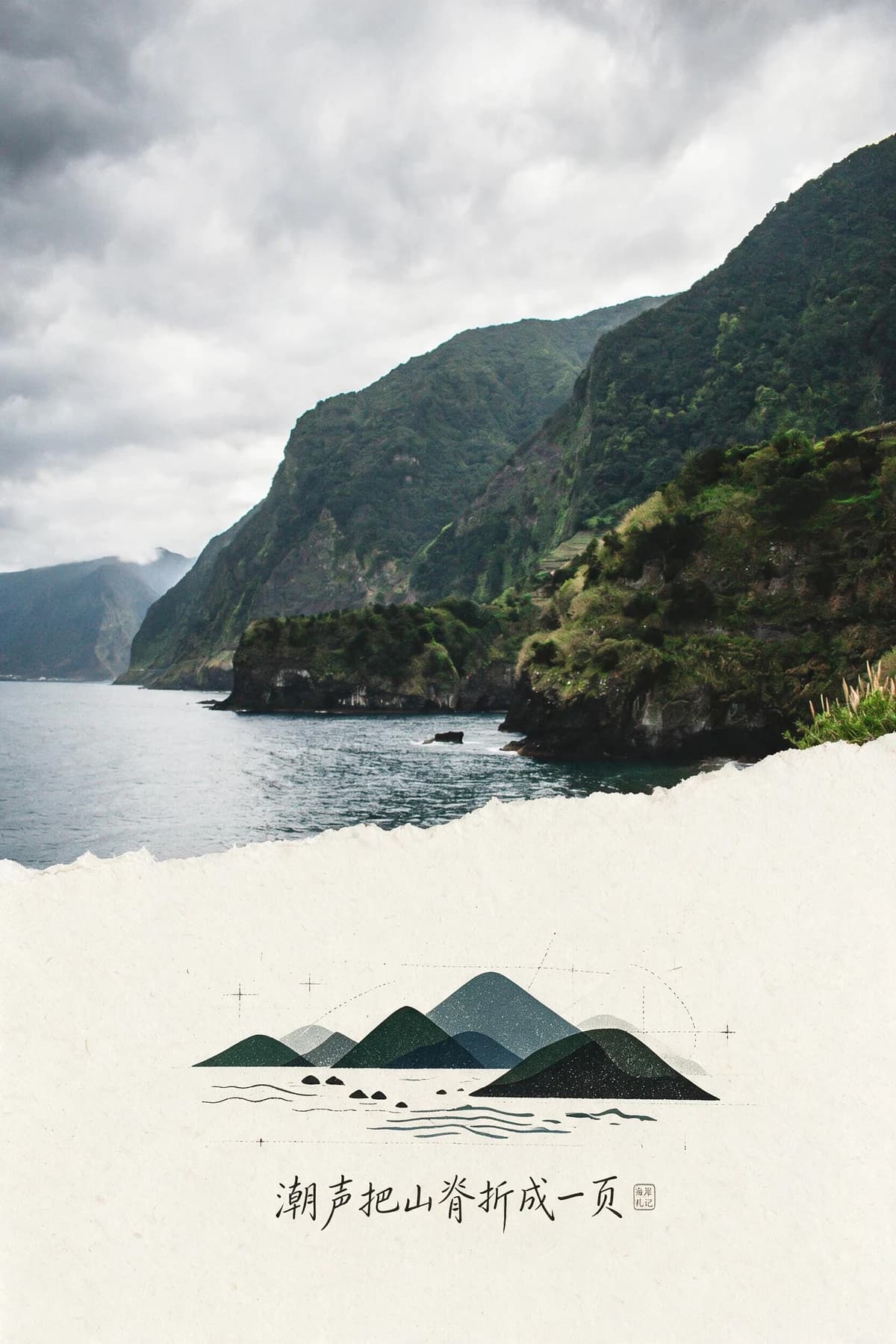
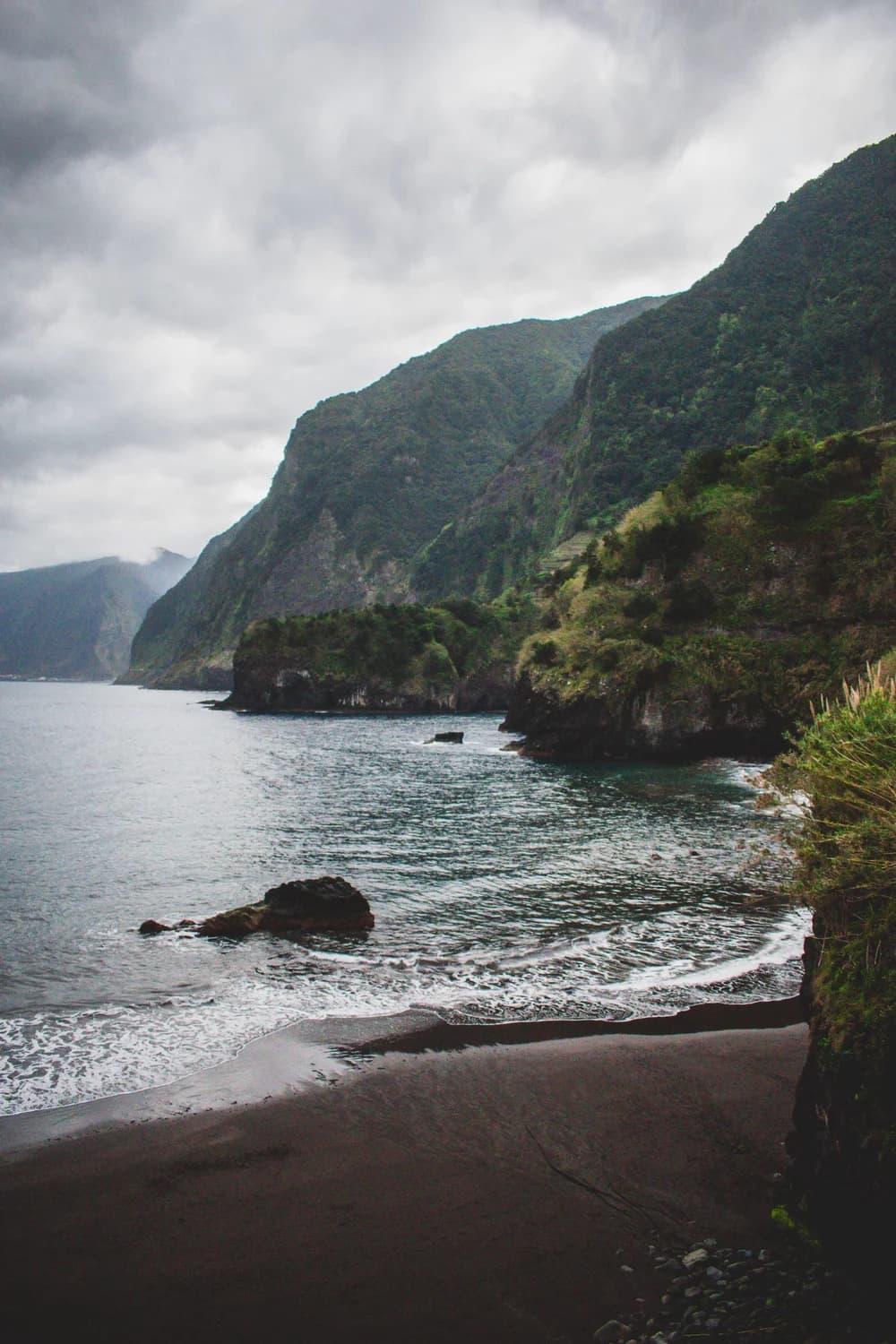
To make a torn-paper landscape diptych with a truthful upper field, open the Torn Axis Study Skill, upload your vertical landscape photo, run the transformation, and review the output to confirm the split and generated details match your intent. In the reviewed before-and-after pair, the source is a vertical coastal landscape with a dark mountain mass on the right, water on the left, a curved beach, and a cloudy sky.
Verified Before-and-After Evidence
The official source image is a vertical coastal landscape with a dark mountain mass on the right, calm water on the left, a curved sandy beach, and a layered cloudy sky. The published result retains the full upper coastline as a recognizable, photographically faithful section, introduces a soft, irregular torn boundary that does not follow a straight geometric line, and reworks the entire lower portion of the scene into small, overlapping simplified mountain, shore, and wave shapes set against a flat ivory paper background. Decorative generated lettering appears below the abstract lower motif in the example output, and its exact wording does not match any text that existed in the original source photo.
Step-by-Step Workflow
- 01
Open the Torn Axis Study Skill in Imagild
Navigate directly to the public Skill path at /skills/torn-axis-study from any signed-in Imagild session. You do not need to configure any extra tools or edit hidden settings to use this published generative Skill. Once the Skill loads, you will see the official before-and-after sample pair displayed on the page to reference before you add your own source photo.
- 02
Upload your vertical landscape source photo
Select a vertical landscape image that includes a clear upper sky or distant horizon section and a distinct lower foreground area such as a shoreline, meadow, or tree line. The example source uses a coastal scene, but you can test other vertical landscape subjects as long as the composition has a natural visual split between upper and lower zones. Avoid heavily cropped horizontal photos that leave no room for the two-part diptych structure to form clearly.
- 03
Run the transformation and review your output
Start the generative transformation and wait for the Skill to generate your result. Once the output loads, compare it side by side with your original source photo. If the result aligns with your creative intent, save it to your signed-in Imagild Library for the platform's stated retention period so you can return to it later for final checks or export.
Key Creative Decisions to Make Before You Start
- Choose which part of your photo stays truthful
- Decide in advance that you want the upper field of your landscape to remain the recognizable, photographically faithful section. This choice means you will prioritize keeping the sky, distant mountains, or far coastline intact, while accepting that the lower foreground will be reimagined rather than copied exactly. If you pick a source photo with a busy, highly detailed lower section, the abstract reinterpretation will feel more distinct from the realistic upper zone.
- Accept that the lower section becomes a memory motif
- Understand that the lower part of your image will not stay photographically precise. Instead, it will be summarized into small, overlapping shapes that reference the colors and general forms from your original photo, placed against a neutral ivory paper background. This deliberate shift away from full realism creates the diptych's contrast between clear present-day observation and soft, partial memory.
- Plan to verify all generated text before export
- The official example includes decorative generated writing below the abstract lower motif. Generated lettering may be meaningless, misspelled, or different from your intended message. Inspect every visible character, and if exact wording matters, add verified lettering separately after export.
Official sources checked
Frequently Asked Questions
Can I use a non-landscape photo like a portrait or close-up still life with this Skill?
The published sample and workflow are designed for vertical landscape photos with a clear upper and lower visual split. If you test a portrait or close-up image, the generative transformation may not produce the distinct two-part torn-paper diptych effect shown in the official example, and the boundary between the realistic and abstract sections may feel unbalanced or unclear.
What should I do if the torn boundary in my result looks too straight or too messy?
The torn edge may vary between generative results. Compare its position and shape with the landscape features you wanted to retain; if the boundary cuts through an important subject or looks unnatural, reject that result and consider another run subject to your account availability.
Does this Skill change the colors of my original photograph in the upper truthful section?
The official sample result preserves the recognizable color palette of the original coastal landscape in the upper photographic section, with colors derived directly from the source image. Minor tonal shifts can happen as part of the generative process, so you should compare your output to your original photo to confirm the upper section colors stay true to what you wanted to retain.