Guide
Make an Architecture Poster With Typography Behind the Building Using Type Monument
Type Monument is a published Imagild Skill that turns a single building photo into a tall poster where large text sits behind the architecture rather than overlapping and obscuring its most important details. This guide walks you through the exact workflow, what stays intact from your original shot, what changes to create usable copy space, and the critical checks you need to run before you finalize your poster for sharing or print.
Quick Answer
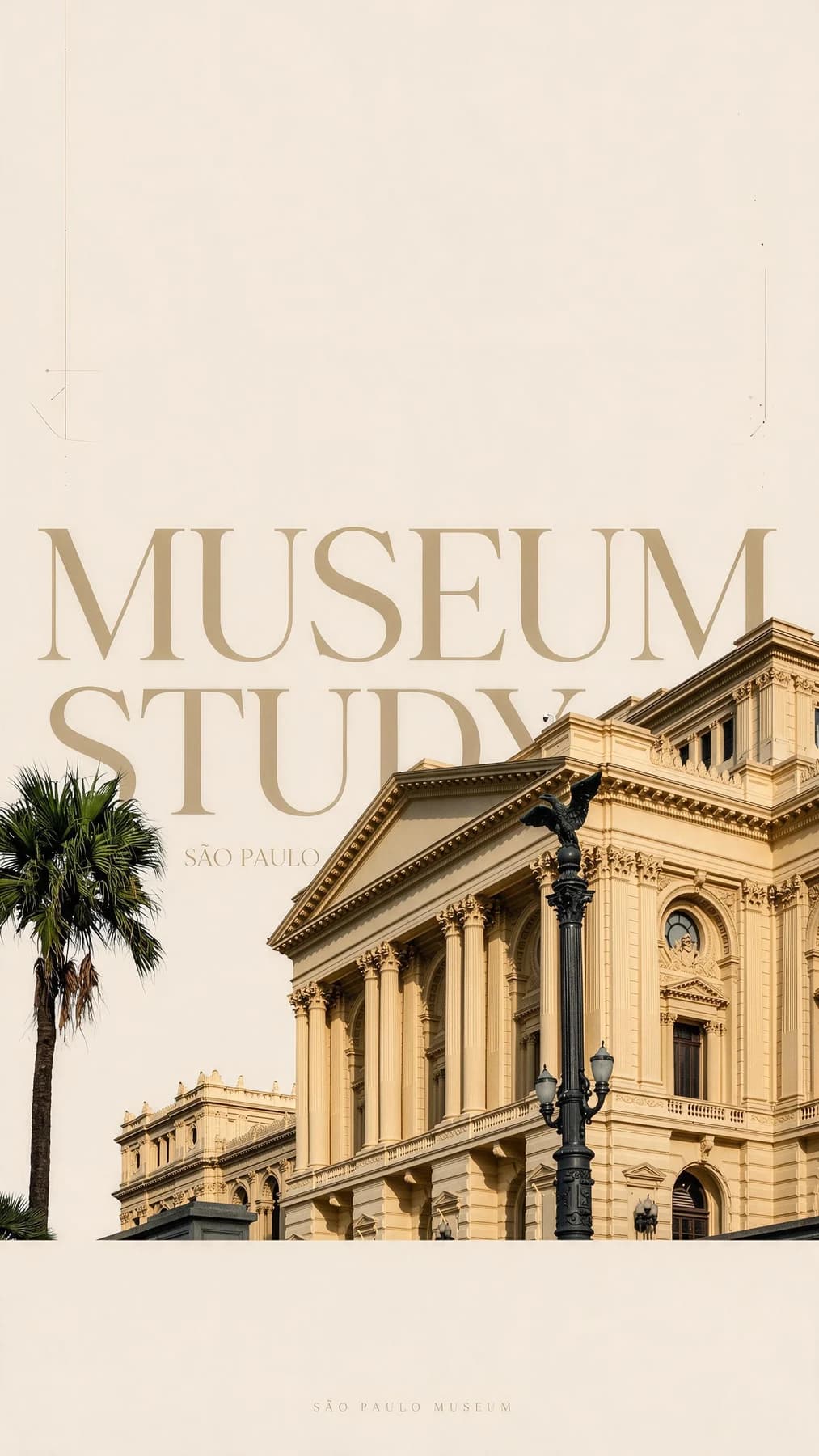
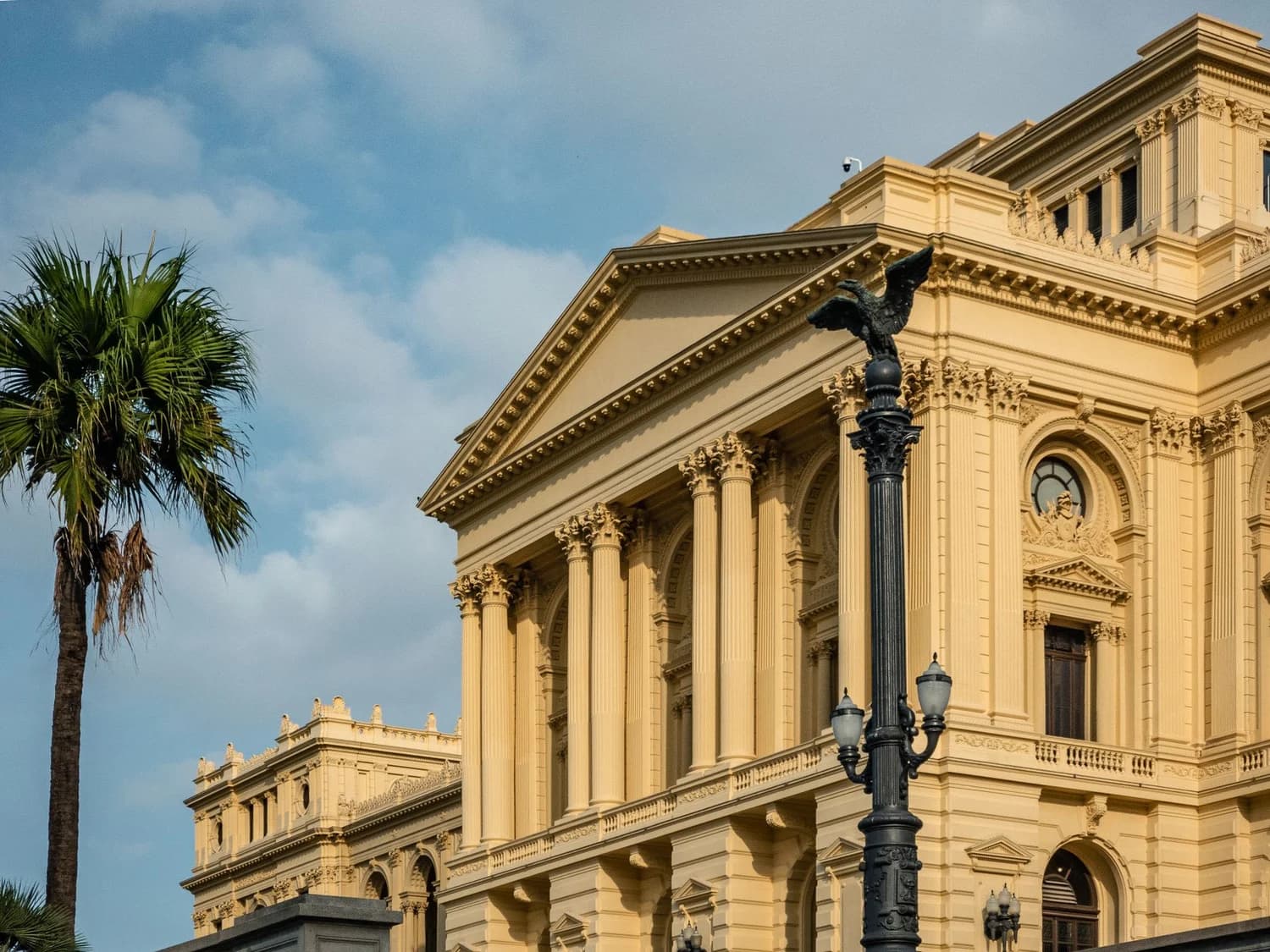
Type Monument shifts your building lower in a tall off-white poster, places large typography behind its edges, and preserves key foreground and background details so you get a clean architecture poster without text covering the façade. In the reviewed before-and-after pair, the source has one dominant neoclassical building, a palm on the left, a dark lamppost in front, and broad blue-sky copy space.
Real Source and Result Proof
The original source photo shows one dominant neoclassical museum building in São Paulo, a palm tree on the left edge, a dark lamppost positioned in front of the structure, and broad unobstructed blue-sky copy space above the roofline. The published Type Monument result preserves the original façade perspective, every visible column, the full defined roofline, the palm tree on the left, and the dark lamppost in the foreground, while repositioning the entire building lower inside a tall off-white poster canvas. Large capitalized MUSEUM STUDY lettering sits behind the architectural edges, and the sample result includes a secondary São Paulo location line that appears integrated into the background area rather than printed directly over the building's surface.
Step-by-Step Workflow
- 01
Open the Type Monument Skill
Navigate directly to the public Type Monument Skill at /skills/type-monument from Imagild's Skill directory. You can review the published source and result pair on the Skill landing page before you begin, to confirm the transformation direction matches what you want for your own architecture photo. No additional setup or custom configuration is required to run the published Skill.
- 02
Upload your source building photo
Upload a clear photo that features one dominant building with distinct architectural edges and open sky or empty space above the roofline. Photos with a single main structure, visible foreground details such as trees or street fixtures, and uncluttered upper space work best for this specific transformation. Avoid heavily cropped shots where the building fills the entire frame with no room for the poster layout to expand.
- 03
Run the Skill and review your output
Start the generative transformation and wait for your result to load. Once it appears, compare it side by side with your original source photo to confirm the elements you care most about are still present. If you are satisfied with the output, save the accepted version to your signed-in Imagild Library, where it will remain stored for the platform's stated retention period for later access, export, or further use.
Key Decisions Before You Run the Skill
- Choose which elements you want to keep intact
- Before you upload your photo, decide which specific details are non-negotiable for your final poster. These might include the building's exact perspective, decorative columns, foreground trees, street lamps, or a recognizable skyline feature. Having this list ready makes it much faster to compare your output against your priorities once the Skill completes, so you do not accidentally save a result that omits a detail you wanted to preserve.
- Plan your text content carefully before finalizing
- The generated poster will include integrated typography, but you are responsible for supplying the correct names, location lines, and descriptive text you want to appear in the final design. Generated lettering can contain unexpected spelling errors, misaligned characters, or incorrect location names even when the sample result looks polished. Never assume the text is accurate without reading every word closely.
- Account for the tall poster aspect ratio
- Type Monument produces a tall vertical poster layout that moves the building lower on the canvas. If you intended to use your final asset for a square social media post or a standard landscape print, you will need to plan for additional cropping or layout adjustments after you export your file. There is no separate control to lock a different aspect ratio within this published Skill, so confirm the tall format works for your intended use case before you invest time in refining your text.
Official sources checked
Frequently Asked Questions
What types of source photos work best with Type Monument?
Photos that feature one clearly dominant building with distinct architectural edges, open uncluttered sky above the roofline, and visible foreground details such as trees, lampposts, or sidewalk fixtures produce the most consistent results. Shots where the building is partially blocked by large crowds, dense foliage, or multiple competing structures are less likely to produce a clean, readable poster where the typography sits naturally behind the architecture.
Can I edit or reposition the text after the Skill generates my poster?
The published Type Monument Skill produces a completed generative poster as a single transformed image. There is no built-in interface for selecting, moving, or editing individual text elements directly inside the Imagild platform after the transformation runs. If you need to adjust wording, fix a spelling error, or reposition a specific line of text, you will need to make those changes in a separate image editor after you export your final file from your Library.
What should I do if the generated result does not preserve a detail I wanted to keep?
If a key element from your original photo is missing or altered in a way that does not match your goals, you can return to the Skill landing page, re-upload your original source photo, and run the transformation again. Each generative run can produce a slightly different output, so a second attempt may return a version that retains the specific detail you were hoping to keep. You can compare every new result against your original source before you decide which version to save to your Library.