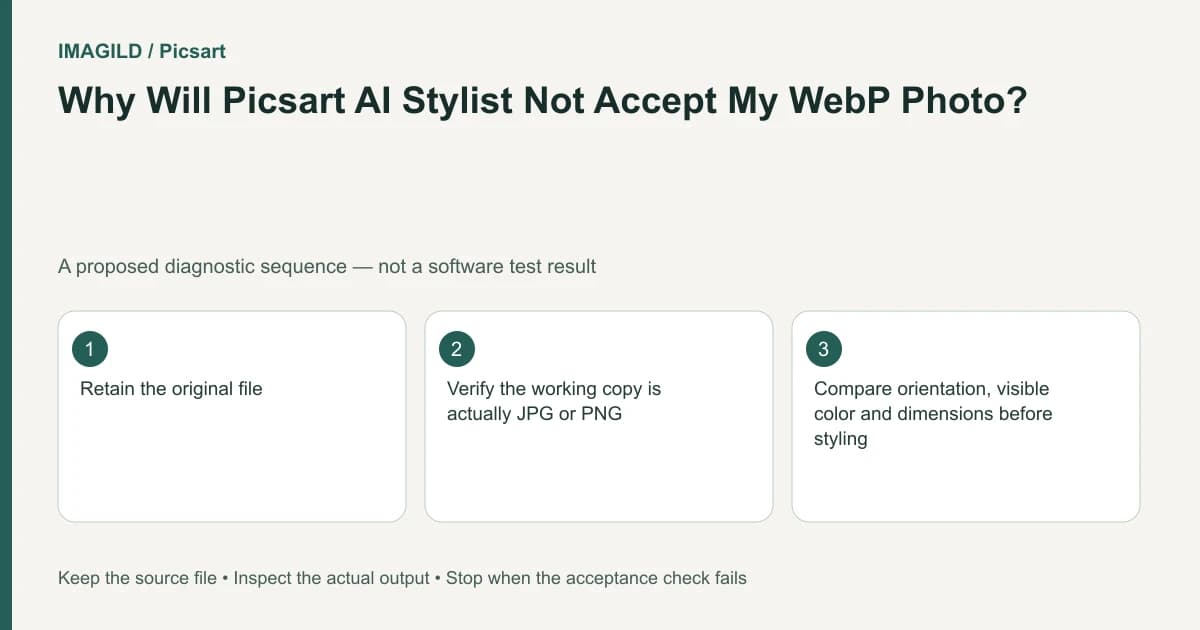
Create a genuinely encoded JPG or PNG working copy before uploading to Picsart AI Stylist. Its help page excludes WebP and AVIF. Renaming a filename from .webp to .jpg does not convert its contents, and an accepted upload still needs an orientation, color and identity check before styling.
Confirm that the rejection is about the input file
Retain the original download. Note the filename, extension, dimensions and where it came from. If a browser saved an image as WebP, that is useful evidence; it is not a reason to overwrite the only copy with a lower-quality conversion.
Open the file in a trusted local image application that can read its actual format. A filename is only a label. If the extension and the application's reported format disagree, use the reported encoding to choose the next action. Do not keep changing extensions until an upload dialog stops complaining.
The AI Stylist instructions specifically identify JPG and PNG as supported inputs and say AVIF and WebP are not supported. They also recommend a clear, well-lit photograph. A compatible container does not make an unreadable or poorly lit face suitable.
Export a separate compatible copy
Use your image application's export or save-as function to select JPEG or PNG. Give the copy a new filename that preserves the relationship to the original, such as portrait-source and portrait-stylist-input. Keep the original format available for a later workflow that supports it.
Reopen the exported copy before uploading. Check that its displayed orientation matches the source, its full dimensions are retained unless you deliberately resized it, and its visible colors remain acceptable. If the source has transparency, inspect how the chosen export treats that area. A dark or light replacement background can affect the apparent silhouette.
For an ordinary opaque photograph, the choice between JPEG and PNG is a delivery decision rather than an AI quality guarantee. The JPEG, PNG and WebP comparison explains the format distinction. Do not add multiple lossy conversions merely to make a file look more compatible.
Use a conversion-only pilot
Imagine an authorized portrait downloaded from a website as WebP. The person is wearing a red scarf and looking slightly to the left. The proposed pilot has two acceptance stages: first confirm the converted input, then evaluate the styled output. Mixing those stages can hide where a defect appeared.
Before opening Stylist, compare the original and converted images side by side. Confirm the scarf hue, direction of the gaze and visible crop. Then upload only the verified copy. If the upload succeeds, record that fact without claiming the subsequent styling will preserve every feature.
| Stage | Inspect | Meaning of a failure |
|---|---|---|
| Local reopen | Encoding, dimensions and orientation | Repair the conversion first |
| Upload | The supported copy is accepted | Investigate upload/environment if rejected |
| Style result | Identity, pose, clothes and background | Evaluate the generative transformation separately |
| Downloaded result | Actual saved image opens correctly | Investigate the delivery artifact |
This is a suggested procedure, not an observed comparison performed by Imagild. Use it to isolate one cause at a time instead of assigning every difference to the original format.
Do not mistake compatibility for a preservation mode
AI Stylist is a whole-look tool. If the goal is only to change the scarf while retaining the pose and room exactly, a compatible JPEG does not make that broad transformation local. Decide the edit scope before spending generation credits.
The AI Replace documentation describes a selected-area route in the mobile app. The separate web Flow documentation describes Inpaint. These are alternatives to investigate for a localized request, not evidence that any selection workflow guarantees unchanged pixels outside the edit under every condition.
For identity-sensitive work, write a protected-feature list before generating. Include facial structure, age presentation, accessories and background details relevant to the purpose. If a professional or official use requires an accurate representation, reject a result that changes those facts regardless of whether the upload was technically successful.
The natural portrait review checklist helps keep visual acceptance separate from file acceptance. A successful import should never be the only reason to approve a portrait. Use the concept, content and master approval distinction when a customer approves the styling idea but still needs to approve the converted source and final portrait separately.
Escalate an accepted-format failure precisely
If a JPG or PNG still fails, retain the error text, device, application version, approximate time and the verified input's format and dimensions. Do not invent a file-size limit that the cited Stylist documentation does not state. Check the controls and current provider guidance available to your account.
Try a non-sensitive representative photo only if you have permission and the extra upload is justified. If that succeeds while the original does not, report the difference without assuming the cause. Remove private metadata from any support example where appropriate, while keeping the diagnostic file properties needed to explain the issue.
The task ends with a supported working copy that uploads, looks correct before generation and has a separately reviewed result. Keep both source and working copy until the final deliverable is accepted. That preserves a clean path back if another editor or future task needs the original WebP or AVIF.
Prepared by Imagild Editorial. AI assisted research and drafting. Documentation checked on 4 November 2026; examples and checks above are proposed, not claims of hands-on software testing. Report a correction.