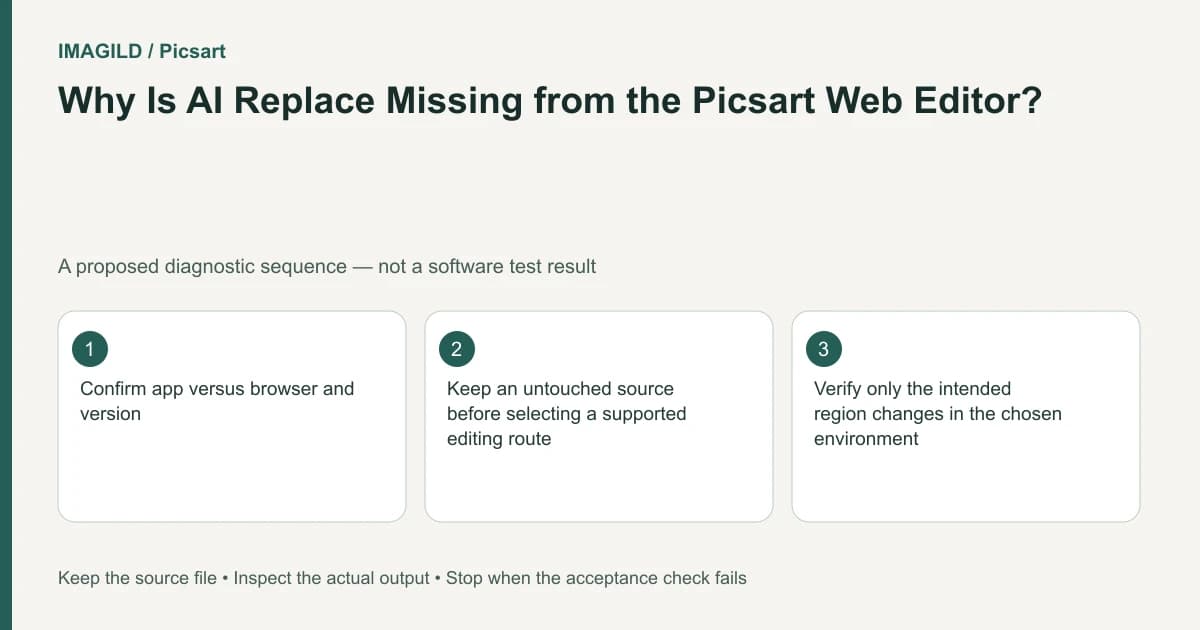
The documented Picsart AI Replace tool is in the iOS and Android app. If you are in a browser, first confirm the environment rather than searching indefinitely for an identical button. A selected-area edit in web-based Flow is a separate route, with its own controls and output.
Identify the task before changing applications
Write down what must change and what must remain. Replacing a cup on a table is different from extending the table beyond the current frame. The first task requires a local selection; the second requires additional canvas content. An absent button cannot tell you which route your photograph needs.
In a hypothetical bakery image, the owner wants a red mug replaced with a plain blue mug while preserving a plate logo and the window reflection. The acceptance condition is not simply a blue object appearing somewhere. Its position, overlap with the plate and relationship to the existing shadow must remain plausible. This is a proposed test, not a result obtained from Picsart.
Check whether you opened the installed Picsart application or a website tab. Record the operating system and app version. A desktop shortcut can open a website, so a familiar icon is not sufficient evidence. Keep the original photo outside this experiment and give the working copy a distinct name.
Choose one supported selected-area route
Picsart's AI Replace instructions identify the mobile application and describe opening a photo, choosing AI Replace, brushing an area and supplying the intended replacement. Follow the controls in your current version; the documented sequence allows version differences.
If you must remain in a browser, read the separate Flow workflow documentation. Flow provides Inpaint as a selected-area operation. Do not expect a mobile toolbar layout inside a node canvas, and do not infer that every subscription or feature is interchangeable across these environments.
For the bakery test, choose the environment you can actually access. Select the mug with enough coverage to include its current outline, but avoid painting the plate's logo. Describe one replacement with a clear material and color. Avoid combining the replacement with a new room, camera angle and lighting overhaul; those make it harder to identify whether the selection boundary worked.
Run a bounded region comparison
Before generating, save a reference view showing the selected area and three protected landmarks: the plate logo, the window edge and the table corner. This reference can be a local screenshot used for your own review. It is not a product performance measurement.
Inspect the generated version alongside the source at the same displayed size. First check the whole composition. Then inspect the mug's contact with the table and the protected details. A visually attractive mug does not pass if the logo has become unreadable or the window geometry has changed.
Use this decision table to separate problems:
| Observation | Likely next investigation | Do not conclude |
|---|---|---|
| The tool is absent in a browser | Check the mobile versus Flow route | The photo is corrupt |
| The wrong object changes | Review the selection and active input | All local editing is unavailable |
| The mug changes but a logo also changes | Narrow the edit or use another method | A good-looking subject proves preservation |
| The required space lies outside the photo | Review expansion instead | A larger brush creates new canvas |
For adjacent-mask problems, use the more general controlled AI selection checklist. When a soft selection touches another object, the mask spill guide explains a different boundary to inspect. Those articles do not establish where Picsart places its controls.
Separate replacing an object from adding missing scene area
The AI Expand guide describes adding generated content around an existing photo. That makes it relevant when the actual request is extra room for a label or a wider crop. It is not a promise to restore hidden physical objects accurately.
If the bakery owner wants both a new mug and empty space for a price, handle these as separate approval decisions. Approve the local object edit first, then inspect the framing operation independently. This makes it possible to reject a problematic expansion without losing the approved replacement.
Choose a manual or compositing workflow if the logo, product dimensions or legally significant details require exact preservation that the selected AI route cannot demonstrate. Stop after a rejected pilot rather than buying repeated generations without changing the diagnostic conditions.
Keep a useful support record
If the supported mobile tool is still missing, record the exact app version, device, entry screen and time. If an edit fails, retain the prompt, original, selection reference and rejected output. Send only material you are allowed to share through the provider's support process. Never attach account passwords.
The task is complete when you have either an approved local change in a supported environment or a clear reason to choose a different workflow. It is not complete merely because you found a similarly named AI feature. For planning a different photo task, the photo workflow chooser provides a broader starting point.
Prepared by Imagild Editorial. AI assisted research and drafting. Documentation checked on 4 November 2026; examples and checks above are proposed, not claims of hands-on software testing. Report a correction.