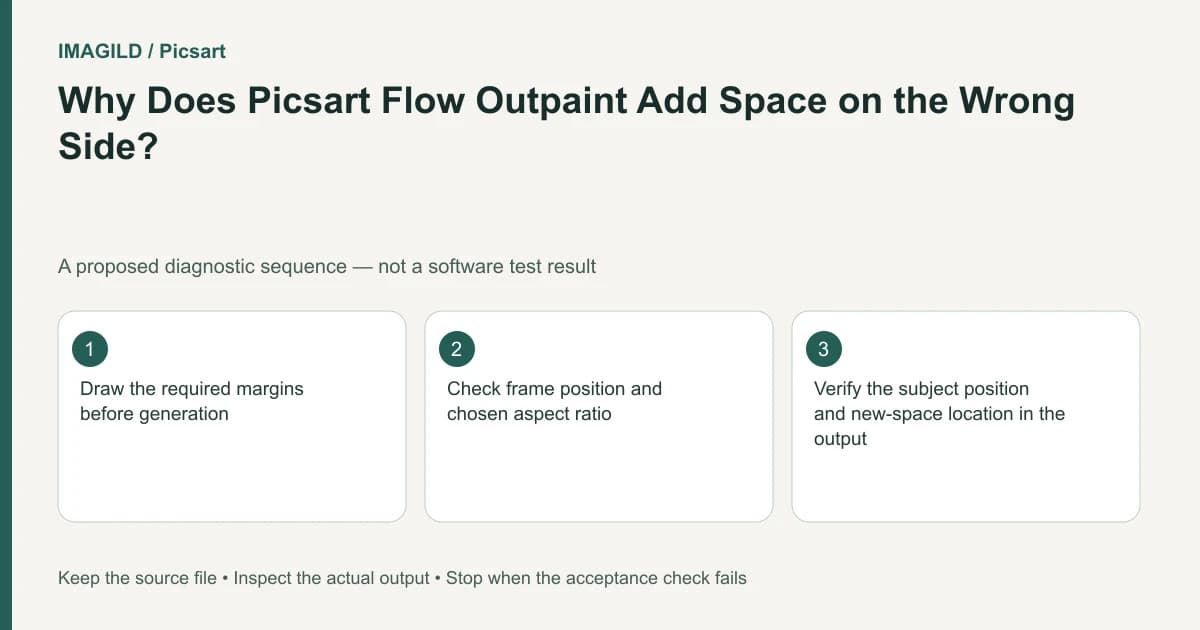
Inspect the Outpaint frame's position as well as its ratio. Flow lets you resize the frame and move it to choose where the new area appears. If the subject needs empty space on one side, confirm that geometry before another run; a wider ratio alone does not specify the correct side.
Translate the layout into measurable geometry
Write the delivery requirement in ordinary layout terms. Which edge needs space, what must fit there and where should the original subject remain? “Make it wider” is insufficient when a poster needs a caption beside a face rather than above it.
Consider a hypothetical landscape portrait for a newsletter header. The person must stay on the left because a two-line headline occupies the right. The approved target is a wide header with quiet space beside the person's right shoulder. This is a proposed layout exercise, not a completed Flow experiment.
Make a rough sketch showing the original image rectangle, the target outer rectangle and the headline block. Keep the sketch outside the source photo. The sketch gives you a stable reference when an interface displays different handle positions at different zoom levels.
Check the active image and frame separately
The Flow help page describes Outpaint handles, frame movement and aspect-ratio selection. Follow the current controls for these distinct decisions. First confirm which image is the operation's input. Then inspect the frame enclosing the desired new area.
Do not judge the setup solely by the ratio label. Two frames with the same ratio can have different offsets relative to the source image. If new space is distributed symmetrically, the subject may drift toward the center of the completed composition even though the final shape is correct.
Use the rough sketch to check four margins around the original image. For the newsletter, right-side growth is the important margin; avoid adding unwanted space above the head just to reach a familiar ratio. If the interface does not offer the placement you need, stop and choose another layout method rather than claiming the prompt can always override the frame.
Run one geometry-first pilot
Keep the visual instruction simple enough that the result can be judged against the layout. A plain background continuation is easier to assess than a new crowd, landmark and sunset. The separate AI Expand guidance recommends simple edges and smaller expansion steps; use that as input-selection guidance, not a guarantee about every Flow model.
After generating, compare the output with the sketch. Verify the subject's relative position and the area available to the actual headline. Temporarily place the intended text in a layout copy so the decision is about real content rather than an imagined future caption.
| Requirement | Pilot check | Failure response |
|---|---|---|
| Person remains left | Compare source and output composition | Correct the frame/input |
| Space is on the right | Fit the real headline block | Revise geometry before style |
| Edge joins plausibly | Inspect the original boundary | Reduce expansion or simplify source |
| Protected details remain usable | Review face, clothing and nearby objects | Reject the candidate |
For a source containing repeated architecture, the outpainted window-grid check provides a more specific geometry review. A correctly positioned extension can still contain invented or inconsistent structures.
Do not confuse the original with the generated branch
Flow returns generated content separately. Identify the new output node before concluding that the frame did nothing. If you look at the unchanged source, the subject naturally retains its old position and no new margin is visible.
Once the right-side version passes, carry that particular output forward. Note the approved branch in the handoff. If several versions sit on the canvas, “the wide one” may not identify the correct composition after another editor creates a second wide alternative.
The sharing and download guide describes the final file route. Reopen the downloaded result and confirm it is the approved composition. Check the pixel dimensions as well as the visible placement; a screenshot of a canvas is not the same artifact as the exported image. Use the photo export-format guide when the newsletter system specifies a file type in addition to the frame shape.
Choose a layout alternative when invention is unsuitable
A plain design panel can provide headline space without pretending to extend the photographed location. For a factual architectural or product record, another original photograph may be necessary. Generated surroundings cannot establish what actually existed outside the source frame.
If preserving the entire original photo is more important than a seamless background, placing it within a larger designed canvas can be a better decision. Review the photo workflow chooser for the broader distinction between creative transformation and practical layout.
The task is finished when the correct side contains usable room for the real content and the saved file passes review. Stop if the frame cannot express the requested placement or the generated boundary remains unsuitable. Extra generations with unchanged geometry do not resolve an incorrectly specified layout.
Prepared by Imagild Editorial. AI assisted research and drafting. Documentation checked on 4 November 2026; examples and checks above are proposed, not claims of hands-on software testing. Report a correction.