Check OBS Scaling/Aspect Ratio's ultrawide undistortion option when the center looks relatively normal but objects near the edges become narrow. The documented option deliberately keeps the center wider while making the edges much narrower when converting an ultrawide source to a narrower aspect ratio.
Key Takeaways
- Nonuniform geometry can be an intentional filter result.
- Resolution and the ultrawide option should be inspected separately.
- Compare edge subjects as well as the centered face.
Identify a geometry change
The OBS Scaling/Aspect Ratio reference describes both the source Resolution setting and Undistort centre of image when scaling from ultrawide. This differs from merely moving a source inside the scene.
Inspect the source with that filter bypassed and enabled. Choose recognizable geometry already in the picture, such as a round badge, a person's face and a rectangular sign. Do not assume an unusual face shape was generated incorrectly until you have compared the untreated source.
For a Browser Source, the viewport-versus-transform check covers another boundary: page reflow is not the same operation as changing the geometry of its rendered image.
Compare the configured scaling behavior
- Preserve the source and note the current scene arrangement.
- Open Filters and locate Scaling/Aspect Ratio.
- Record the selected Resolution or aspect-ratio target.
- Inspect whether the ultrawide undistortion option is enabled.
- Compare the same frame with and without that option before changing the artwork.
The control's name does not imply that every subject becomes geometrically correct. Its documented behavior redistributes width across the picture. A centered narrator may look acceptable while an edge-positioned sponsor mark no longer does.
Choose what the narrower composition may change
Suppose an ultrawide interview layout contains a face in the middle and circular product marks at both edges. A narrower deliverable cannot automatically preserve every object's original size, position and full coverage. Decide which compromise the brief permits.
A proposed review sheet can record the face, left mark and right mark under three questions: is each present, is its shape acceptable, and is its text readable? Use that evidence to choose an intentional layout. Cropping can remove content; stretching can change proportions. Neither creates missing image area.
The picture-in-picture framing guide offers a related composition check, although its controls belong to Kdenlive.
Review the delivery rather than the centered preview
Record a short candidate containing the final layout. Inspect edge subjects at the actual output size and through any movement toward the frame boundaries. Compare circles and lettering with their approved source.
Accept the result only when the chosen geometry meets the brief across the frame. If edge distortion is unacceptable, revise the composition or choose a different scaling approach rather than treating the ultrawide checkbox as mandatory. The comparison is a proposed diagnostic, not a report of a successful OBS recording.
Related tasks
- Why Does Resizing an OBS Browser Overlay Crop It Instead of Reflowing Its Layout?
- How to Set a Picture-in-Picture Frame Without Losing the Subject
- I requested 10 seconds in 16:9. How do I check the actual AI video file?
Sources and scope
- OBS Scaling Aspect Ratio Filter: Scaling/Aspect Ratio includes an ultrawide option that keeps the center wider while narrowing edges.
Documentation-based guidance. No account access, hands-on test, measured speed gain, search volume or AI citation rate is claimed.
Prepared by Imagild Editorial, the company editorial team responsible for these guides. AI assisted research and drafting. This is documentation-based guidance with proposed examples, not a claim of hands-on testing or an independent product review. Report a correction.
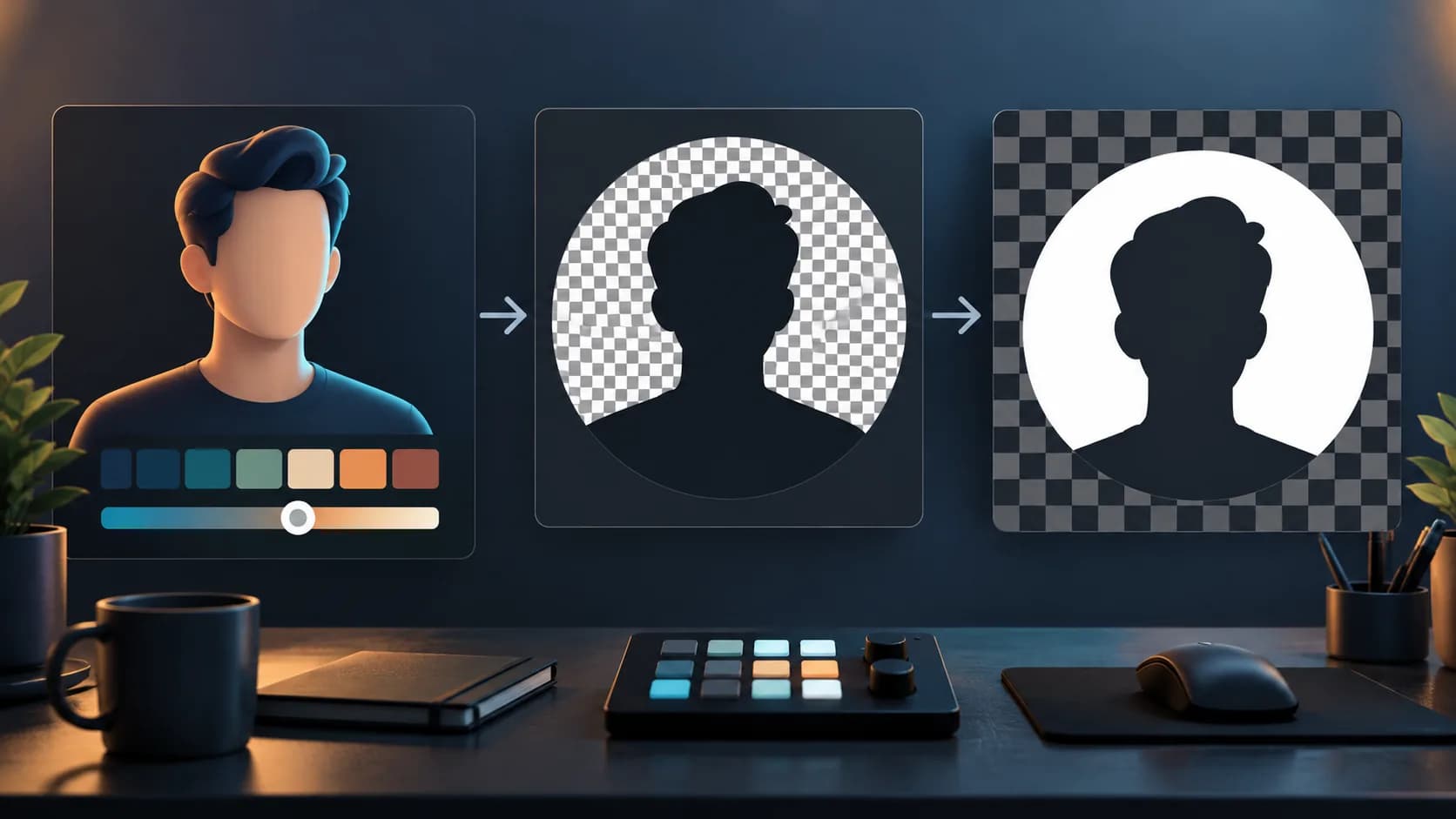
Cover: AI-generated conceptual editorial illustration; not a real application screenshot, observed output or before-and-after test.