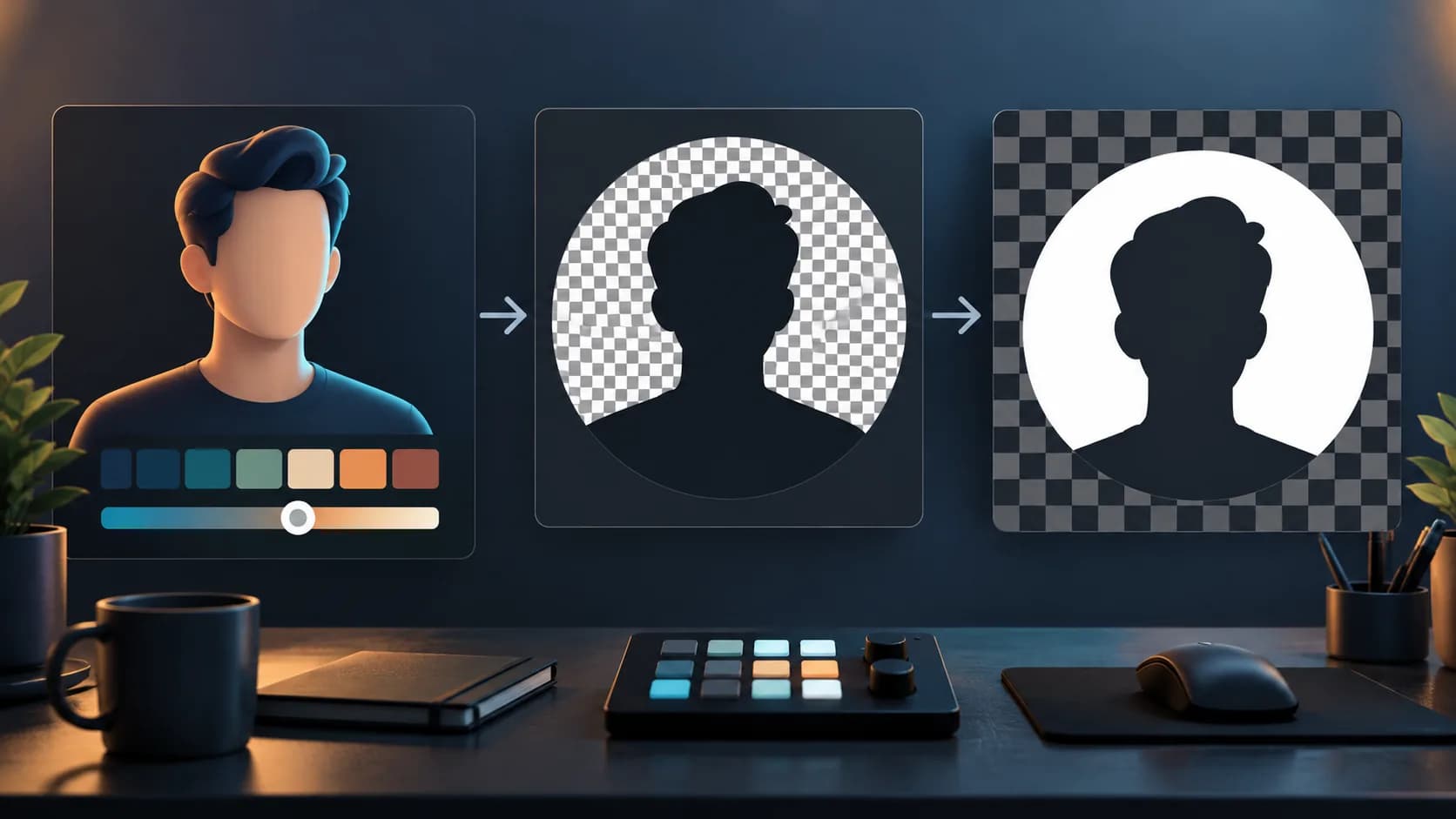
OBS Image Mask offers two interpretations of a mask image. Alpha Mask (Color Channel) uses the specified color to determine the shown region. Alpha Mask (Alpha Channel) uses the image's transparency. If you supplied a transparent portrait frame but selected the color-based mode, changing the portrait itself may address the wrong part of the workflow.
Key Takeaways
- A transparent PNG's appearance does not tell you which mask mode OBS selected.
- In Alpha Channel mode, transparent mask regions remove corresponding source regions.
- Stretch Image can alter the mask's proportions independently of its channel interpretation.
Inspect what the mask file actually contains
The OBS Image Mask/Blend reference documents the two modes separately. Inspect the mask in an image editor against a contrasting background. Determine whether the source pixels to keep are represented by opacity or by a chosen color. For a cross-tool handoff, compare the mask conventions before upload rather than assuming every editor interprets a white area identically. A black-looking area and a transparent area are not interchangeable evidence.
Keep the mask and portrait source as separate files. Note the intended visible region in ordinary terms, such as a retained circular face region with the surrounding rectangle removed. This makes it possible to compare the result with a requirement instead of judging it only by whether the filter produces any transparency.
Match the filter to the file's representation
- Open Filters for the portrait source and locate Image Mask/Blend.
- Confirm that Path points to the intended mask version.
- Choose Alpha Mask (Alpha Channel) when the file's transparency defines the opening.
- Use the documented Color Channel mode when a specified mask color defines the shown region.
- Compare the visible result with the requirement before adjusting other filters.
In Alpha Channel mode, the reference explains that opaque mask pixels preserve corresponding source areas and transparent pixels remove them. If the intended face area becomes transparent, inspect the mask's own alpha rather than repeatedly replacing the portrait. The filter cannot infer which side of the shape the designer meant to keep.
For a circle-shaped portrait in Alpha Channel mode, make the mask center opaque where the face must remain, and its surroundings transparent where source pixels must disappear. The transparent center of a decorative frame would instead remove the center of the portrait.
| Selected Type | File information OBS uses | What to inspect |
|---|---|---|
| Alpha Mask (Alpha Channel) | Mask image transparency | Opaque center keeps the corresponding face; transparent surroundings remove the corresponding source |
| Alpha Mask (Color Channel) | Specified mask color | Confirm the chosen color describes the intended region rather than relying on alpha alone |
Check proportions as a separate decision
The filter also provides Stretch Image, explicitly described as discarding the image aspect ratio. A correctly interpreted mask can therefore still have the wrong shape. Check this option when a circular opening becomes oval or a branded frame looks stretched.
For a proposed speaker card, compare the face opening and a recognizable circular mark before and after the setting change. Decide whether the layout should preserve the mask's proportions or deliberately stretch it to the source. Do not use a channel change to conceal a sizing issue; those controls answer different questions.
Verify the finished composition
Record a short candidate containing the final layout and inspect it at the intended delivery size. Check the whole opening, its edges, and any area where the portrait moves inside the shape. A temporary contrasting background helps expose unintended transparent or opaque regions.
Accept the composition when the promised areas remain visible, the surrounding regions behave as intended, and the frame's proportions are correct for the brief. Retain the editable mask file and note the selected mode so that another editor can distinguish a changed asset from a changed interpretation.
Related tasks
- Why Did Cropping an OBS Source Change Its Framing in Every Scene?
- Why Does Resizing an OBS Browser Overlay Crop It Instead of Reflowing Its Layout?
- An OBS preview artwork edit appears live: check whether scenes share the source
Sources and scope
- OBS Image Mask/Blend Filter: Color Channel mode uses the specified mask color; Alpha Channel mode maps image transparency to source transparency. Stretch Image discards the image's aspect ratio when enabled.
The OBS reference documents mask-channel interpretation and stretching. The logo and portrait handoff examples are proposed checks rather than reports of a tested export.
Prepared by Imagild Editorial, the company editorial team responsible for these guides. AI assisted research and drafting. This is documentation-based guidance with proposed examples, not a claim of hands-on testing or an independent product review. Report a correction.
Cover: AI-generated conceptual editorial illustration; not a real application screenshot, observed output or before-and-after test.