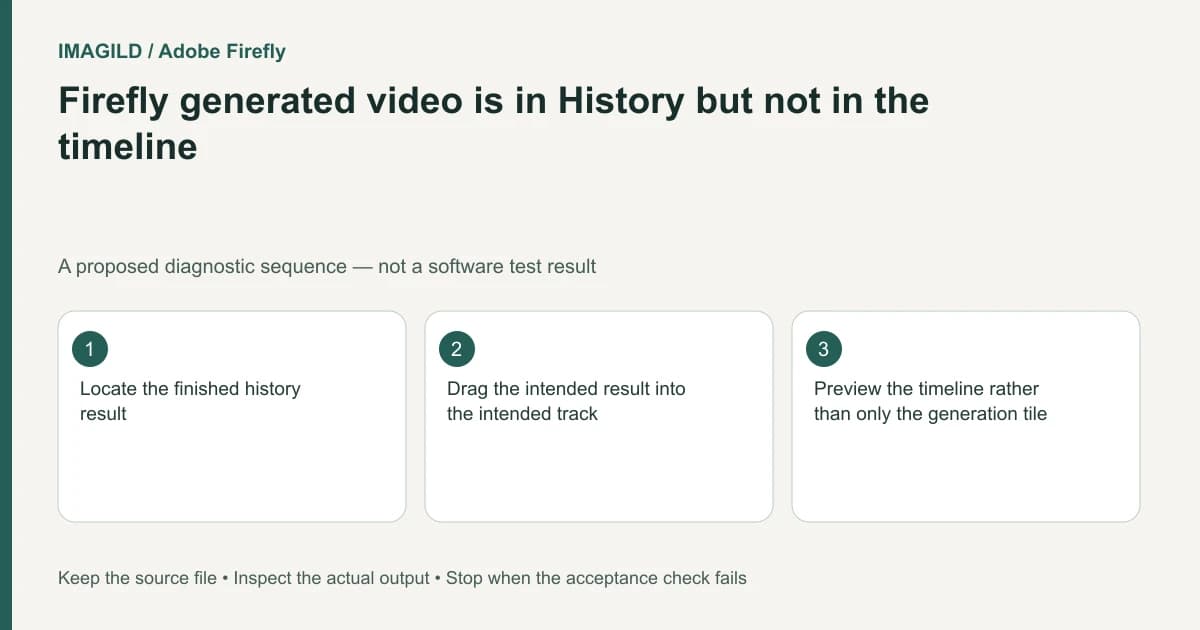
A completed Firefly generation can remain in Generation history without appearing in the timeline. Locate the intended result and add it to the edit before exporting the project. Generation completion and timeline placement are separate steps; a playable history preview is not evidence that the clip is in the assembled sequence.
Identify the two places that can play a video
Check whether you are previewing a history tile or the timeline. Both can show the same clip, which makes this failure easy to miss. Look for a clip at the intended timeline position and track, not just a large viewer displaying the generated image.
Adobe's Firefly-model generation guide places finished results in the Generation history panel and instructs users to drag the chosen result into the timeline. The documented workflow is Timeline beta; follow the controls in your current interface rather than assuming every generated asset is inserted automatically.
For a hypothetical three-shot product film, a newly generated middle shot may look correct in History while the timeline still jumps from the opening to the closing shot. The generation succeeded, but the assembly has not incorporated it.
Add one intended result to the intended location
Confirm the result's content and duration before dragging it. Similar candidates can make the right action add the wrong clip. Note the intended cut point and decide whether it belongs on the main sequence or a separate layer.
After placement, inspect the neighboring clips. Check for an unintended overlap, gap or duplicate version. Do not assume that dragging an asset into the timeline automatically replaces the old candidate in the way your brief requires.
The timeline creation guide explains the project and timeline context. Confirm their names before adding the clip; reopening an earlier timeline can otherwise make a correctly placed clip appear missing from the new job.
Preview the assembled sequence
| Check | How to inspect | Failure it catches |
|---|---|---|
| Presence | Visible clip in the timeline | History-only preview |
| Identity | Distinctive frame and selected candidate | Wrong generation dragged |
| Placement | Frames before and after the intended cut | Gap, overlap or wrong track |
| Sound | Listen across the join | Unwanted source audio or duplicate music |
The double-track audio guide is useful when the generated clip already contains sound and another music track is present. It does not establish whether Firefly generated audio for your selected model; inspect the actual file and active settings.
Export the project only after the timeline passes
Adobe's project export instructions describe rendering the assembled timeline as MP4. Downloading a history tile instead retrieves a different output scope. Use the timeline route when the client expects the complete film.
Open the exported MP4 outside Firefly. Check the opening, the new shot, both joins and the final frame. The final acceptance condition is a complete sequence containing the selected generation in the correct place. If the result is still missing, return to the named timeline and inspect the clip rather than starting a new generation that may reproduce an asset you already have.
Worked assembly check: the middle shot is still only in History
For a proposed three-shot film, the planned order is bottle on table → hand opens cap → finished pour. The new cap-opening result plays in Generation history, but the timeline still cuts directly from the bottle to the pour. Confirm that absence by inspecting the intended join, then drag the approved cap-opening result from History into the intended timeline location.
After placement, inspect the last frame of the bottle shot, the first and last frames of the inserted shot, and the start of the pour. Check that a rejected cap-opening variation was not added accidentally. If a previous candidate remains on an overlay track, it can conceal the intended replacement; inspect the actual sequence rather than only the History viewer. These are proposed checks, not an observed insert operation.
- inspect the new shot boundaries: Use this when the inserted middle shot creates a gap, overlap or unsuitable transition; apply Firefly’s actual controls.
- check whether the added clip duplicates existing music: Use this if the generated asset already contains sound and another timeline music track is present.
- compare the editor and saved movie: Use this after assembly so a correct History preview is not mistaken for a verified final render.
Prepared by Imagild Editorial. AI assisted research and drafting. Documentation checked on 4 November 2026; the examples are proposed review plans, not claims of hands-on software testing. Report a correction.