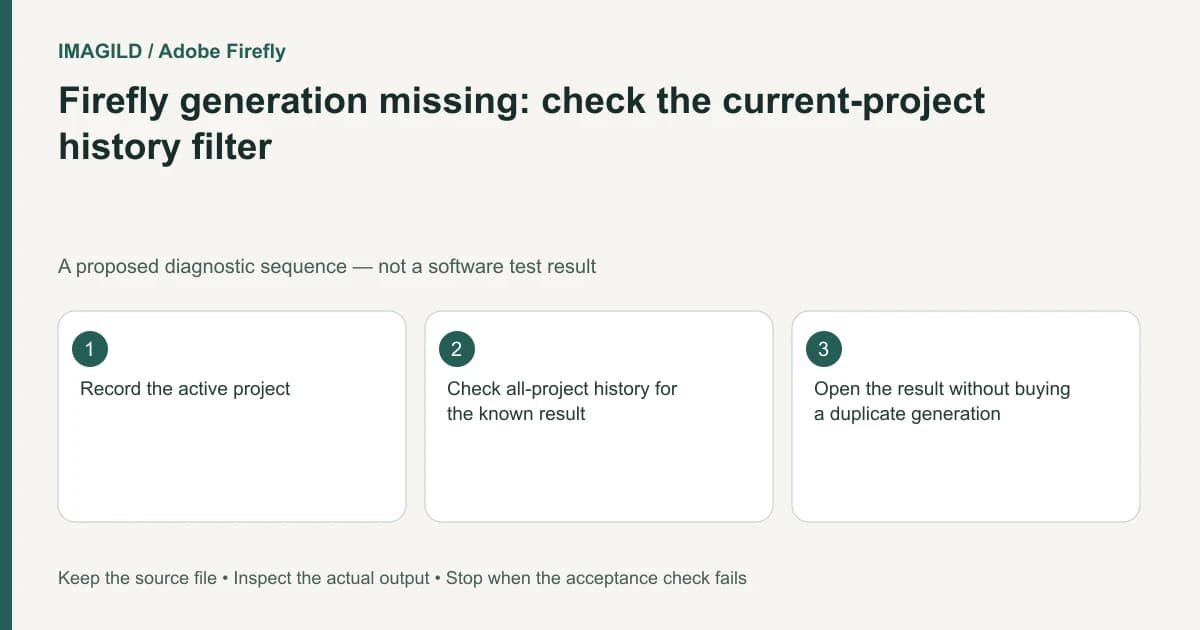
A missing Firefly thumbnail does not necessarily mean the generation was lost. Check the active project's history, expand to all projects, and remove media or favorite filters before submitting the same request again. The unified workspace separates the project you are editing from the larger history of assets you have generated.
Start with a result you can identify
Write down the prompt's distinctive phrase, approximate generation time, media type and project name. If you downloaded the result earlier, use its visible content as a reference. Avoid searching for a vague description such as “the blue version” when several projects contain similar images.
Adobe's unified generation-space overview documents a history view that can show the current project or all projects. Switching scope changes what you see; it does not establish whether a job succeeded or failed. The distinction matters when you changed projects after generating a client preview.
Keep the current project intact. There is no reason to rename, delete or recreate it merely to investigate a hidden result. Capture the active project name before switching views so you can return to the same edit.
Widen the search in a controlled order
First inspect the current-project history. Then change to all projects and look for the known media type. In the separate Files history view, inspect any image/video/audio filter and whether favorites are limiting the list. Adobe's generation-history instructions explain the supported asset actions and media filtering.
Use a simple investigation log:
| View checked | What to record | What the result means |
|---|---|---|
| Current project | Project name and matching thumbnail | Result is associated with the expected work |
| All projects | Same result in a different scope | Visibility or organization issue, not a missing file |
| Media filter | Image, video or audio selection | A filter may exclude the intended asset |
| Favorites | Favorite-only state if present | An unstarred result may still exist |
For a hypothetical two-client project, suppose a product image was generated in Project A and the creator later opened Project B. Finding it in all-project history resolves the retrieval task. It does not authorize moving every asset into Project B, nor does it prove the image is approved for that client.
Recover the right artifact, then return to editing
Open the matching result and compare its details, not just the thumbnail color. The generation and editing guide distinguishes downloading, favoriting and keeping a result in Files. Choose the action that matches the handoff: a local file for a recipient, or an asset retained in the appropriate workspace.
If the result cannot be found, inspect job evidence before retrying. The pending-generation checklist explains why a slow response and a failed task are different. Do not infer that a missing thumbnail refunded credits or that another click will be free.
Verify retrieval without creating a duplicate
The check passes when you can open the intended result, identify its project context, and obtain the artifact you actually need. Reopen a downloaded file outside the browser if local delivery is required. Keep a note of where the retained version lives so the next editor can find it.
Stop escalating generation settings if the defect was only navigation. If no matching result exists after broad history checks, record the model, time and visible job state for support. A new creative run can be a deliberate next task, but it should not substitute for understanding whether the previous result already exists.
Worked retrieval check: the missing green-label bottle
Consider a proposed retrieval check, not a completed software test. The target is a green-label bottle generated for Autumn bottles; the currently open project is Winter banners. Before changing a filter, record Winter banners / current project / images. If all-project history reveals the green-label result, open it and compare the bottle's label, not merely its green thumbnail. Record the scope in which it was found.
If a video-only filter was active, remove that restriction before concluding that an image is absent. A found result with the wrong label is not the target. A found correct image resolves retrieval, while a still-processing or failed entry resolves only the job-state question. Do not use a result from a different request as evidence that the missing request completed.
- classify the existing job before retrying: Use this when no completed matching result is found; it separates a pending request from a confirmed failure.
- identify the approved version among similar results: Use this when history contains several green-label candidates; retrieval must end with the selected revision.
- choose the final photo delivery format: Use this after finding the right image if the receiving system needs a file rather than a workspace preview.
Prepared by Imagild Editorial. AI assisted research and drafting. Documentation checked on 4 November 2026; the examples are proposed review plans, not claims of hands-on software testing. Report a correction.