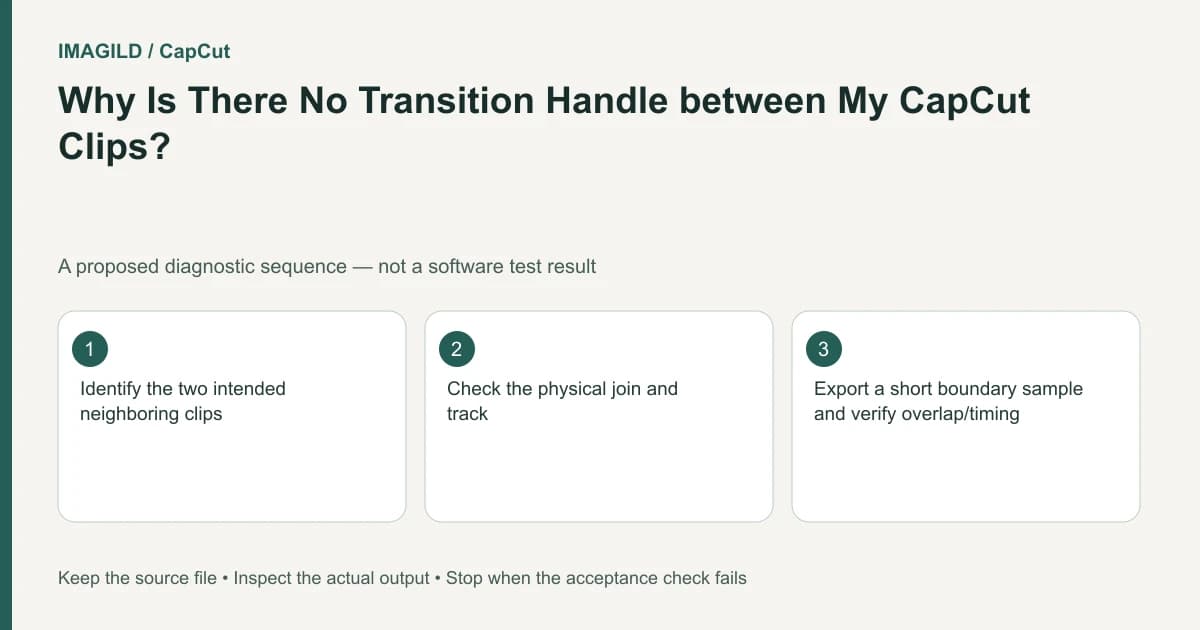
Confirm that two usable clips meet at the intended join, then use the transition entry for your CapCut platform. A gap, a single clip or the wrong tool section can explain a missing transition. Test the actual boundary before reinstalling the editor or altering unrelated frame-rate settings.
Establish the join before choosing an effect
Zoom into the intended cut. Confirm there are two distinct clips and no unintended gap. Check which tracks they occupy and whether you are looking at their actual adjoining boundary rather than the edge of an overlay.
The CapCut transition guide lists adjacency, timeline visibility and the correct tool section as separate checks. If a gap is deliberate, decide whether a transition across that construction is appropriate rather than deleting meaningful time just to make an icon appear.
Follow the supported platform entry
| Environment | Documented entry | After applying |
|---|---|---|
| Web editor | Place two clips adjacent, hover at their join and select the transition icon | Choose a transition, adjust duration and preview |
| Desktop | Open Transitions and drag the selected effect between adjacent clips | Inspect its actual timeline placement and duration |
| Mobile | Tap the small transition control between two clips | Choose the transition, adjust duration and confirm using the current control |
These routes come from the provider's help page. Check the current interface rather than looking for the mobile white-square control inside Desktop. Transitions, object animations and general effects are different sections.
Make a minimal two-clip pilot
In a proposed cooking reel, shot A shows food preparation and shot B shows the plated dish. Place short authorized clips in a simple test with an intentional cut. Apply one basic available transition using the platform route above.
Inspect whether the effect is attached to that join. If it changes another object or appears elsewhere, review selection and destination. If the expected control remains unavailable in the simple setup, the narrow problem is more useful for support than an entire complex montage.
| Pilot observation | Next check |
|---|---|
| Only one clip exists | Add the intended second shot before expecting a join |
| A gap separates the clips | Resolve whether it is intentional |
| Transition is hard to see | Zoom into the boundary |
| An object enters with animation instead | Check the transition section and target |
| One side is black | Verify source display before judging the transition |
The missing-video guide concerns that last case. A transition cannot establish a usable visual join when the source itself is hidden, out of time or incompatible.
Compare preview and saved motion
The slow-template guide distinguishes resource-limited preview from actual timing. If the join stutters in the editor, inspect a short saved passage before changing clip speed or transition length. Those editorial changes can alter a sequence that already exports correctly.
Use the preview-versus-export comparison to record which artifact is wrong. The representative-frame review can help inspect whether an important object is obscured at the midpoint, but also watch the complete moving join.
Choose the treatment that serves the cut
For the cooking reel, check that overlapping hands, food or plates do not form an unintentionally confusing image. Listen across the boundary. A straight cut may communicate the preparation-to-result change more clearly than a decorative transition.
If the sample is only for approval, distinguish it from the complete delivery using the review proxy versus master guide. A passing join does not verify the rest of the film.
Completion means the intended boundary has an appropriate, reviewed treatment using a supported control. No transition was applied or exported for this guide. If the basic supported test still fails, report the platform, version, two-clip arrangement and observed control behavior rather than rebuilding the whole edit.
Prepared by Imagild Editorial. AI assisted research and drafting. Documentation checked on 4 November 2026; examples and checks above are proposed, not claims of hands-on software testing. Report a correction.