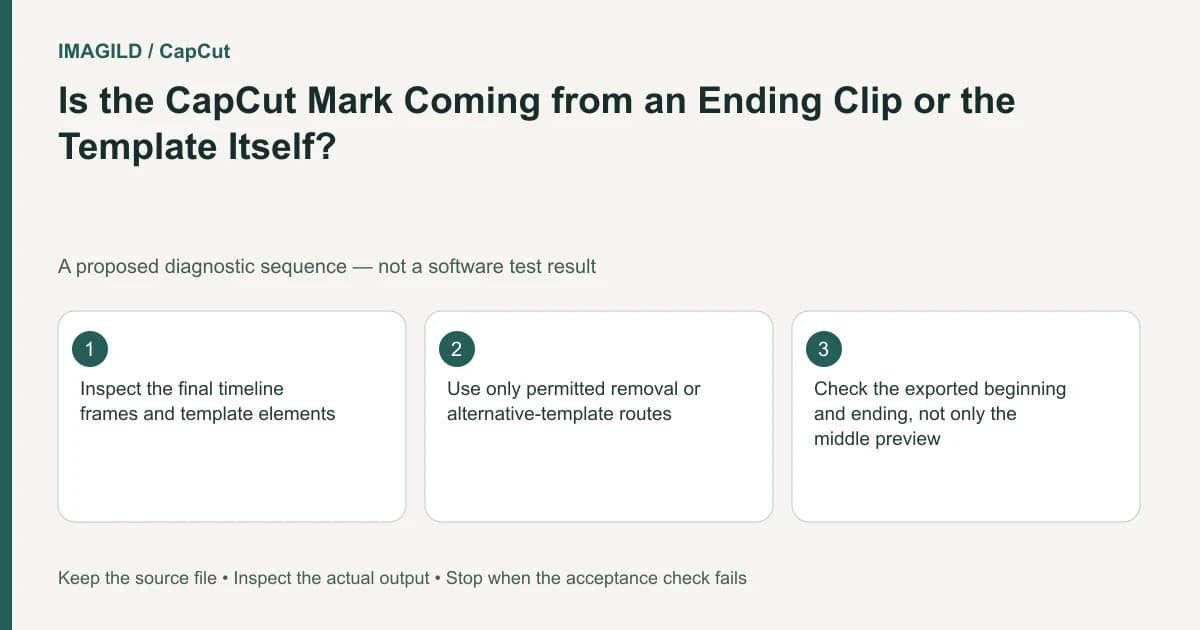
Locate the branding before changing export settings. A CapCut mark may be an editable ending clip, a template overlay, source pixels or a stated account/export condition. Choose the branch supported by what you can observe; there is no universal switch that resolves all four.
Classify the mark at its actual timestamp
The watermark help page identifies added endings and built-in template elements. Watch the saved movie, note when the mark appears and inspect that exact timeline region.
| Observed source of mark | How to identify it | Appropriate next action |
|---|---|---|
| Separate ending clip | Branding appears after the main sequence in its own segment | Remove or replace the editable outro if permitted, then inspect the new ending |
| Template overlay | An identifiable graphic layer covers the main picture | Edit or replace the allowed template element; check its full interval |
| Pixels inside source media | The original imported file already contains the mark | Obtain an authorized suitable source; ending deletion cannot remove it |
| Account/export message | The export dialog states a plan or asset condition | Read and resolve that stated condition; do not assume timeline cleanup changes entitlement |
The last branch is an account diagnosis, not evidence that any particular purchase removes a baked-in logo. The subscription guide distinguishes plan scope across platforms. Do not buy a second plan before identifying the condition actually shown.
Inspect an ending clip separately
For a hypothetical café promotion, a two-second branded outro follows the café's closing card. Select that final segment and confirm its start, end and sound before removing it. Then inspect whether the café card still ends naturally and whether music now cuts abruptly.
Do not mistake the café's own approved logo for a provider outro. If the only mark is in the middle of a source clip, the ending-clip branch is the wrong diagnosis.
The export ending-range check helps when a sample or final movie loses its intended ending. An absent outro due to a shortened export range is not the same as deliberately correcting the project.
Inspect an overlay or source-pixel mark
If the mark is on a separate template layer, identify what else that layer contains before changing it. A logo may share a design group with useful framing or disclosure text. Review the permitted customization instead of deleting everything that overlaps the mark.
The template explanation describes layouts applied to your own media. It does not establish a right to remove arbitrary third-party attribution or reuse a creator's source footage. For a source-pixel mark, compare the original file at the same moment and obtain the appropriate material where needed.
The premium-asset handoff guide helps when material or project access depends on another account. A clean-looking output alone does not prove the assets are appropriately available to the recipient.
Verify the corrected branch in a saved sample
Use a supported bounded export covering the affected area. For an outro, include the final image and audio tail. For an overlay, include its appearance and disappearance. Reopen the saved movie and check that the intended café content remains intact.
If only the saved movie contains a mark, record the difference using the preview-versus-export check. Do not repeatedly change unrelated settings without knowing whether the mark came from the project, source or export condition.
Completion means the identified editable component or stated account condition has been handled appropriately and the actual saved movie meets the brief. It does not promise removal of every watermark, license bypass or a universally free export. No CapCut export was performed for this guide.
Prepared by Imagild Editorial. AI assisted research and drafting. Documentation checked on 4 November 2026; examples and checks above are proposed, not claims of hands-on software testing. Report a correction.