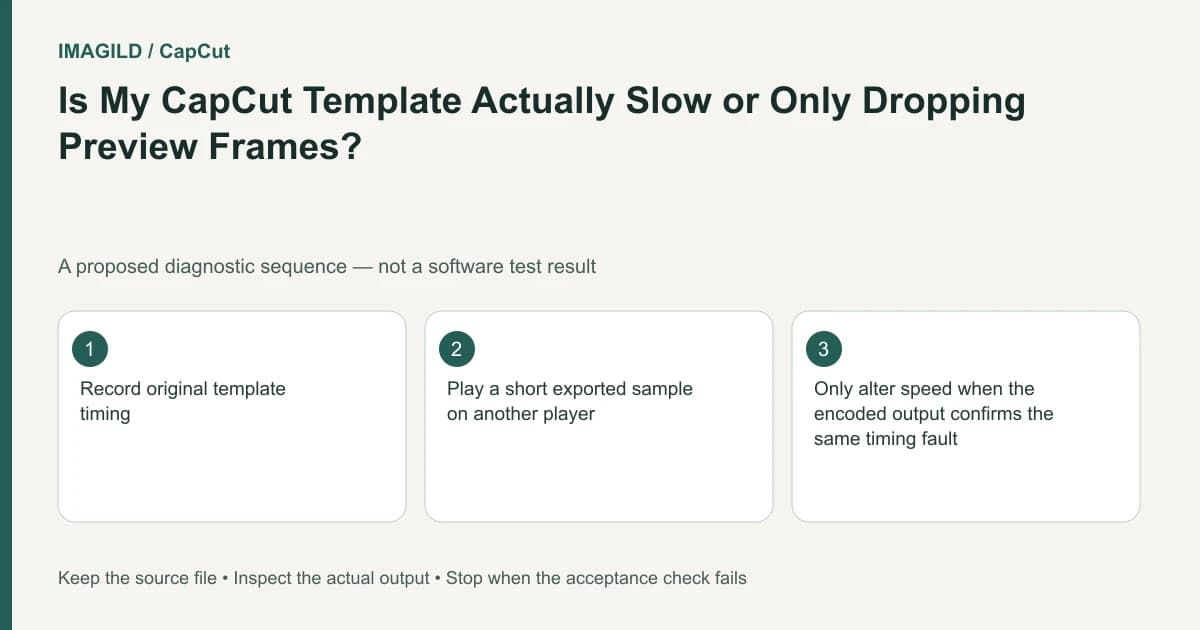
Compare a short exported sample with the preview before changing template speed. A complex template can play slowly in the editor because of limited resources, while the saved movie has normal timing. If the export is genuinely slow, inspect the template and source timing instead of treating every case as preview lag.
Measure the intended passage rather than the feeling of speed
Choose a passage with a clear action and sound cue, such as a handclap followed by a photo change. Note its planned timeline duration. During playback, distinguish pauses and dropped frames from an intentionally slowed movement.
The CapCut slow-template help page separates preview performance from clip-speed and template-setting issues. That distinction is the first diagnosis, not a promise that every slow-looking project exports correctly.
In a hypothetical dance slideshow, a ten-second section contains four beat-aligned images. The editor struggles to preview its effects, and the creator considers doubling clip speed. The proposed test first checks whether the saved ten-second movie already matches the intended four changes.
Export the representative passage unchanged
Use the current export controls without altering the clip timing. Where supported, the In/Out range guide explains how to bound the test. Include the beginning of the cue and the last intended image change so the sample answers the timing question.
Play the saved file in a normal local player. Check its duration and the relationship between the sound cue and image changes. A smooth saved sample suggests the preview was the problem; a slowed or misaligned saved sample needs timeline investigation.
| Preview | Saved sample | Diagnostic direction |
|---|---|---|
| Jerky or slow-looking | Correct duration and beat alignment | Investigate preview workload |
| Smooth | Incorrect duration or speed | Inspect actual project timing |
| Slow-looking | Also slow with matching altered timing | Inspect clip/template speed |
| Frozen template view | Output motion differs | Check template-platform behavior |
The table is a proposed test matrix, not a completed performance benchmark. Use actual observations and do not label a result “normal” until its content and timing match the brief.
Reduce preview load without changing editorial timing
If the saved sample is correct, use the preview-quality or resource-management controls supported by your environment. Close unnecessary work without terminating unrelated important tasks. Do not change sequence duration merely to make a struggling preview appear faster.
Recheck that the project still uses the intended source files. A low-quality review path can be useful, but distinguish it from the actual delivery master. The proxy-versus-master guide explains that boundary.
A higher export frame-rate label does not automatically create smoother source motion. The duplicated-motion-frame guide addresses the difference between output frame count and genuinely different motion samples. Use it when a setting change makes a file larger without resolving the perceived movement.
Inspect genuine timing changes deliberately
If the saved sample is wrong, select the relevant clip and inspect its speed treatment, source passage and template timing. Determine whether the slow motion was part of the design. Resetting every clip to normal speed can destroy a deliberately paced template.
For the dance slideshow, compare the four image-change points with the intended music beats. If the first change is correct but later ones drift, document where the difference grows. If all changes are shifted together, inspect the overall placement rather than changing each clip's speed.
The Desktop single-frame template guide describes another platform-specific preview limitation. If the project originated on mobile, inspect filled slots and a real output before assuming the Desktop presentation accurately describes all dynamic elements.
Verify the complete sequence after a local fix
Once the sample passes, play the whole saved video. Look for a late transition, cut-off ending or audio tail that the short passage did not cover. The preview-versus-export comparison helps record what changed between the editor and final file.
Keep the original timing reference available so an apparent improvement does not hide a new mismatch. If you deliberately change the pace, treat that as an editorial revision and obtain the appropriate approval rather than calling it a performance repair.
If the issue remains, report whether the saved sample is actually slow, its duration and the environment used to preview it. That is more useful than “the template lags.” Completion means the movie has the intended timing and the preview limitations are understood well enough to continue editing without damaging the sequence.
Prepared by Imagild Editorial. AI assisted research and drafting. Documentation checked on 4 November 2026; examples and checks above are proposed, not claims of hands-on software testing. Report a correction.