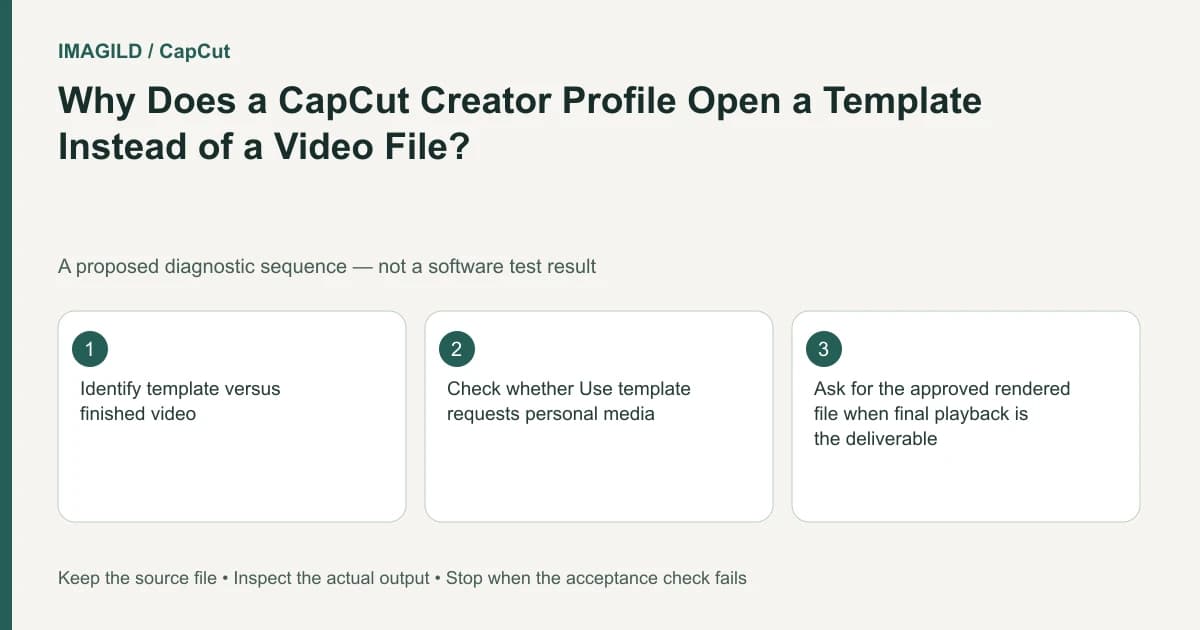
Use template applies a reusable CapCut design to your own media; it is not a download of another creator's finished movie. Choose the template, supply every required photo or clip, check placeholders and timing, then export and inspect the actual movie file.
Identify the offered artifact
The profile-template explanation describes items in the Template tab or some profiles as reusable layouts. A moving preview can demonstrate a template's design without being the film you are meant to publish.
In a hypothetical event recap, a client sends a template preview and asks for “this video.” Clarify whether they want that pacing and layout applied to event photos or an already-finished file. Do not treat the preview's pictured people or footage as automatically available source material.
Follow the template-to-file sequence
- Open the intended template in a supported environment and inspect its preview.
- Select Use template using the available current control.
- Supply your own authorized photos or videos for the required slots.
- Inspect every populated slot, including crop, source order and useful action duration.
- Replace remaining placeholder text and media; check names, dates and the ending.
- Preview the event-specific sequence, then export through the current supported route.
- Open the saved movie outside the editor and inspect its content, timing and sound.
The first media-population actions come from the provider's documented workflow; the inspection steps are editorial acceptance recommendations. No template application was executed for this guide.
Check every placeholder rather than only the attractive middle
For the event recap, map the opening to arrival, the middle to the main activity and the ending to the closing message. If a slot requests a short clip, confirm the useful action appears in the selected passage. Filling the slot with a file does not establish that the right moment is visible.
| Template area | Event-specific check | Failure to reject |
|---|---|---|
| Opening | Correct event and title | Generic preview image remains |
| Media slots | Authorized sources in intended order | Wrong photograph or unusable crop |
| Text | Approved names and date | Template sample wording remains |
| Ending | Intended closing message and sound tail | Extra placeholder or premature cutoff |
| Saved file | Event-specific complete movie | Only the creator's template preview was handed over |
The concept/content/master approval guide helps distinguish approval of the design from acceptance of the final event-specific movie.
Keep platform discovery and rendering separate
The template-search guide describes differences between Desktop's built-in set and searchable Mobile/Web libraries. A design visible in a mobile tutorial may not be discoverable through the same route on Desktop.
The single-frame Desktop template guide describes another issue when mobile-origin designs are synced. If the preview is static, verify filled media and a saved sample before deciding whether the final movie is correct. Do not guarantee an untested synced template will render successfully.
The preview-versus-export checklist helps document that actual discrepancy. A screen recording of a working template preview is not a substitute for the exported event movie unless a recording was explicitly requested.
Hand over the artifact requested
If the recipient needs publication media, provide the verified movie file. If they must replace slots later, discuss the supported editable project and source access separately. A flat movie does not retain independent template slots merely because it was created from a template.
The premium-asset access guide is relevant if the selected design includes account-dependent material. Check the actual conditions rather than assuming a shared preview resolves them.
Completion means the template has been populated with the intended media, no inappropriate placeholders remain and the saved file is the event-specific deliverable. A working Use template button, filled slot count or playable generic preview is only an intermediate state.
Prepared by Imagild Editorial. AI assisted research and drafting. Documentation checked on 4 November 2026; examples and checks above are proposed, not claims of hands-on software testing. Report a correction.