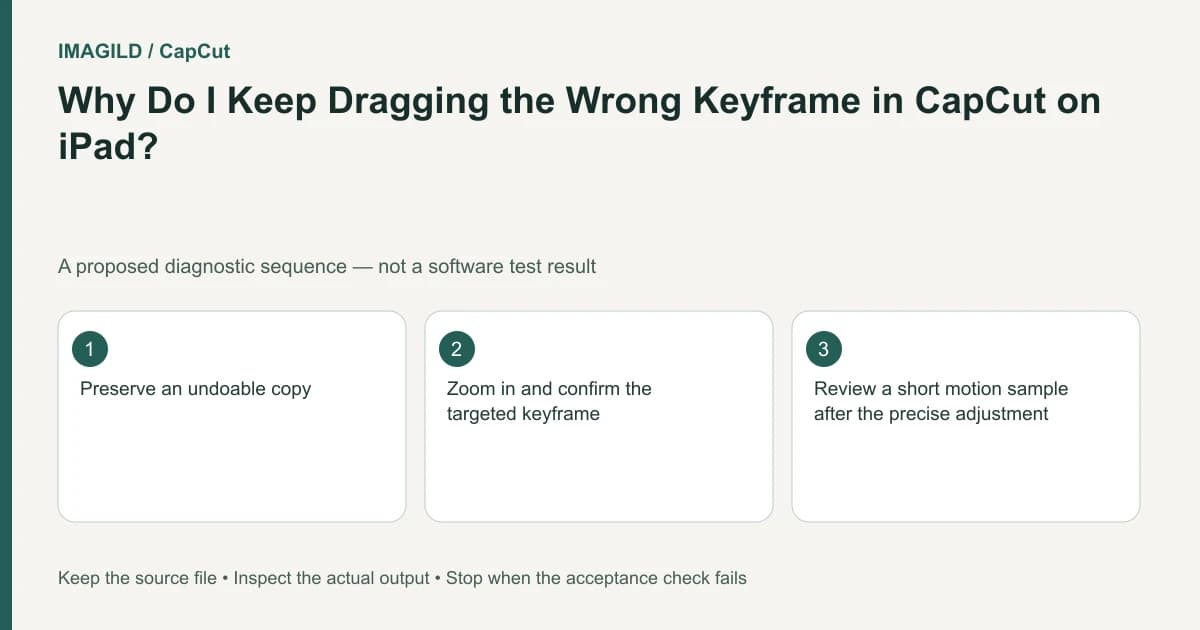
Zoom in before selecting a dense iPad timeline control, confirm the selected clip/property/keyframe and make one reversible change. If the wrong object changes, undo that change once before continuing. A missed touch target is not evidence that the intended animation's data is corrupt.
Check the layout actually running on the tablet
The CapCut iPad selection guide describes dense touch controls, gesture conflicts and some compatibility-mode layouts. Inspect the current app and layout rather than assuming every current tablet build has the same scaling behavior.
In a hypothetical portrait slideshow, two position keyframes are very close together. A finger drag intended for the second moves the first. Changing more values afterward would mix the original animation with an accidental edit. The immediate task is reliable selection, not rebuilding every keyframe.
Use a deliberate touch sequence
- Stop playback and identify the relevant clip.
- Pinch-zoom into the timeline area until the neighboring targets are distinguishable.
- Complete the navigation gesture before tapping the target; do not combine scrolling and a precision drag.
- Select the intended control and inspect its visible selection feedback and time context.
- Confirm the selected property, such as Position rather than Opacity.
- Make one small change and inspect the result immediately.
- If the wrong target changed, use the current app's supported Undo once, then verify the pre-change state before selecting again.
This is a proposed interaction procedure, not a tested guarantee about exact gesture handling. The source recommends zoom and compatible precision input; this guide does not assert a universal zoom maximum or a specific undocumented undo gesture.
Verify selection before values
Use a compatible pointer or stylus if supported by the device and current application. Its value is a clearer target, not proof that an animation value is correct. The selected keyframe-property guide helps distinguish object selection from property selection.
| Observed response | What to do before another edit |
|---|---|
| Timeline scrolls instead of selecting | Finish navigation, enlarge the interval and select again |
| A context menu opens | Exit the menu through a supported control and re-establish the target |
| Another keyframe highlights | Select the intended time before changing a value |
| Wrong value was changed | Undo the isolated change once and verify restoration |
| Correct keyframe is selected but motion is wrong | Investigate timing/path separately from touch accuracy |
Do not infer a successful undo merely because the button was tapped. Check the restored position or value. If the state is uncertain, stop adding edits and return to an identifiable recoverable version.
Separate similar controls and display defects
The transition guide concerns the join between clips; that control is not a keyframe inside an object's motion. Dense timelines can place these targets near each other. Confirm which function became active.
The text-display guide concerns off-canvas position, stacking, opacity, size and entry animation. If a text object is invisible, establish its display state before diagnosing touch precision. Selecting the correct invisible object and selecting the wrong visible object are different cases.
For the portrait slideshow, the unwanted boomerang-motion guide is relevant only after correct selection is established. An extra path reversal can exist even when every touch was accurate.
Review the representative moment and full motion
Use the representative-keyframe approval guide to choose a meaningful frame, such as the point where a face clears a title. Verify that position, then watch the approach and departure. Correct placement at one frame does not prove a suitable animation.
If touch selection remains unreliable, choose a supported input method or environment suited to the precision required. Report the current app/layout, timeline density, intended target and actual response to support. No iPad interaction or animation repair was performed for this guide.
Prepared by Imagild Editorial. AI assisted research and drafting. Documentation checked on 4 November 2026; examples and checks above are proposed, not claims of hands-on software testing. Report a correction.