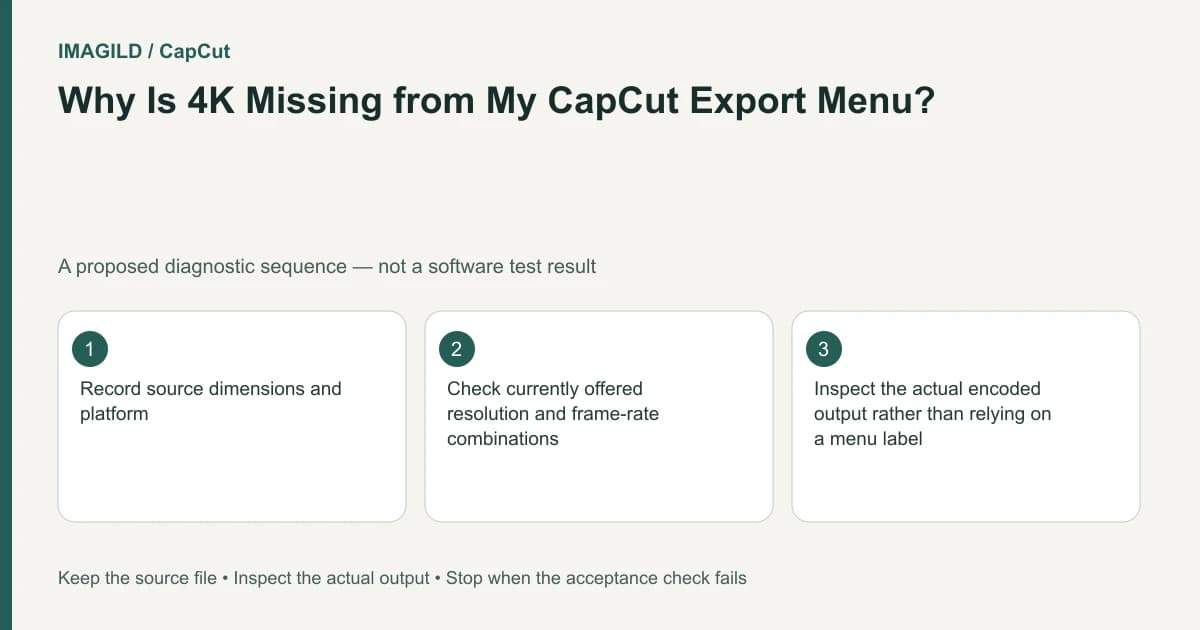
Check the current CapCut platform, device, source media and displayed export conditions before expecting 4K. Web, Desktop and Mobile have different documented routes. Verify the actual saved dimensions afterward; a 4K option or large file does not create detail absent from the source.
Define the required frame first
Ask for pixel width, height, orientation and agreed frame rate. For a hypothetical museum installation, the requirement is a horizontal 3840 by 2160 movie. A vertical social file with a different frame shape is not automatically an equivalent deliverable.
The 2K/4K export guide describes platform-specific options and conditions, with its overview framed as January 2026 guidance. Check those conditions against the current interface rather than treating example devices or old version references as permanent universal thresholds.
Compare the three platform routes
Web
Use Export, then select an available resolution. Check browser and device encoding capability, source and project conditions, the connection, and any applicable account message. These are conditions to verify, not assumed eligibility.
Desktop
Use the Export panel's resolution and quality controls. Check the current supported application and operating system, sufficient processing and storage resources, and the settings actually available.
Mobile
Use the resolution control associated with Export. Check device capability, source properties, current application, region and account conditions, and the available combination of settings.
The source lists examples and constraints, but this guide does not invent a universal RAM, GPU-memory, bandwidth or free-space minimum. Your particular device's eligibility remains unknown until checked in the actual environment. A plan label alone is not that check.
Inspect sources and account separately
For the museum project, inventory the important stills and video clips. Note their dimensions and how much they are enlarged or cropped in the sequence. A large output frame can contain a soft lower-resolution shot; the frame's dimensions do not establish the detail in its subject.
The cross-platform plan guide distinguishes membership scope across devices. Confirm the correct account and stated plan condition if an export message names one. Do not buy another plan merely because the current device does not show a resolution option.
Use this decision table:
| Observation | Next check | Do not conclude |
|---|---|---|
| 4K option absent | Current platform conditions and supported route | Every paid account must expose it |
| 4K option present, result soft | Source dimensions, crop and actual saved frame | The original detail was recovered |
| Export blocked by a plan message | Exact account/plan condition | The source file is corrupt |
| Export starts but fails | Actual error and failure stage | The resolution setting alone identifies the cause |
Inspect actual video-stream dimensions rather than relying only on a filename or container label. The container-versus-stream metadata guide explains that inspection boundary; it does not establish CapCut's eligibility conditions.
Test a representative high-detail passage
Choose a passage containing the most demanding image, readable text and typical motion. Where supported, use the bounded export route without changing the full timeline merely to create the sample.
Open the saved file and inspect its actual width, height, duration and the agreed frame rate. Compare the high-detail and lower-resolution source passages at the intended display scale. Record those observations rather than inferring them from the export dialog.
If no file is saved, the render-versus-save failure guide helps classify the stage. If the editor preview and output differ, use the preview/export comparison. Neither replaces inspecting the actual resolution.
Verify the complete movie
After the sample passes, export the complete intended sequence and inspect every mixed-resolution section, title and ending. The final file must meet the agreed frame specification and visual requirement, not just one of them.
If the option remains unavailable, choose an authorized supported environment or agree on a different deliverable. Report the current platform/build, device, source properties, displayed options and exact message to support. No 4K export, device benchmark or playback installation test was performed for this guide.
Prepared by Imagild Editorial. AI assisted research and drafting. Documentation checked on 4 November 2026; examples and checks above are proposed, not claims of hands-on software testing. Report a correction.