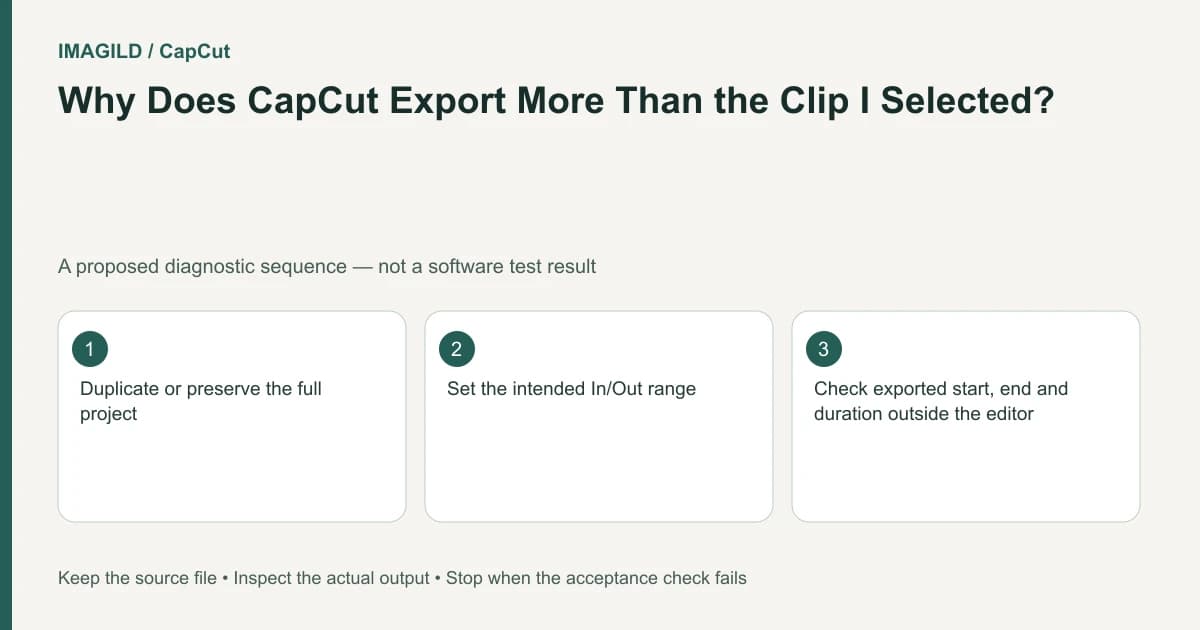
Set an export In/Out range around the required passage instead of assuming a selected timeline clip defines the output. In supported CapCut environments, the range markers bound the export without deleting the rest of the edit. Check the saved sample's first frame, last frame, duration and audio before handing it off.
Define the sample in timeline time
Choose the actual passage the recipient needs. A reviewer may need the transition into a shot, not just the shot itself. Include enough surrounding context to evaluate the requested issue while keeping unrelated material outside the handoff.
In a hypothetical 90-second travel edit, a client asks to review the title reveal from 00:20 to 00:28. Selecting the title layer does not define the eight-second review movie. The video, title and music active during that period all contribute to the required sample.
The CapCut range-export instructions describe In/Out markers and keyboard routes including I, O and Shift+X. Confirm the shortcuts in your current platform and keyboard focus. A letter typed into an active text field is not evidence that an export marker was set.
Place markers and inspect the visible range
Move the playhead to the intended beginning and set In. Move to the intended end and set Out using the supported control. Inspect the displayed range rather than trusting the keystrokes alone. The exact boundary must reflect what you want included, including any title animation lead-in or audio tail.
For the travel example, ask whether 00:20 is before the title begins to appear. If the animation starts earlier, an eight-second range may omit the behavior the client needs to judge. Revise the review range deliberately rather than trimming the title animation just to fit an arbitrary sample length.
The expected interval is approximately Out minus In. Frame inclusion rules and time display can affect the exact last-frame interpretation, so verify the exported sample rather than promising a frame count solely from decimal arithmetic. A sample requested to be frame-exact deserves an explicit first/last-frame agreement.
Export without destroying the full edit
Use the current export panel and verify that the bounded range is being used. Keep the original sequence intact. Deleting every other clip to obtain a sample introduces a needless reconstruction task and can alter music, effects or transitions.
The CapCut export-error guide is a separate route if rendering fails with a code. Do not call an unexpected full-length export a rendering error before checking whether the range was active. The file may have rendered correctly from the wrong boundary.
| Sample property | Travel-title acceptance | Failure to investigate |
|---|---|---|
| Opening frame | Shows the intended pre-title context | In marker too late or wrong range |
| Ending frame | Contains the agreed end of reveal | Out marker or animation tail mismatch |
| Duration | Matches the agreed interval | Full sequence exported instead |
| Audio | Contains the corresponding music passage | Wrong track, mute or range assumption |
| Content | Title and background appear together | Selected object confused with range |
This is a proposed test, not a performed CapCut export. Reopen the saved file in an ordinary player and inspect these properties independently of the timeline preview.
Keep preview performance separate from sample timing
The slow-template guide distinguishes playback limitations from project timing. If the preview stutters, do not move markers or alter clip speed merely to make it look smoother. Check whether the exported sample has the intended timing first.
The preview-versus-export comparison helps document a difference between the editor view and saved movie. If the sample's timing is correct but the preview is slow, the range operation may already be working as intended.
For missing endings in a full delivery, the In/Out ending check addresses the opposite risk: leaving a review range active when the next task is the entire film. Identify the export purpose every time rather than assuming the previous boundary is suitable.
Label the handoff as a review excerpt
Give the file a name and note that identify its source passage. A recipient should not mistake an eight-second test for the complete travel movie. If the sample is lower resolution or bitrate, say so without implying the final master has been inspected.
Use the review-proxy versus master guide when the small excerpt is only for approval. Keep the full sequence and selected interval available until the reviewer confirms the intended passage.
After the sample is accepted, restore or explicitly redefine the range for the next export. The task ends when the actual saved excerpt contains the agreed interval and the complete edit remains available. Selection highlight, marker keystrokes and a successful progress bar each provide partial evidence; the saved clip provides the final boundary check.
Prepared by Imagild Editorial. AI assisted research and drafting. Documentation checked on 4 November 2026; examples and checks above are proposed, not claims of hands-on software testing. Report a correction.