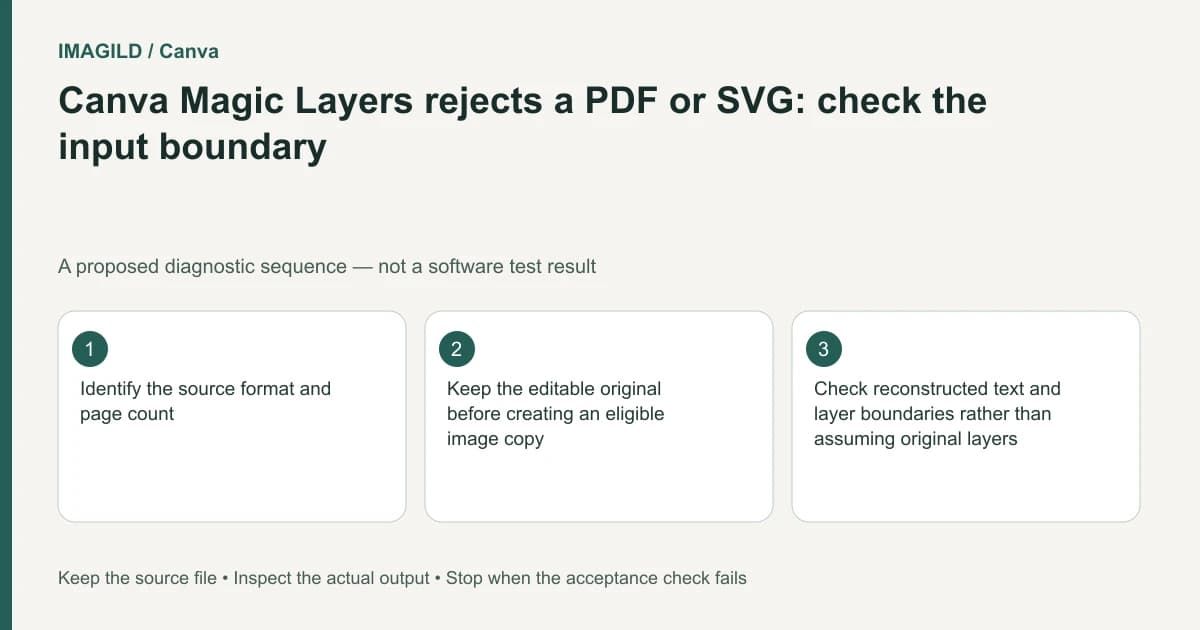
Canva Magic Layers needs an eligible single-page PNG or JPG, not the PDF or SVG master. Keep that master, export a separate image of the required page, and check the reconstructed objects. Getting selectable layers does not establish that original text, vectors or hidden content have been recovered.
First decide whether reconstruction is necessary
Before converting anything, ask what the recipient needs to change. A price, a photograph and an illustration outline are different editing targets. If you have the source design with its original editable objects, work from that source. Reconstructing a flattened preview adds uncertainty without helping a task the master already supports.
Canva's Magic Layers input guidance distinguishes single-page PNG/JPG inputs from unsupported PDF, vector and multipage files. An image accepted by another Canva workflow therefore is not automatically a Magic Layers input. A PDF upload succeeding and this feature rejecting it can both be consistent with the documented boundaries.
Record the file's actual format, page count and ownership. Do not identify format from its visible filename alone, or convert licensed content to evade an explicit restriction. When the source is a client file, obtain the intended editable master if possible before building a replacement.
Create a page-specific working image
Preserve the source in its original application and make a separately named export. Select the intended page rather than exporting a contact sheet of the complete document. Check the resulting picture outside the exporting application: it should contain exactly one required composition, with no neighboring page, thumbnail strip or missing edge.
For a PDF, distinguish a normal PDF editing route from reconstruction of a page picture. Canva's PDF import documentation explains why flattened or scanned pages may behave as images. Our scanned-PDF selection check covers that earlier representation question; this workflow begins after you intentionally choose a raster image for Magic Layers.
For an SVG, retain the original vectors, text and reusable shapes. Exporting a PNG may provide the visible input needed here, but it does not preserve those structures in the raster. If you actually need direct vector editing, use the Canva SVG preparation workflow instead of routing everything through an image reconstruction tool.
Match the input to the promised deliverable
| Material received | Suitable next decision | What the handoff must not claim |
|---|---|---|
| Editable original design | Edit its existing objects | That reconstruction is required |
| One-page PDF | Export the required page image if reconstruction is appropriate | That the PDF itself is the Magic Layers input |
| Multipage PDF | Choose and export pages individually | That one contact sheet preserves page structure |
| SVG master | Keep vectors; create a raster copy only for this task | That reconstructed objects are the original paths |
| Eligible PNG or JPG | Inspect dimensions and rights, then process a copy | That accepted input guarantees perfect separation |
| Restricted licensed artwork | Obtain an authorized alternative | That changing format removes usage restrictions |
Canva's broader upload requirements are useful when an asset fails before it even reaches the selected editing feature. Keep that general upload check separate from the narrower Magic Layers test. Repeatedly changing browsers will not convert an unsupported source representation into a supported one.
Audit the reconstructed objects, not just the preview
Work through the specific changes the recipient requested. Select the headline and confirm whether the intended words are editable. Move a duplicate of a decorative element slightly, inspect what remains underneath, then undo. Check whether a border is one coherent object or several fragments, and whether nearby text moves with it.
For text, compare names, amounts, punctuation and line breaks against the preserved original. For illustrations, inspect holes, overlapping regions and small detached details. An attractive overall preview can conceal a misspelled product name or a reconstructed area that only becomes visible after an object is moved.
Stop if the required information cannot be recovered confidently. Retype verified wording, rebuild a simple shape manually, request the master, or scope the delivery as a flattened revision. Do not rename the output as an original layered source merely because its elements are selectable.
A hypothetical two-page menu repair
Suppose a restaurant provides a two-page PDF and requests changes only to the lunch-page heading. This is a proposed workflow, not an application test. Save the original PDF, identify the lunch page, and export that page alone. Keep an untouched reference alongside the working copy.
After processing, verify the heading character by character and inspect the background beneath it. Then compare all unchanged prices against the reference before exporting the revision. There is no reason to reconstruct the dinner page or claim that the restaurant's original typography was restored. Deliver the revised image or design together with a note identifying which page was reconstructed.
Finish with an honest source record
Keep the PDF/SVG master, the eligible input image, the reconstructed working design and the reviewed export as separate artifacts. Our editable-master versus flat-output guide explains why these roles should remain distinguishable.
Before sending the file, reopen the actual export and check the requested correction, untouched wording and page edges. This guide is based on public documentation and an illustrative repair plan; it reports no Canva execution, reconstruction accuracy measurement or guaranteed recovery of original layers.