
A scanned PDF can import into Canva as one flattened image, leaving its visible words unavailable as editable text boxes. Canva states this in its PDF import guide. Identify that representation before repeatedly unlocking the page or searching for a hidden font control.
Test what is actually selectable
Select the imported page content and inspect whether you can select one word or only the entire page picture. Compare it with a normal Canva text box. The ability to resize the page image does not establish that the printed letters are separate editable objects.
For a concrete example, a scanned restaurant menu may let you move the whole sheet while its old price remains part of the scan. That differs from a digitally created PDF whose supported text imports as individual elements.
Keep the source and requested change
Preserve the original PDF and write the exact revision, including every affected occurrence. If the original authoring file exists, request or use that approved source rather than reconstructing a flattened page unnecessarily.
If working from the scan is required, Canva's guide recommends replacing or recreating content as Canva text elements. That is a reconstruction task: verify wording, font choice, line breaks and placement against the source. It is not proof that a hidden original text layer has been recovered.
Rebuild visible content deliberately
Make the intended text editable and check names, prices, units and special characters carefully. Do not assume that covering an obsolete value provides secure removal of private information. The redaction guide covers that different requirement.
If you need the scanned picture itself for editing, the PDF page-render versus extraction guide explains how that source choice differs from text reconstruction.
Verify the exported revision
Use Share > Download and select the intended delivery type. Inspect the actual file at a readable size and search visually for every old value. Confirm that the replacement text remains readable and that the surrounding scan did not become visibly inconsistent.
This guide does not test PDF import, reconstruction, OCR or font fidelity inside Canva. The separate local file-structure and text-extraction checks are described below. They do not establish that a scan can always become an exact editable original.
Related tasks
- Is a Black Rectangle Enough to Remove a Client Name from a Public PDF?
- How Do I Take the Correct Scanned Page from a PDF for Image Editing?
Compare two files that look the same
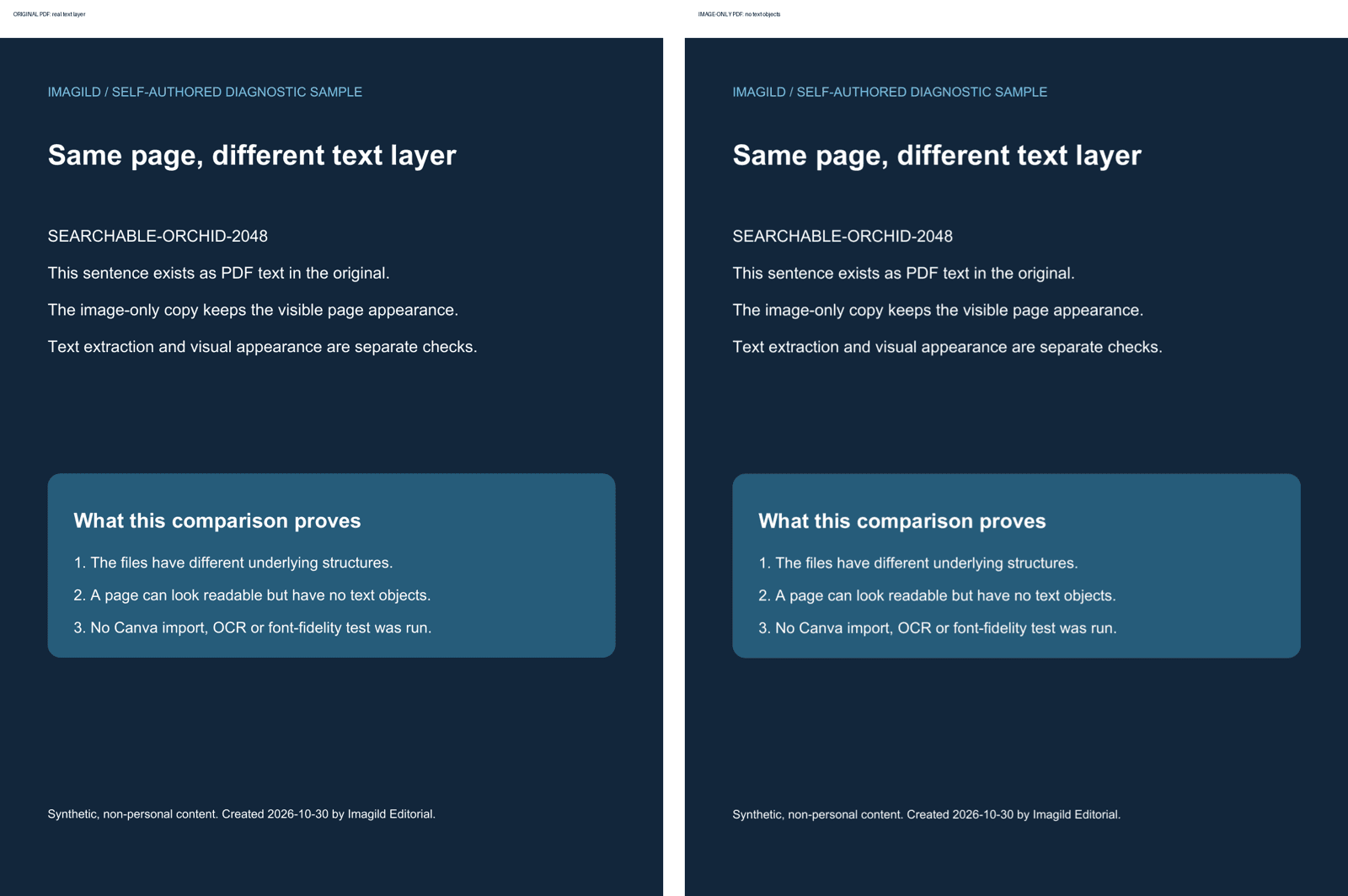
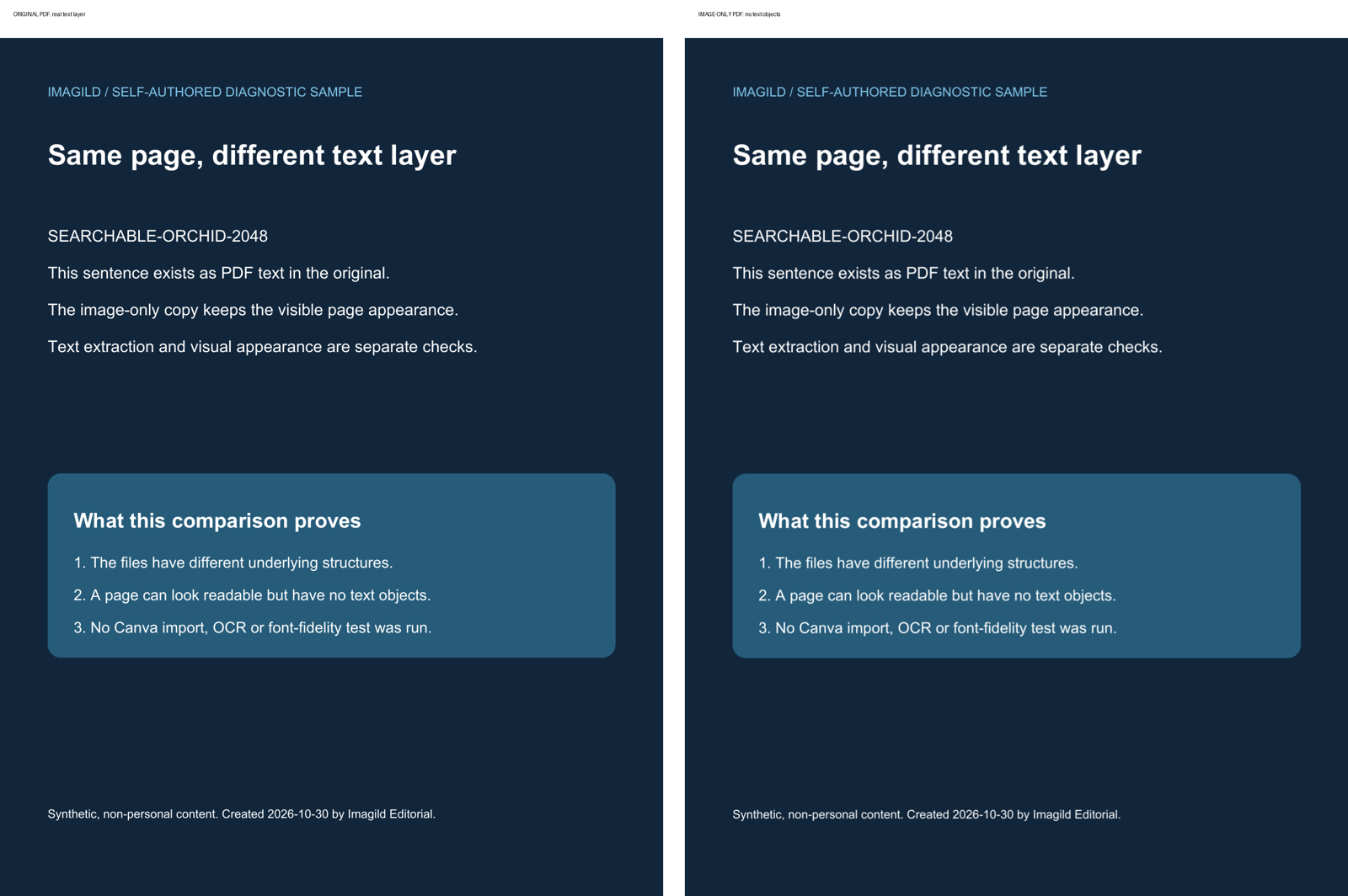
Use our original text-layer PDF and raster-only copy of the same page. We authored the first page, rendered it with Poppler at 144 dpi and placed that full-page image on a new PDF page of the same size. No OCR or hidden text layer was added to the second file.
Our actual pypdf extraction returned 523 characters from the original, including SEARCHABLE-ORCHID-2048, and zero characters from the image-only copy. Both files have one 612 × 792 point page. The side-by-side preview shows why readable-looking words alone do not establish the presence of editable text objects.
| Self-authored input | Observed extraction | Useful next question |
|---|---|---|
| Original PDF | 523 characters; test phrase found | Does your import preserve the particular text, font and layout? |
| Image-only PDF | 0 characters; test phrase absent | Do you need a verified OCR layer or manual text reconstruction? |
This comparison measures the underlying files, not Canva's import behavior. We did not test a Canva account, OCR accuracy, font substitution or conversion fidelity. A text layer also does not guarantee that an importing application supports every object. Canva's PDF import guidance describes the distinction between supported editable elements and scanned or flattened content. Check the actual imported result, and compare reconstructed names, amounts and line breaks with your authorized original.
Download the measured results and tool versions, reproduction notes or complete diagnostic pack. All sample text is synthetic; there is no client document in this example.
Sources and scope
- Import and edit PDFs in Canva: Scanned/flattened page representation, selection diagnosis, content recreation recommendation and Share/Download export path.
Prepared by Imagild Editorial, the company editorial team responsible for these guides. AI assisted research and drafting. The Canva workflow is documentation-based; the separately described local PDF construction and text-extraction checks were performed. No Canva application test or independent product review is claimed. Report a correction.
Cover: Pignatta / Pixabay, Content License. The city photograph is an illustrative source asset; it does not show this application or a test result.