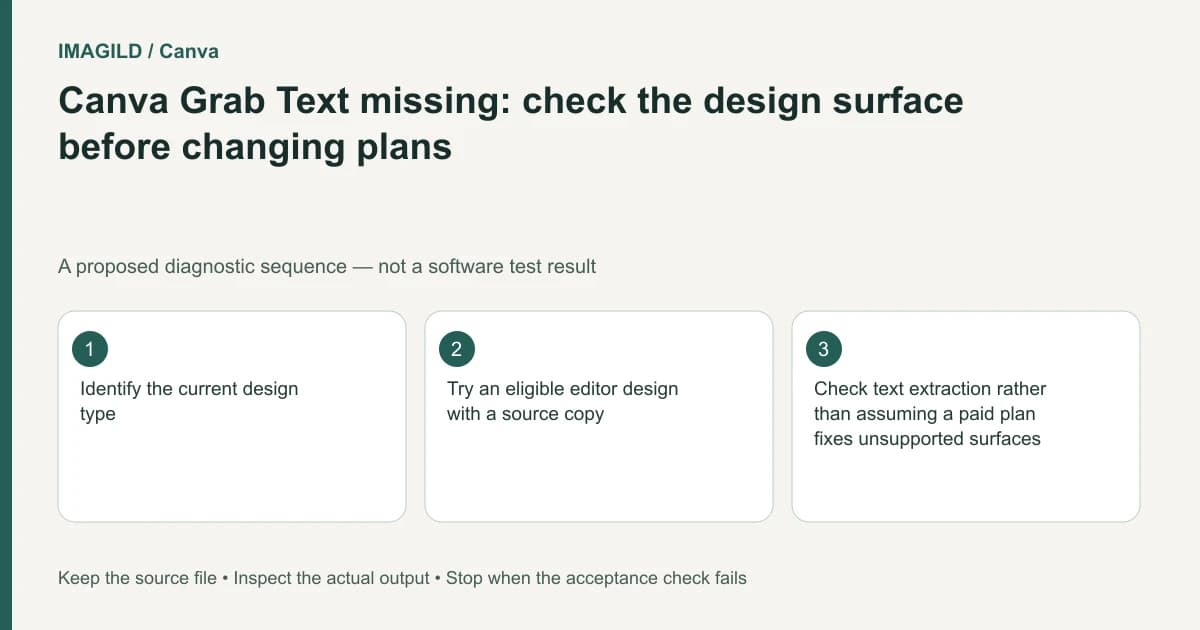
Identify the Canva editor surface before changing subscriptions or rebuilding the image. The documented Grab Text workflow excludes Docs, Video and the standalone photo editor. Keep the source, use an eligible design context if appropriate, and verify the recovered text. A feature missing from one surface does not prove that the original picture contains editable words.
Record the editor you actually opened
Write down whether the asset is inside a design, a Canva Doc, a video project or the standalone photo editor. Similar branding and navigation do not make these editing surfaces interchangeable. Also record whether you selected the source image itself, a group or a page containing it.
The official Grab Text guide states the surface boundary. Do not assume a design named Document is the same product surface as Canva Docs. When comparing a tutorial, compare its actual editing context rather than only the text on the cover.
This differs from an unreadable source or incorrectly recognized characters. Resolve whether the documented operation exists in the current context before trying to improve a result the interface cannot generate there.
Preserve both the picture and its intended role
Save the original image and record the exact words that need changing. If the image was extracted from a client document, keep its page identity and authorized reference. An editable replacement should not quietly change a date, currency, phone number or name.
If the material came from a PDF, Canva's PDF import help provides the relevant representation context. A scanned page can be one image even though it contains visible writing. Our scanned-PDF text check helps identify that condition without treating the scan as an original authoring file.
Choose whether the next step is text extraction, manual retypesetting or obtaining the original editable document. Grab Text is only one possible route. If the requested content must be exact, an approved typed reference may be more useful than repeatedly inferring letters from an unclear image.
Try one eligible working copy
Make a separate design suitable for the documented operation and place a copy of the source image there. Do not move or delete the only original to make a toolbar appear. Confirm that the intended image is selected, then follow the current Grab Text workflow shown in official help.
If the command remains absent, record the new design context and selected element before escalating. Distinguish feature access from a general upload failure. Canva's upload requirements address file admission; they do not establish that every accepted asset supports every editing tool.
Try a small representative sample before transferring a long document. An eligible editor surface can solve availability while leaving font, reading order and background reconstruction unresolved.
Inspect the separate outcomes
| Stage | Check | Failure that needs a different remedy |
|---|---|---|
| Source preparation | Correct image and intended page | Wrong crop or missing wording |
| Feature availability | Supported design context and selected image | Command absent on an excluded surface |
| Text extraction | Exact spelling and punctuation | Misread or invented characters |
| Background cleanup | No visible letter remnants | Old words remain underneath |
| Typography | Readable font and line breaks | A substituted typeface changes the layout |
| Final delivery | Reviewed export opens correctly | Editor view and delivered artifact differ |
A toolbar becoming available completes only the availability row. Do not stop the review there. Moving extracted text may expose incomplete background repair that was hidden by the new text box.
A hypothetical photographed notice
Suppose an organizer places a photograph of an event notice in Canva Docs, then looks for Grab Text to update a venue name. This is a proposed diagnostic scenario, not a tested Canva session.
Keep the notice photograph and confirm the replacement venue in plain text. If extraction is appropriate, try the picture in an eligible design context. Rebuild the exact wording, compare it with the approved venue record, and inspect the cleared image region before returning the result to the document workflow.
If the text cannot be recovered cleanly, manually typeset the confirmed venue in a fresh layout rather than turning guessed letters into an apparently authoritative announcement. Keep the original notice as the verification reference, not as proof that the new venue is correct.
Check the handoff beyond the editor
The Docs print-control guide illustrates why surface-specific limits also affect later production features. Verify final output requirements independently; changing to another surface for text work does not automatically satisfy a printer or document-accessibility brief.
Retain the editable text master and flattened export as distinct artifacts. Reopen the downloaded file and inspect the corrected words and surrounding picture. This documentation-based guide reports no account entitlement test, OCR accuracy measurement or guaranteed conversion between Canva surfaces.