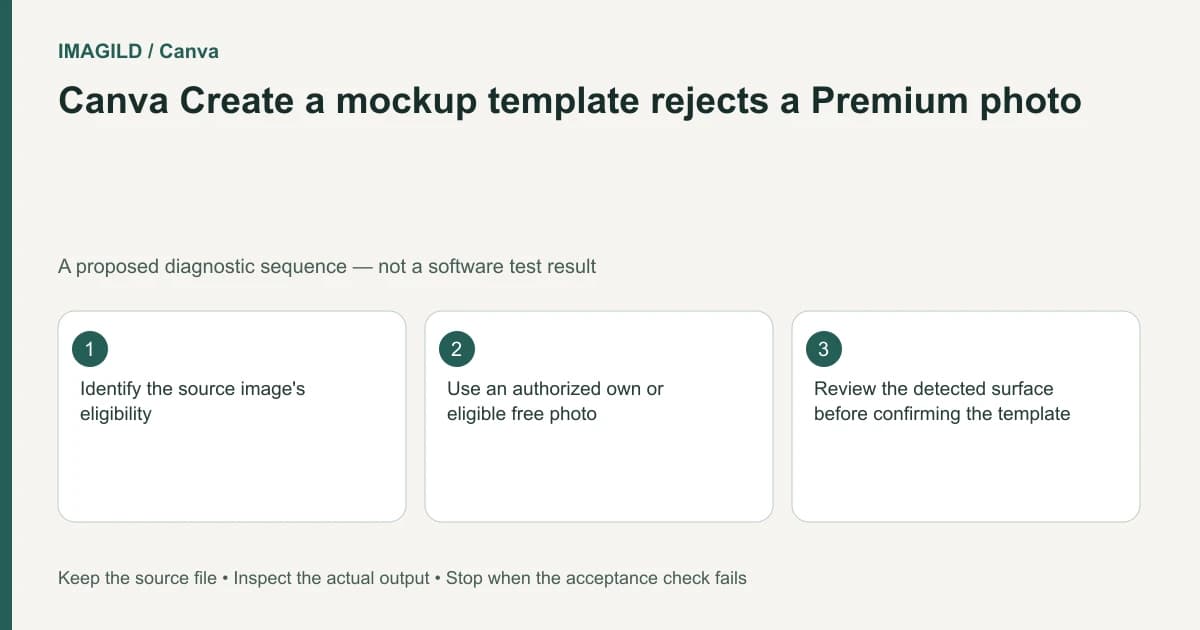
Check the source photograph before rebuilding a Canva custom mockup. The documented custom-template workflow does not accept Premium photos as that source; use an authorized owned image or a supported free-library photo. Keep the artwork separate and review the mockup as a presentation, not as proof of the manufactured product.
Identify which asset the restriction concerns
A mockup contains at least a scene photograph and artwork placed into a surface. Record which one you are selecting when the operation is unavailable. Changing the artwork file will not resolve a limitation applying to the scene photograph.
Canva's mockup creation guide describes the custom-template source boundary. A photo being available for another design use is not proof that this particular route accepts it. Keep the asset identity and the exact message together when requesting support.
Preserve the original artwork and any accepted previous mockup. Do not flatten both into one image merely to make them easier to upload; that removes the distinction the next editor needs to replace the design or evaluate the scene.
Choose a source for the intended surface
Use a photograph you are authorized to use and whose content suits the proposed placement. Check the visible surface, perspective, lighting and occlusions. An eligible input can still be a poor presentation if the artwork must wrap around an object or remain readable beneath a strong reflection.
If the image is your own upload, consult Canva's upload requirements for the file-admission step. Passing that step does not certify the custom mockup or establish rights you do not already possess. Do not alter a filename or remove identifying information to evade a source restriction.
Keep the original source photograph available for comparison. A later cropped or edited version may change the surface boundary, making it difficult to understand why the artwork appears in the wrong place.
Separate source suitability from visual approval
| Question | Evidence to inspect | What a successful operation does not prove |
|---|---|---|
| Is the scene source supported? | Current asset type and workflow | That every licensed asset is eligible |
| Is it authorized? | Your source and project permissions | That processing grants new rights |
| Is the surface usable? | Perspective, boundaries and occlusion | That any picture is a suitable template |
| Is the artwork intact? | Approved master and placement preview | That all edges remain visible |
| Is the mockup realistic enough for its purpose? | Actual composite at delivery size | That manufacturing will match it |
| Is the file ready to send? | Reopened exported file | That editor preview equals final output |
Use the table as a production checklist. It is not a legal assessment or a certification of a physical product. Ask the relevant owner or supplier when the project requires an exact licensed or manufactured representation.
Keep the mockup's role explicit
A mockup communicates an appearance proposal. It is not automatically print-ready artwork, a dieline or a material sample. Our holographic-ticket presentation guide explains why an attractive simulated surface does not establish a production effect.
Canva's frame guidance describes another image-container workflow. A decorative frame and a custom mockup surface are not interchangeable promises. If a simple framed presentation meets the brief, use that deliberately rather than labeling it as a physically accurate product preview.
Keep the artwork's required dimensions and color specification in its own master. The mockup may crop or transform its appearance to fit a scene; those presentation choices should not overwrite the approved production file.
A hypothetical tote-bag proposal
Imagine a designer wants to show an event logo on a tote bag but selected a Premium scene photo for a custom template. This is an illustrative planning example, not an application test.
Confirm which asset is blocked. Choose a suitable authorized owned photograph or supported free source, then place a copy of the approved logo artwork. Check the visible seams, handle overlap and logo boundaries. Ask the client to approve the presentation while keeping supplier production approval separate.
If the source changes, recheck the design placement from the beginning. A logo centered on the old surface may not align with the new bag's visible printable region. Do not assume an accepted photograph preserves the old mockup coordinates.
Close the source and version record
Use the approved-version handoff workflow to identify the scene source, artwork revision and final mockup. If this becomes a reusable team asset, the Brand Template permission guide addresses a separate authority question; access to a project is not blanket publication permission.
Reopen the exported mockup and compare it with the approved composition. This documentation-based article reports no custom-template test, source-license interpretation or physical-product validation.