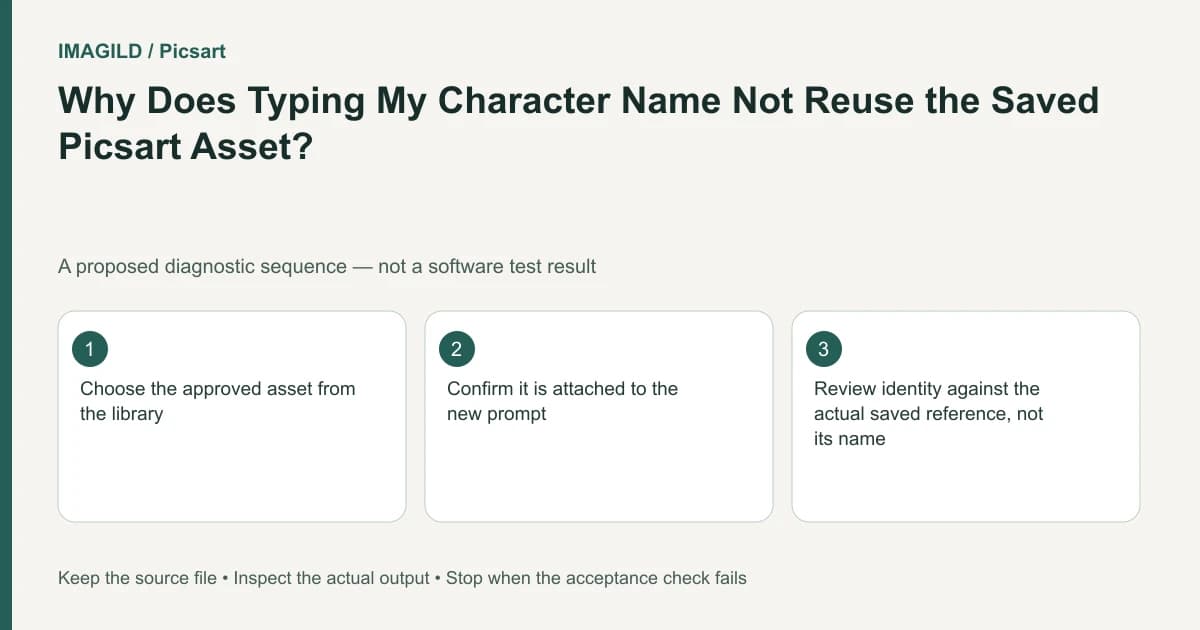
Type @ and select the intended Library asset, or use the documented drag route, instead of assuming a character's name in ordinary text attaches its reference. Verify the selected asset before generating. A correct attachment improves traceability; it does not guarantee identical character details in the output.
Distinguish a descriptive word from an attached reference
A prompt such as “Mira walks through a garden” may communicate a story idea, but the name alone does not prove which saved character the application should use. If several assets or versions have similar names, ordinary prose is especially ambiguous.
Picsart's Assets Library instructions describe choosing an asset after typing @ and also provide a drag-based route. Use the visible selection mechanism available to you. Do not invent an unsupported syntax or assume that every typed filename is resolved automatically.
Consider a hypothetical story with two characters both wearing blue coats. One has a short black bob; the other has long brown hair. The creator wants the first character on a bridge. If the request only says “the blue-coat character,” a plausible output can still be the wrong person.
Prepare a reference that has one clear identity
Open the saved asset and inspect its reference material before attaching it. Check whether it contains the approved character or an old draft. If its description conflicts with its images, settle that conflict before creating another scene.
The approved asset-version handoff guide explains why a well-named item is not necessarily the currently approved reference. Keep an external production note identifying the chosen version where the interface does not provide a sufficient approval record.
For the bridge scene, note three identity cues: hair silhouette, coat shape and a distinctive bag. Avoid using a facial feature that is invisible in the reference as your only acceptance criterion. The check should be possible with the actual material supplied.
Attach the asset and inspect the request before running
Start a new scene draft. Use @ to find and select the intended item, or drag it using the documented route. Confirm the visible attached reference corresponds to the approved asset. The exact appearance of the attachment may vary; the important point is that you selected the asset rather than only mentioning its name.
Add the scene action and setting after the character binding is clear. Do not bury incompatible instructions in the same prompt, such as demanding both the original coat and a completely different costume. A reference and a contradictory instruction cannot both be treated as unconditional requirements.
The Playground getting-started page describes choosing the model and settings. Keep those choices stable for the first diagnostic pilot. If you change the reference, model, costume and viewpoint simultaneously, a changed face has too many possible explanations.
Review attachment correctness separately from generated consistency
| Question | Evidence to inspect | What it establishes |
|---|---|---|
| Was an asset selected? | Visible reference attached to the request | The request used a chosen item |
| Was it the approved asset? | Reference images and version notes | The chosen input was appropriate |
| Does the new image match? | Hair, coat, bag and face review | The output meets this scene's brief |
| Can another editor reproduce the setup? | Saved request and reference record | The workflow can be traced |
The table is a proposed review method, not a product benchmark. A correct attachment can coexist with an unsuitable output. Do not report the former as proof of the latter.
If the viewpoint changes substantially, use the character turnaround checklist to inspect identity across angles. For competing references, the reference-priority guide helps define which cue wins when sources disagree.
Know when a story-specific character route differs
The separate Persona and Storyline documentation describes adding Persona characters to a story. That is another explicit character-selection workflow, not evidence that typing an arbitrary name in every Picsart tool attaches a Library asset.
Choose the environment that fits the task and is actually available to your account. If you switch from a Playground scene to Storyline, record which reference system you used. Do not tell a collaborator to look for an @ attachment in a different interface without confirming that control exists there.
For the hypothetical bridge scene, acceptance means the request can be traced to the approved character and the output passes the visible identity checks. If it fails, keep the rejected result and its setup together. Correct a wrong attachment first; only then investigate prompt wording or generation variability.
Do not keep generating simply because the character's name remains in the prompt. The useful diagnostic is whether the intended visual reference is attached and whether the returned image meets the scene's protected features. Those are two separate, observable decisions.
Prepared by Imagild Editorial. AI assisted research and drafting. Documentation checked on 4 November 2026; examples and checks above are proposed, not claims of hands-on software testing. Report a correction.