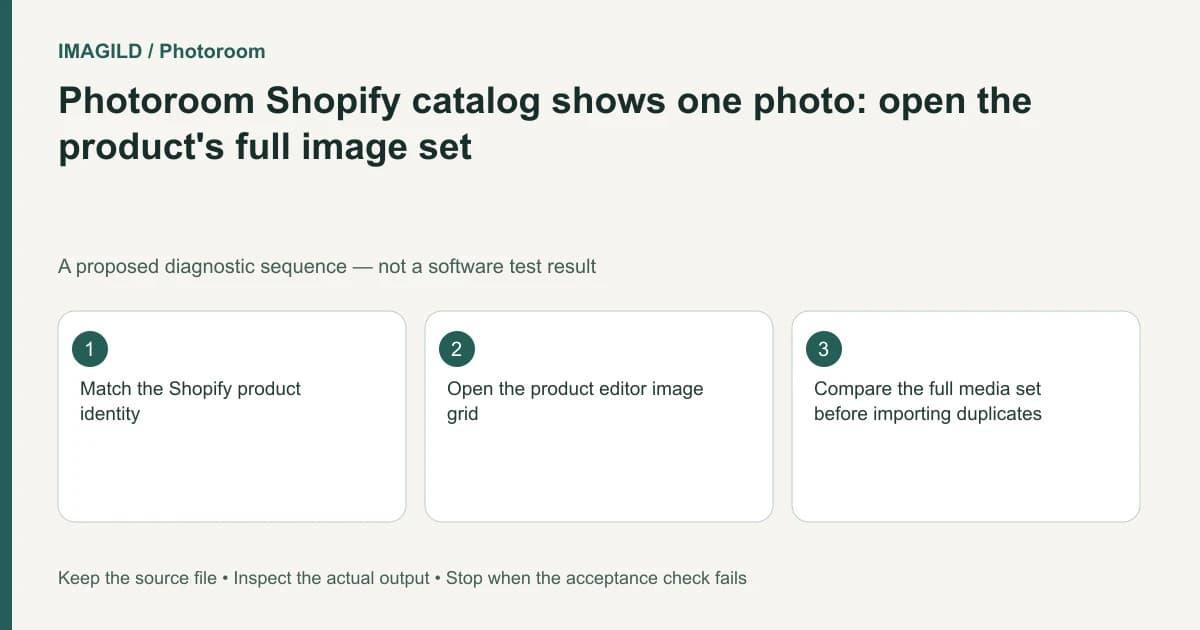
Open the product's editor before concluding that Photoroom imported only one Shopify photo. The Products catalog shows a featured thumbnail, while the Product editor exposes the product's image set. Confirm the product identity, compare its full media grid with Shopify, and avoid creating duplicates until a genuinely missing asset is identified.
Identify the view and the product
Record whether you are looking at the Products catalog, an opened product's Grid View or one image in Full Screen View. Those surfaces summarize different amounts of information. One visible thumbnail in a catalog tile is not an inventory count.
The Photoroom catalog-and-editor guide describes the featured-thumbnail distinction. Start by matching the product name and a reliable product identifier, particularly when several listings use nearly identical photographs.
Preserve the current product record and note which image is expected to be missing. A request such as “the green mug's handle close-up” is more useful than “the other picture.” Do not upload replacements while the identity of the supposedly missing item remains unclear.
Open the complete image set
Use the documented route to open the product from the catalog. Inspect all images in its grid. If you open one image in Full Screen View, inspect the other available thumbnails before treating the current large preview as the whole product.
Compare the set with the relevant Shopify product record. Shopify's product-media guide distinguishes the main media item from the rest of the product media. A featured image is a presentation role, not a declaration that no other views exist.
Write a short reconciliation list containing the source role, a visible distinguishing feature and whether it appears in each system. Do not rely solely on total count: two systems can each show three images while one includes a duplicate and omits the required detail.
Distinguish the different problems
| Observation | Likely question | Next evidence to inspect |
|---|---|---|
| Catalog shows one thumbnail | Is this simply the featured image? | Open the full product editor |
| Editor contains the expected views | Is the actual issue ordering or selection? | Compare roles and current preview |
| A specific view is absent | Was that asset part of this product? | Source product media record |
| Another color appears | Is product or variant mapping wrong? | Product identifier and actual variant |
| Editor is correct but store differs | Were updates published and displayed correctly? | Actual storefront and update record |
| Two near-identical outputs appear | Was a replacement uploaded prematurely? | Source-to-output revision mapping |
These are proposed diagnostic branches, not a guarantee of synchronization timing or a report of the state of a particular connected store.
Review selection scope before editing
The Photoroom Shopify image-editing workflow is the relevant next step once the complete set is visible. Identify whether the operation applies to selected images, all product images or one layer. Do not make broad edits merely to force a thumbnail refresh.
Keep the accepted original and any new candidate distinguishable. If a background or crop is changed, compare the factual product details against the source before publishing it. A better catalog thumbnail is not an excuse to change the product's actual color or construction.
Our SKU-to-file mapping guide helps maintain this identity chain. A matching filename or product title alone cannot certify that the image depicts the intended variant.
A hypothetical four-view mug listing
Suppose Shopify contains front, side, handle-detail and packaging photos for a mug. Photoroom's catalog shows the front view, and the seller assumes the remaining photos vanished. This is an illustrative inspection scenario, not an observed integration test.
Open the product's image grid and match each view to the source list. If all four are present, do not upload them again. If the handle-detail view is truly absent, preserve the observation and investigate that specific media record through the supported connection workflow.
If the wrong color appears after a buyer selects an option, treat that as another task. The Shopify variant-image check covers assignment and actual storefront behavior. It should not be replaced by repeatedly changing the product's featured image.
Verify the real publication result
After an authorized edit or update, inspect the actual published product page as a buyer would. Check the default image, gallery views and relevant variant selections. Record what was observed separately from what the editor displayed.
Keep the product identity and approved revision with the final assets. If the connection still shows a discrepancy, provide support with the specific product and missing-view evidence rather than a speculative claim that the entire library was lost.
This documentation-based guide reports no inspected Shopify connection, synchronization measurement or confirmed publication result for a store.