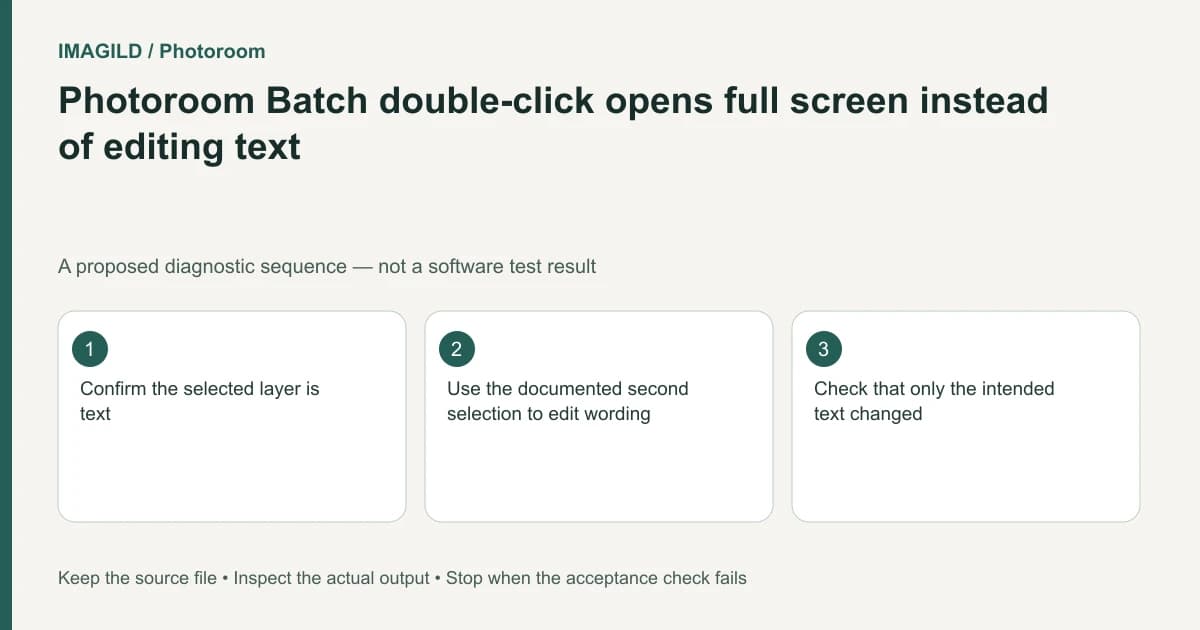
In the new Photoroom Batch Web editor, double-clicking can open Full screen instead of entering text editing. For wording changes, use the documented sequence: select the text layer, move the pointer off the image, then select the text layer again. Confirm an actual text-editing state before typing.
Identify a text layer, not text baked into a picture
Select the layer and inspect its available controls. A photograph of a label contains visible letters but is not necessarily an editable text layer. If the words are baked into the product image, this text-entry sequence cannot turn them into editable original typography.
Photoroom's Batch text-layer instructions specify the select, move-away, select-again sequence for editing wording and distinguish it from the double-click behavior. Follow the current Web interface rather than a mobile or older editor tutorial.
For a proposed discount badge, the required change might be “Spring” to “Summer.” Keep the original wording recorded so you can distinguish a copy change from a font, color or position change.
Enter the wording through the intended state
Select the target text layer once. Move the cursor away from the image, then select that text layer again as documented. Check that the wording is editable before typing. If Full screen opens instead, return to the relevant editing context and repeat the deliberate selection sequence rather than adding another text layer immediately.
The new layer-adding guide describes creating additional text as a separate action. It should not be used as an automatic workaround for an existing layer you have not yet identified; that can leave duplicate badges.
| Visible state | Interpretation | Next check |
|---|---|---|
| Whole image selected | Image-level actions, not text entry | Select the actual text layer |
| Text layer controls visible | Correct object is selected | Use the documented second selection |
| Full-screen image opens | View changed rather than wording state | Return and identify the text layer |
| Letters remain part of a product photo | No original text object established | Choose an appropriate authorized image-editing route |
Review line breaks after changing the words
A longer phrase can change wrapping or overlap a product. Check the text block's width, line spacing and placement at final output size. Do not assume the shorter original layout remains valid after a seasonal or localized wording change.
The Batch selection-scope guide covers choosing one image or layer. Keep this wording edit local until it is correct, especially when other products require different labels.
Export and proofread the actual badge
Use the Batch download instructions and open the image independently. Read every letter, confirm the correct phrase and inspect the badge against the product. A successful entry state does not prove that the delivered file includes the intended revision.
If only part of the picture seems visible through the letters, inspect text-background or Knockout settings separately; the Knockout guide addresses that different appearance issue. Stop when the selected content is not an editable text object, rather than promising that repeated double-clicking will reveal source typography that does not exist.
Worked wording check: one badge changes from Spring to Summer
For a proposed seasonal badge, keep a copy showing Spring sale and select its actual text layer. Move the pointer off the image, select the text layer again, and verify that wording is editable before typing Summer sale. If Full screen opens, return and repeat the documented selection sequence; do not create another badge merely to obtain a text field.
After the replacement, count text layers and inspect the final line break. There should be one intended sale badge, not an old Spring layer underneath a Summer copy. If the words belong to the product photograph rather than a text layer, this interaction cannot recover its original typography. Retain the source and choose a deliberate rebuild or image edit instead.
- identify the text layer rather than the whole image: Use this when the menu contains image-level actions instead of text editing.
- check an unexpected text-background effect: Use this if the new words are entered correctly but appear cut through the label.
- review a wording change that no longer fits: Use the layout-check principle when a longer seasonal or localized phrase changes line breaks; it does not define Photoroom’s entry controls.
Prepared by Imagild Editorial. AI assisted research and drafting. Documentation checked on 4 November 2026; the examples are proposed review plans, not claims of hands-on software testing. Report a correction.