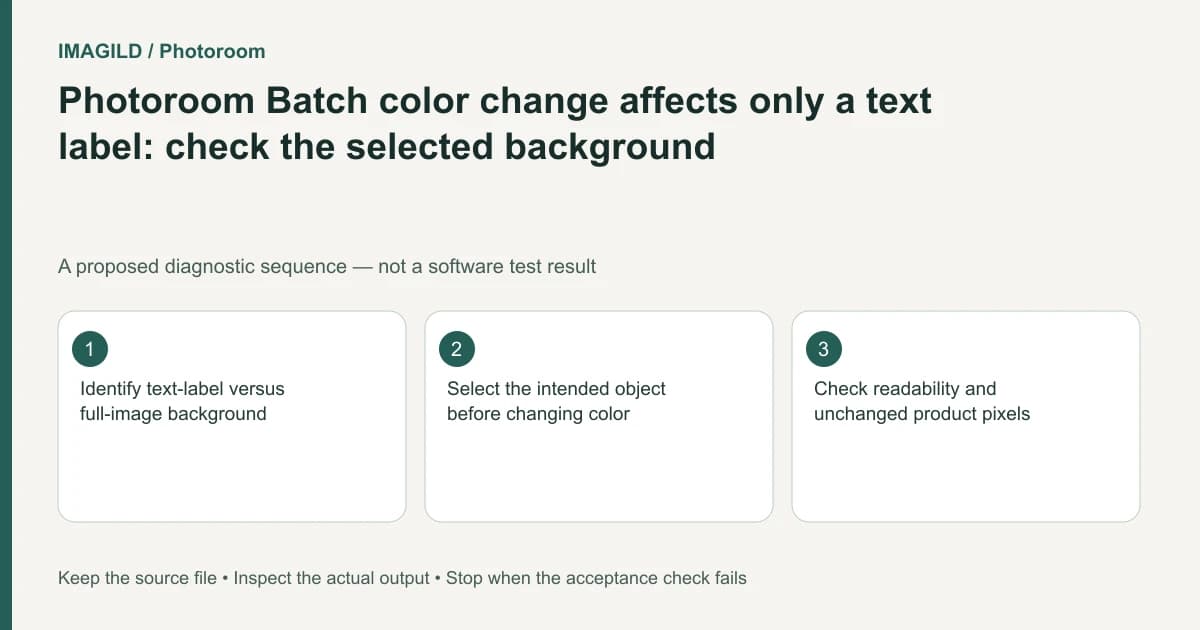
If a Photoroom Batch color change affects only a label behind the words, you are likely editing the text layer's Background treatment rather than the picture's background. Select the intended object first. Text-label styling and replacing the scene behind a product are separate operations.
Identify which pixels the brief wants changed
For a proposed sale image, the team may want a black rectangle behind white text while leaving the studio scene unchanged. Another request may want the entire studio background black. Both can be called “change the background,” but they act on different objects.
Photoroom's text-layer instructions include a Background control for text treatment. Before changing its color, confirm that the selected item is the text layer. The selected-layer pill gives context that a color swatch alone cannot provide.
Keep a reference showing the desired extent of the color. A small labeled screenshot can make the scope unambiguous without requiring a long prompt.
Change the correct background object
If the requested change is behind the words only, keep the text layer selected and adjust its supported background treatment. Check the text's own color separately so the words remain readable.
If the requested change is the full scene, return to the image/background selection and inspect its type. The Batch adjustment documentation distinguishes background controls from selected foreground controls and limits photo adjustment to static background images. Do not assume a text-label swatch controls any of those background representations.
| Selected object | What its background treatment affects | What it does not establish |
|---|---|---|
| Text layer | The label treatment associated with the words | A full-image background replacement |
| Full image/background context | The actual scene or background representation | The text's own readability |
| Product layer | Its own available adjustments | A background-only color correction |
Check Knockout when the letters reveal the photo
If the label color changes but the letters seem transparent or show the underlying image, inspect Knockout rather than repeatedly changing the font color. The existing Knockout text guide covers that specific text-background interaction.
For the hypothetical black badge, the expected result might be solid white letters on an opaque black label. A cut-through letter effect is a different design, even if its color palette appears similar in a thumbnail. Inspect at readable size.
Keep the correction local until the scope is proven
Do not apply the edit to the whole batch until one image has the intended label/background relationship. The Batch scope guide explains selecting the image and layer. Different products may place essential text behind the label, so inspect overlaps before broad transfer.
Use the Batch download instructions to obtain a pilot file, then open it independently. Check that the product, scene, words and label each changed only as intended.
The correction passes when the changed area's extent matches the brief and the final text remains legible. Stop if the desired badge is actually baked into a flattened source image. A text-layer Background control cannot edit an object that is not present as editable text; a deliberate reconstruction is a different task.
Worked color-scope check: black badge on an unchanged wall
For a proposed sale tile, the approved target is white words on a black label, with the pale studio wall unchanged. Select the text layer and inspect its Background treatment. Change that label treatment, then read the words. If the entire wall changes instead, return to the intended object before making more color adjustments.
If the black label appears but the photo shows through the letters, inspect Knockout as a separate text effect. If the actual request is a black full-image backdrop, move to the background context and identify its type rather than extending the text label until it covers the canvas. Check the product, wall, label and letters individually in the downloaded pilot.
- diagnose letters that reveal the underlying photo: Use this when label treatment, not the word itself, produces an unintended cut-through effect.
- verify selected-layer scope: Use this if the same color choice affects a different object than expected.
- check text contrast against the actual background: Use this when the words are present but become unreadable in another crop or scene.
Prepared by Imagild Editorial. AI assisted research and drafting. Documentation checked on 4 November 2026; the examples are proposed review plans, not claims of hands-on software testing. Report a correction.