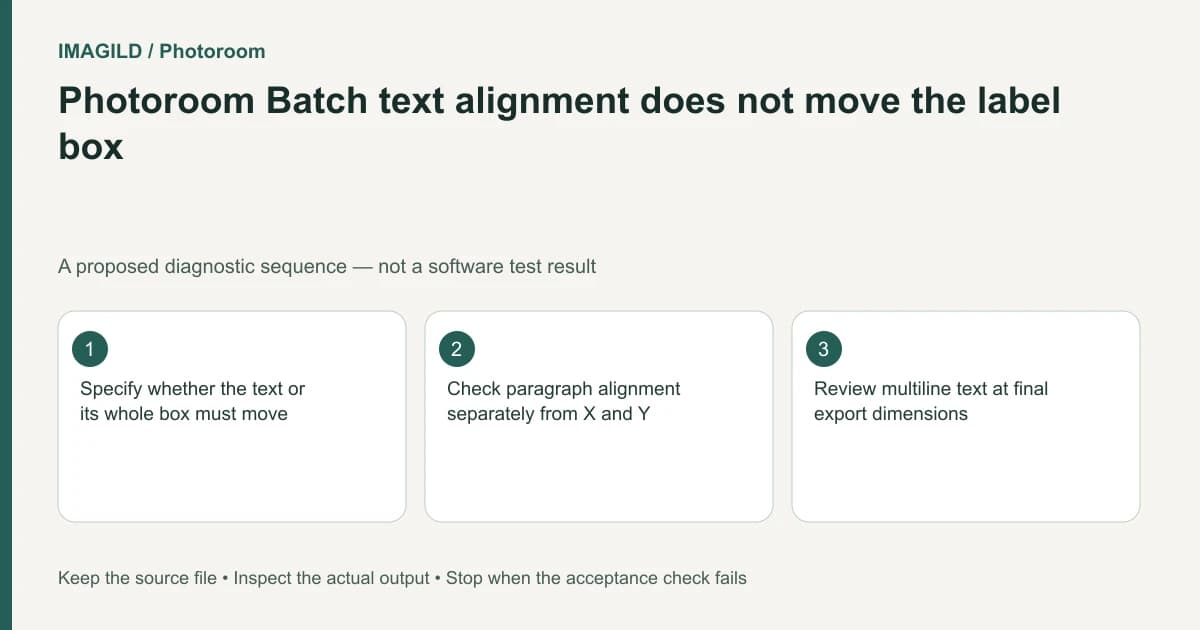
Photoroom Batch paragraph alignment changes how words sit inside their text box. Layer Position moves the text box against the image. If clicking center alignment does not move a badge to the center of the picture, check which of these two layout requirements you intended.
Draw the two boundaries before changing controls
Identify the text box and the overall canvas. A left-aligned sentence can sit in a centered box, and a centered sentence can sit in a box placed at the left edge. Both combinations are possible, so “center the text” needs a more precise brief.
Photoroom's text-layer guide describes paragraph-alignment controls. Its Position guide describes the layer's coordinates and alignment to the image. These controls address different boundaries.
For a proposed two-line product label, the box may need to sit in the upper-right corner while both lines align to its left edge. Centering every object would not meet that brief. Keep a simple annotated reference showing the intended box location and text alignment separately.
Correct the box location independently
Select the actual text layer. Check that an image tile or another graphic is not active. Use the layer's supported Position or Align to image action for the whole box, then inspect its position relative to the product and canvas edges.
If position changes do not persist, follow the documented issue check in the Position guide: select another layer before clicking away to deselect. Do not keep changing paragraph alignment to compensate for an uncommitted position change.
Next adjust paragraph alignment within the box. Inspect both lines, especially if one is shorter. A line that appears centered by eye can hide the fact that the paragraph is still left-aligned in an oversized box.
| Requirement | Relevant boundary | Verification |
|---|---|---|
| Badge at upper right | Box versus image | Intended edge clearance and no product overlap |
| Lines share a left edge | Words versus text box | Both lines align inside the box |
| Whole label centered | Box versus canvas plus internal alignment | Box position and words both match the brief |
| Position retained | Editor state after deselection | Reopened image has the same layout |
Recheck after wording or font changes
Changing the copy or typeface can alter line breaks and apparent balance. Review the layout after the final wording, not only before. Avoid shrinking type until the badge becomes unreadable just to preserve an old box arrangement.
The existing Batch scope guide explains selecting a specific image or layer. Use that scope when checking one pilot before transferring the design to other images. Different product silhouettes can require different clear space even when the text styling is identical.
Verify both boundaries in the download
Use Photoroom's Batch download workflow, then open the exported image at its planned display size. Check the outer margins, box placement, line alignment and readable text together.
The task passes when the box is where the brief requires and the words are aligned as intended inside it. If the source contains only flattened text pixels, these text-layer controls are not a way to recover the original typography. Keep the original artwork and choose an appropriate rebuild or image-editing route instead.
Worked alignment check: right-side badge with left-aligned lines
For a proposed bottle tile, the text box belongs at the upper right while its two lines share a left edge. First select the text layer and use Position or Align to image to place the whole box relative to the canvas. Then change the paragraph alignment inside that box. A centered paragraph in a box still sitting at the left is not the requested layout.
Check the longer line and the shorter line separately. If the product edge now overlaps the box, adjust the intended object rather than shrinking type without approval. Reopen the image to verify placement persisted, then inspect the exported badge at its planned display size. The two acceptance conditions are box location and line alignment, not a single center icon state.
- select the intended editable text object: Use this before interpreting Position or paragraph controls.
- review line breaks after wording changes: Use its text-box reflow check when new wording no longer fits the approved box; its Photoshop controls do not establish Photoroom controls.
- check downstream crops of the placed badge: Use this if the exported tile is correct but the website later hides its upper-right content.
Prepared by Imagild Editorial. AI assisted research and drafting. Documentation checked on 4 November 2026; the examples are proposed review plans, not claims of hands-on software testing. Report a correction.