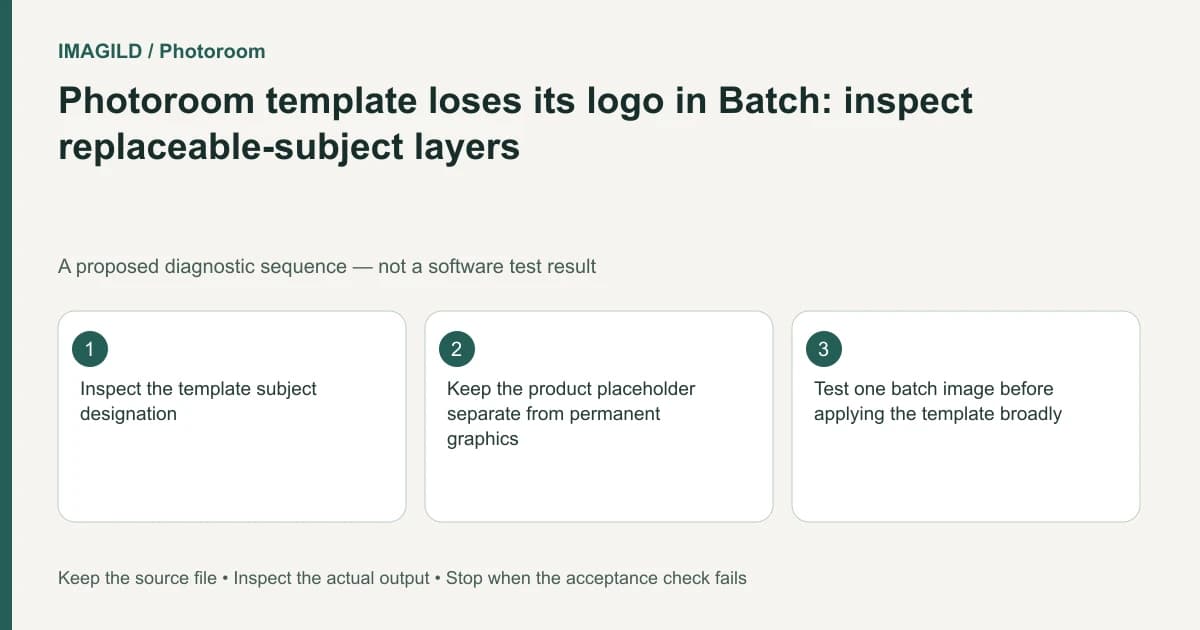
If a permanent logo disappears when a Photoroom template is applied to Batch images, inspect whether that template layer is marked Replaceable subject. Such a layer is replaced by the incoming image's main subject. A logo that must stay fixed should not accidentally occupy the role reserved for the product placeholder.
Separate template content from replacement roles
A template can contain a background, product placeholder, logo and text. Their appearance in the template preview does not establish which layers will be copied unchanged. Inspect their roles before treating the application as a failed asset import.
Photoroom's apply a template guide states that layers marked as replaceable subjects are not added as fixed content; they are replaced by the main subject of the incoming image. That explains why a correctly visible template logo may vanish after application.
For a proposed accessories catalog, the template should replace a sample bag while retaining the store logo. If both the sample bag and logo were assigned the replaceable role, the output will not preserve the intended permanent graphic simply because it looked correct in the preview.
Inspect the template rather than repeatedly applying it
Keep a copy of the approved template before changing it. Open the template's edit view and inspect the Replaceable subject option for each relevant layer. Confirm which layer is the placeholder and which should be copied into every image.
The save a Batch image as a template instructions describe this role check: a layer with Replaceable subject on is replaced, while a layer with it off is copied when the template is applied. The template is saved in the Space's Templates, so also confirm the intended Space and template revision.
| Layer | Intended role | Application check |
|---|---|---|
| Sample product | Replaceable placeholder | Incoming product replaces it |
| Permanent logo | Fixed graphic | Logo remains once, with correct position |
| Promotional text | Fixed or intentionally revised copy | Correct wording and readable size |
| Background | Template design component | Matches the approved scene and canvas |
Apply the corrected template to a pilot
Test one representative image before applying the template broadly. Inspect the logo, product scale, canvas size and text. The template guide also notes that AI templates can vary to suit the subject; do not expect a generated scene to behave exactly like a static layout.
If the logo is present but hidden behind the product, that is a separate layer-order issue. The layer-order instructions provide the relevant stack controls. Do not keep changing replacement roles when the layer actually exists and is merely obscured.
Confirm the delivered file and retain the corrected template
Export the pilot and inspect it outside the browser. Check the logo's complete outline and lettering at delivery size, then confirm that the product remains the correct item. A thumbnail can hide a missing or duplicated mark.
Only after the pilot passes should you apply the reviewed template to the intended set and inspect exceptions. Record the Space, template name and role changes for the next editor. The correction is complete when the placeholder is replaced, permanent content remains, and the actual output meets the layout brief without sacrificing the original template or prior batch images.
Worked template role check: bag placeholder versus fixed store mark
For a proposed bag template, open the saved template in the Space’s Templates and choose Edit template. Select the sample bag layer and inspect Replaceable subject. Then select the store logo and inspect that option separately. The documented rule replaces a layer marked as subject with the incoming product; it copies a layer with that option off.
Test the corrected role assignment on one bag image. The accepted result contains the new bag, one store logo and the intended text. If the logo exists but lies behind the bag, switch to the stacking diagnosis rather than changing replacement roles again. Keep the prior template revision available until the pilot passes; repeating template application is not a way to prove the old role assignment was correct.
- keep template application scoped to a pilot: Use this before applying an unverified template to the broader catalog.
- check Space-specific brand resources: Use this if the fixed text treatment or font is missing for a collaborator despite a correct subject role.
- distinguish reusable template and downloaded result: Use this when deciding what must be retained for a later batch rather than only delivering the pilot image.
Prepared by Imagild Editorial. AI assisted research and drafting. Documentation checked on 4 November 2026; the examples are proposed review plans, not claims of hands-on software testing. Report a correction.