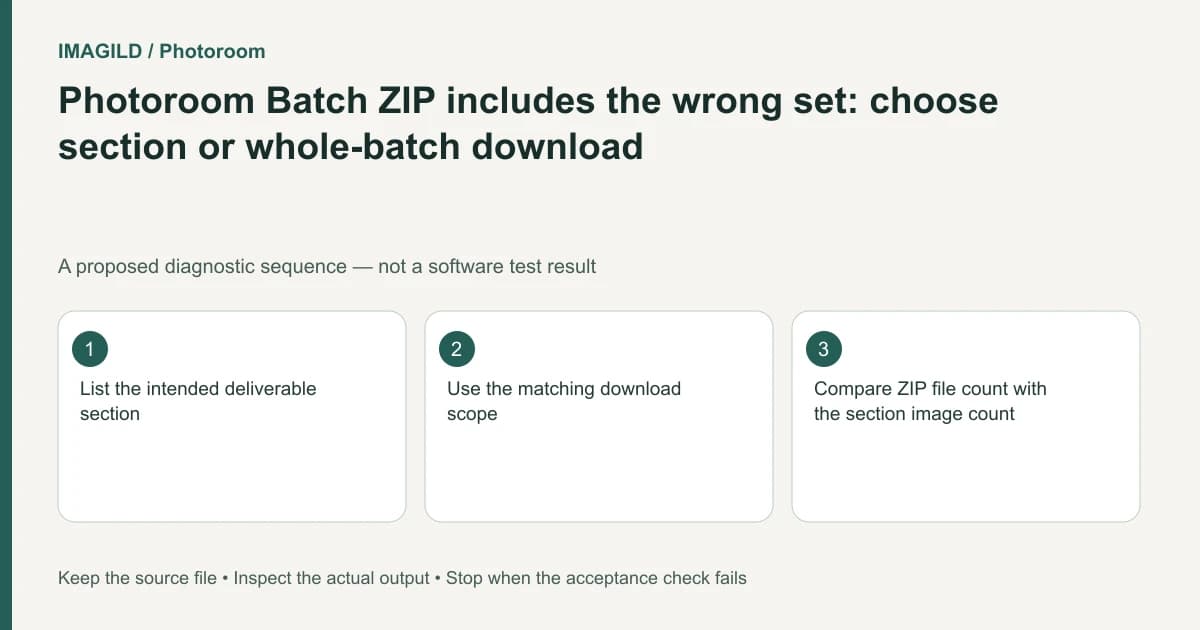
For a client subset in Photoroom Batch, choose the section's download action or an explicit image selection rather than assuming the current viewport defines the export. The section heading and the upper-right whole-batch download have different scopes. Verify the resulting ZIP against an intended product list.
Define the delivery set before pressing Download
Write the section name, image count and product identities expected in the handoff. A filename such as “approved” is not a substitute for checking the contents. Similar products in another section can make a wrong set appear plausible at a glance.
Photoroom's sections guide describes downloading a section from its title controls. The general Batch download instructions describe whole-batch, selected-image and individual-image routes. They also note that leaving images unselected can mean all images, not none.
For a proposed retail catalog, only the twelve approved product images should go to the client. The twenty drafts elsewhere in the batch should remain available for the editor. Export scope is therefore part of preserving the working set, not a reason to delete unapproved images before downloading.
Choose the route that matches the intended set
Use the section action if its membership exactly matches the brief. For a cross-section subset, use an explicit supported selection in Grid view and confirm the selected images. The download documentation states that selected or individual downloads require Grid view; Full screen supports downloading all Batch images.
Inspect the action's context before continuing. A layer menu concerns one layer, while the image or section context defines another scope. If you expected a subset and the control is only offering a whole-batch download, stop and return to the appropriate view.
| Delivery requirement | Route to investigate | Pre-download check |
|---|---|---|
| One complete section | Section heading download | Membership is exactly the approved list |
| Selected images across groups | Grid-view selection download | Every intended image is selected, no extras |
| All batch images | Whole-batch download | Drafts and exceptions are intentionally included |
| One image | Whole-image action or single selection | Correct product and revision |
Review filenames separately from section organization
Photoroom's reordering batch images address arranging thumbnails. They do not establish how a recipient's file browser will sort exported files. If sequence matters, provide an explicit ordered list and verify actual filenames.
Do not assume a ZIP is one image for allowance purposes. The existing export allowance versus AI credits guide covers that separate account-usage question. Output scope should be checked regardless of the current allowance.
Unzip and inspect the deliverable
Open the archive, count the image files and match them to the intended products. Check that the approved revisions, not earlier snapshots, are present. Open representative images and every exception rather than relying only on the archive's name.
If the set is wrong, correct selection or section membership and export again without deleting the original working content. Keep the final ZIP distinguishable from the rejected one. The task passes when the recipient receives exactly the requested images and the editor retains the broader batch for later work.
Worked ZIP check: Approved contains exactly the client subset
For a proposed client handoff, the Approved section contains twelve specified products while drafts elsewhere must remain. Confirm those twelve identities, then use the section download action. For a cross-section subset, use supported Grid-view selection instead. Do not infer export scope from the current scroll position or the fact that only one image is large on screen.
Unzip the result and match filenames and visible products to the intended list. If twelve files include a wrong product and omit the intended one, count alone fails. Grid order is not a promise of the recipient’s file-browser ordering, so provide an explicit sequence if needed. Keep drafts in the original working batch; removing them is unnecessary for a subset export.
- check image selection and export scope: Use this before a cross-section subset download so an empty selection does not accidentally mean the whole batch.
- retain working content beyond the delivered ZIP: Use this when the client subset and the editor’s broader working set have different retention needs.
- match delivered files to approved revisions: Use this when correct product counts still conceal older badge or layout variants.
Prepared by Imagild Editorial. AI assisted research and drafting. Documentation checked on 4 November 2026; the examples are proposed review plans, not claims of hands-on software testing. Report a correction.