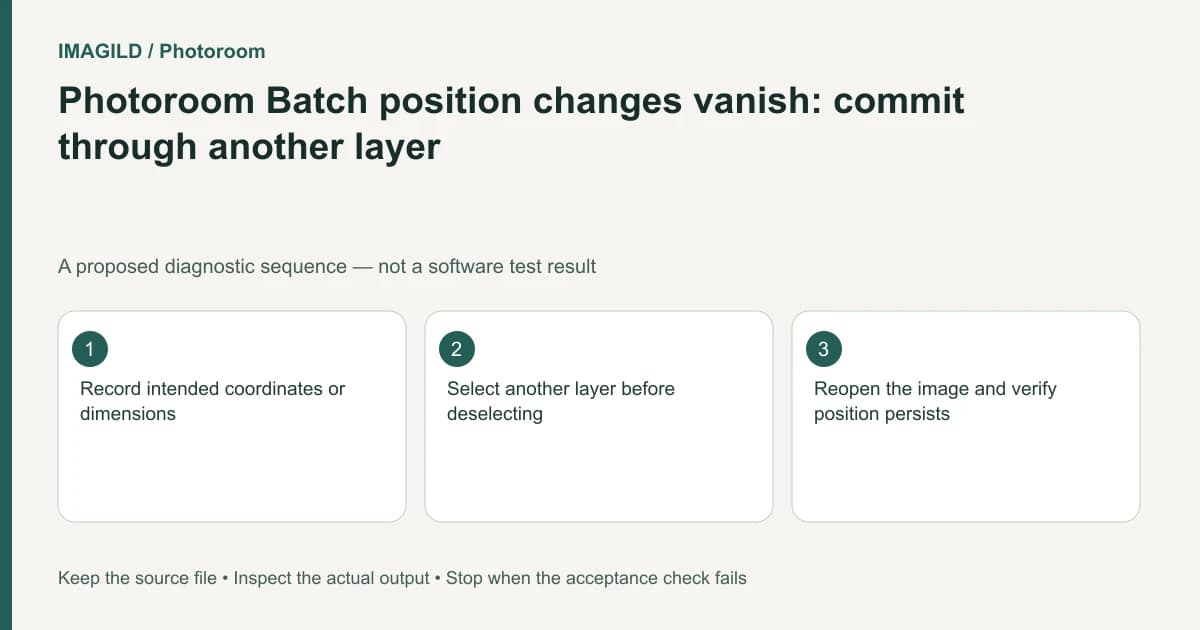
If Photoroom Batch Position changes disappear after clicking away, try the documented commit workaround: select another layer before deselecting the image. Record the intended position first, then reopen the edited image and verify that the values and layout persist before applying the correction elsewhere.
Distinguish an uncommitted edit from a wrong file
Check the active image and selected layer. A product moving back in the editor is different from downloading an earlier image or opening an unrelated design. Record a distinctive product detail and the intended coordinates or dimensions so you can identify the exact revision.
Photoroom's Position, flip and rotate guide documents a known issue where clicking away to deselect can lose a position change. Its published workaround is to select another layer first. This is a specific interface-state check, not a general promise that every save failure has the same cause.
For a proposed label layout, suppose a product must sit farther left to leave room for text. Save a reference showing the required spacing. The goal is a persistent composition, not merely typing a number once.
Apply the workaround in a controlled copy
Select the intended layer and change one position or size property. Before clicking outside the image, select another layer. Then deselect if needed and inspect the layout again. Reopen the image to check that it retained the intended state.
Use a short record:
| Step | Evidence to retain | Reason |
|---|---|---|
| Before change | Image identity and original placement | Avoid testing the wrong revision |
| Intended edit | Required coordinates or spacing | Provide a measurable comparison |
| Commit check | Another layer selected before clicking away | Follow the documented workaround |
| Reopen check | Same image retains the placement | Distinguish temporary preview from persistent state |
Do not compensate for a vanished position by stretching the product, changing the canvas and moving the text all at once. One controlled change makes the result interpretable.
Check whether another action overwrote the layout
Applying a template can change design properties, and transferring edits can change a target image's layout. The template guide describes templates as setting canvas size, background, graphics and text. If the position persisted and then changed after a template action, investigate that subsequent operation rather than assuming the original commit failed.
The existing Batch scope guide helps identify whether you acted on one layer, one image or the batch. Confirm scope before spreading a fix.
Validate persistence and export separately
Once the reopened editor state is correct, use the Batch download instructions. Unzip and open the resulting image to check the same spacing and product proportions. The local file is a separate acceptance boundary from the editor's displayed state.
A Batch download is not automatically a retained editable design; the saved-design guide covers that different requirement. Stop if the workaround repeatedly fails in the current version. Report the image, selected layer, values and sequence of actions instead of repeatedly changing unrelated settings or claiming the job was saved without a reopen check.
Worked persistence check: a product clears the text box
For a proposed label layout, record a visible landmark: the product’s right edge must leave the approved text box unobstructed. Enter the intended position through the product layer’s Position controls. Select the text layer before clicking away, following the published workaround, then reopen the same image and inspect the edge clearance again.
If the placement persists until a template is applied, record the later template action as a separate event. If it vanishes immediately after deselection, retain the original and intended values with that exact action sequence. Export a pilot only after the reopened editor state is correct. A correct local file proves the delivered layout, while the reopened state tests the edit’s persistence.
- confirm the selected product layer and image: Use this before entering Position so a correct numeric change is not made to the wrong object.
- separate fit and canvas changes from position: Use this if a resize operation, rather than deselection, changed the apparent spacing.
- retain the required working state as well as an export: Use this when future editing matters; a successful downloaded pilot is not automatically a saved editable design.
Prepared by Imagild Editorial. AI assisted research and drafting. Documentation checked on 4 November 2026; the examples are proposed review plans, not claims of hands-on software testing. Report a correction.