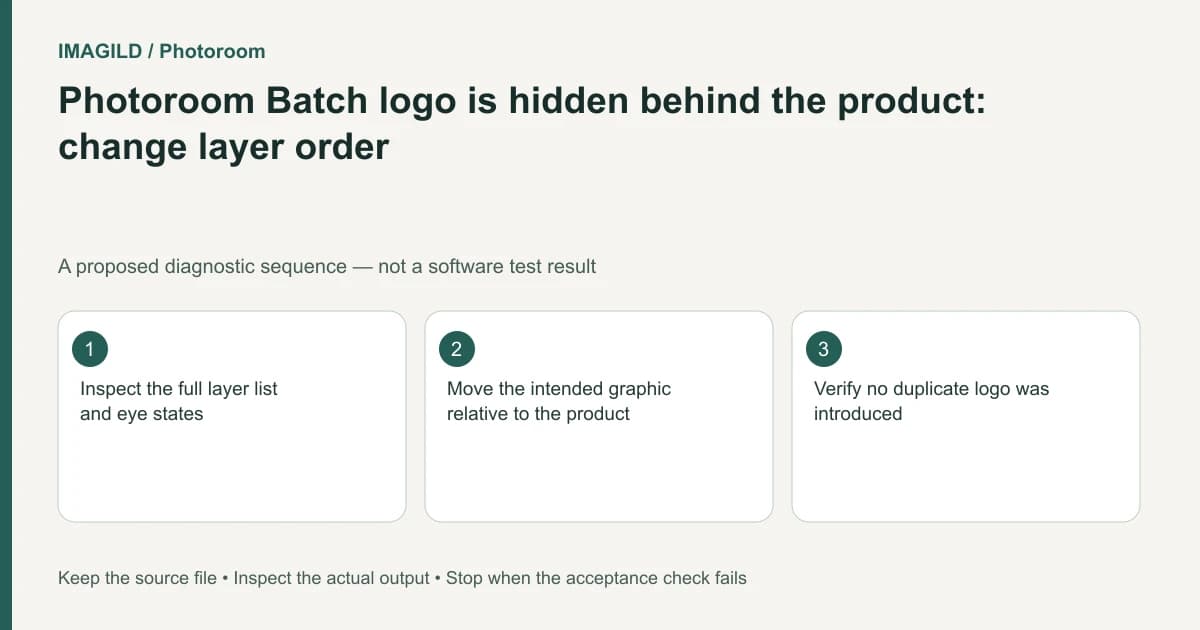
A Photoroom Batch logo can be present but hidden behind the product or another layer. Open the image tile's layer list, inspect its visibility and order, and move the existing graphic deliberately. Re-adding the logo first can create duplicates without solving the stacking problem.
Prove that the logo exists before replacing it
Select the image as a whole and inspect its layers. Distinguish the image tile menu from a single layer's pill menu. The existing Batch selection-scope guide explains that broader selection boundary; this task focuses on the order and visibility of an already-existing graphic.
Photoroom's layer-order instructions describe the Layers dialog, ordering handles, visibility controls and bring-forward/send-backward alternatives. Start there rather than interpreting an invisible graphic as a failed upload.
For a proposed packaging image, the logo should appear above a decorative ribbon but below a legal disclosure. Write that relationship down. “Bring to front” may make the logo visible while covering something that must remain readable.
Change one stacking relationship at a time
Identify the logo layer by its actual content. Check the visibility state before moving it. If it is hidden, reveal it and inspect the composition. If it is visible in the list but obscured on canvas, move it relative to the relevant product or graphic layer.
Do not reorder every layer to match a guessed standard. Background, product and overlays can have intentional relationships, such as text partly behind a product. The foreground/background structure guide is useful when the source is one intact image rather than separable objects.
| Layer check | Expected result | Failure to catch |
|---|---|---|
| Logo count | One intended graphic instance | Duplicates added during troubleshooting |
| Visibility | Layer is not hidden | Eye state mistaken for an import error |
| Stacking | Logo appears between the intended layers | Graphic covers a required label |
| Position | Logo remains inside the delivered canvas | Correct order but off-canvas placement |
Treat duplication as a separate action
Photoroom's duplicate-layer guide explains that a duplicate can sit near or directly over its original. That can make two copies look like one. If you duplicated a logo earlier, inspect the layer list before making more changes.
Keep the correction local until the intended image passes. Other batch images may have a different product silhouette or a different overlap with the same graphic. A visible logo in one square thumbnail does not prove a tall product has the same clear space.
Review the actual deliverable
Download through the Batch export workflow, open the image, and inspect the logo at its intended display size. Check its complete outline and required text, not only whether a colored shape is now visible.
The check passes when the intended single logo has the correct relationship to the product and other required content. If the logo is actually baked into a flattened background, layer reordering cannot move it independently; choose an authorized source with separate graphics or a different compositing method rather than promising a stack adjustment that the file structure cannot provide.
Worked stacking check: logo above product, below legal text
For a proposed catalog tile, the intended stack is background → product → store logo → legal disclosure. Select the image tile, open More actions and Layers, then find the existing logo. Inspect its eye/visibility state before changing order. If it is visible in the list but behind the product, move it to the intended position relative to those two layers; do not blindly put every graphic at the very front.
Count logo instances after the move. A duplicate directly over the original can look like one logo until repositioned. Inspect the complete disclosure and logo at delivery size, since making the logo visible is not success if it now covers required text.
- open image-level rather than layer-level controls: Use this when the expected Layers dialog is missing from a selected product’s pill menu.
- check whether the picture is actually separable: Use this if the logo or product is baked into one intact source rather than an independent layer.
- check the exported image format: Use this after stack approval if the delivered file’s background treatment differs across device export defaults.
Prepared by Imagild Editorial. AI assisted research and drafting. Documentation checked on 4 November 2026; the examples are proposed review plans, not claims of hands-on software testing. Report a correction.