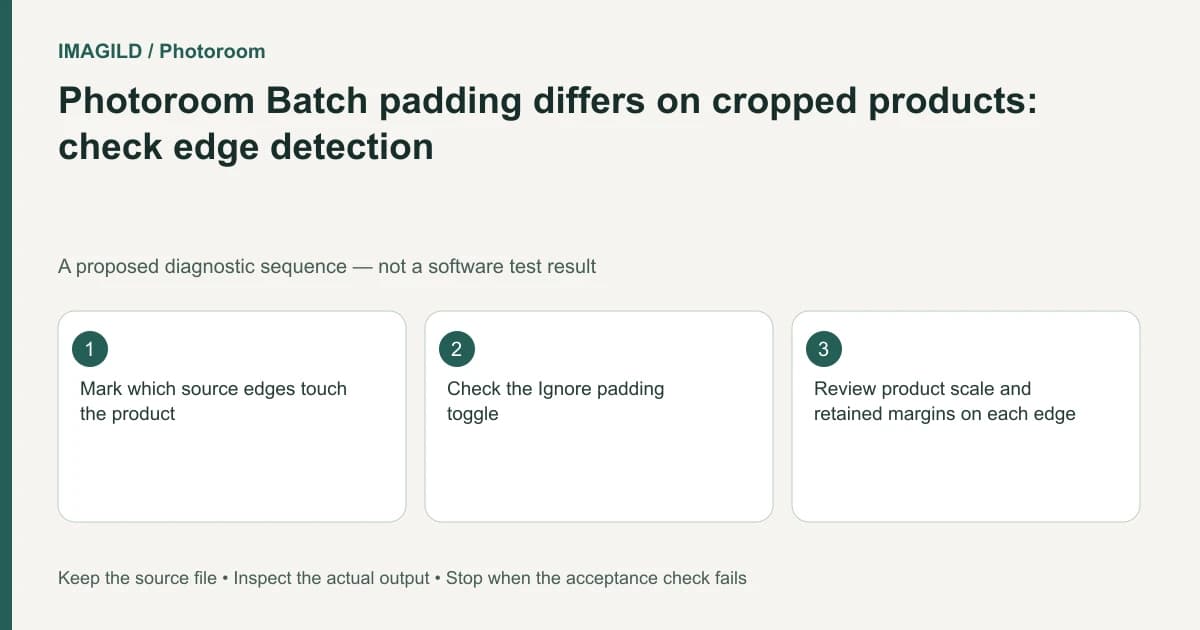
Check which source edges the product touches before assuming Photoroom ignored the batch's padding settings. With Ignore padding on cropped sides enabled, padding is omitted on those sides while retained elsewhere. Compare a fully visible product with a cropped one, then choose the margin behavior that matches the catalog brief.
Mark the cropped sides before changing values
For each representative source, record whether the subject touches the top, right, bottom or left edge. A crop through a sleeve or bottle base is different from an object that is completely visible with empty space around it. These cases can respond differently to a shared setting.
Photoroom's Ignore padding explanation describes that conditional behavior. An identical numeric padding choice therefore need not create identical visible margins when the source boundaries differ.
Preserve the sources and the current output. Do not immediately enlarge every canvas or shrink every product. First identify whether the setting is acting on a cropped source, an internal layer crop or a fully contained subject.
Separate three boundaries
The original photograph's edge defines what was captured. A layer's crop defines what is shown in the current composition. The output canvas defines the delivered frame. Write which boundary cuts the subject before deciding whether a setting can reveal more content.
The Photoroom layer-crop guide describes hidden regions outside its crop box. That is not evidence that pixels absent from the original photograph can be recovered. If the original source cuts off a handle, more padding cannot supply the missing handle.
Our transparent-border versus edge-color trim guide addresses another boundary distinction. It can help identify whether a visible border is actual content or empty area, but its Photoshop controls should not be treated as Photoroom instructions.
Define the catalog's real consistency target
Do you need the same canvas dimensions, equal empty margins, consistent apparent product scale or a common visual baseline? These can conflict when the sources contain different crops and shapes. State which one is primary before applying the same setting everywhere.
The consistent visible-product-size guide discusses that separate catalog requirement. A cropped close-up may be intentionally larger than a complete product view. Forcing equal margins can make a previously useful detail image look like a failed full-product shot.
| Source condition | Padding question | Review after the setting change |
|---|---|---|
| Product fully inside the image | Should all sides receive margin? | Complete silhouette and scale |
| Product touches one edge | Should that side remain flush? | Intentional edge contact |
| Product cropped on several sides | Is this a detail image? | Crop remains honest and useful |
| Layer crop hides source content | Can the crop box reveal it? | No unnecessary generated replacement |
| Source itself lacks content | Is a new photograph needed? | Missing material is not implied as recovered |
| Mixed batch | Are subgroups needed? | Every exception is reviewed |
This table is a proposed review method. It does not claim that a single padding option can make all source photographs equivalent.
Compare one toggle change at a time
Use one fully visible product and one cropped product as a diagnostic pair. Keep their source and canvas unchanged while comparing the relevant setting. Follow the current Web Batch position and layout guidance for the actual interface.
Observe all four margins and apparent scale after the change. Do not judge only the side that first looked wrong. A setting that creates a desired border at the top may also shrink the subject enough to make label text unreadable.
If mixed source types need different treatments, organize them deliberately rather than repeatedly modifying a global setting until one thumbnail looks right. Keep the exception record with the accepted outputs.
A hypothetical clothing batch
Suppose one shirt photograph shows the entire garment while another is intentionally cropped at the sides and bottom. Both receive the same padding value, but their margins differ. This is an illustrative case, not an observed Photoroom run.
Mark the touching edges and compare the Ignore padding state. Decide whether the second image is a detail presentation that should remain cropped or a full-product image that needs a better source. Do not pretend that adding canvas space recreates the missing garment.
Use an explicit crop review for the important subject boundaries. Confirm the intended source when changing crops; a different photograph may include more material but also a different product variant.
If exact product detail must remain unchanged, use the source-preserving composite workflow to separate the protected photograph from surrounding presentation space. More margin should not silently become an authorization to redraw a missing product edge.
Check the delivered grid
Open the exported files together at their expected display size. Review canvas dimensions, apparent scale, edge contact and readable labels. Preserve original photographs and the accepted output record.
This guide interprets public documentation and proposes a controlled comparison. It reports no padding measurement or image-restoration test, and does not guarantee equal visible margins from unequal source crops.