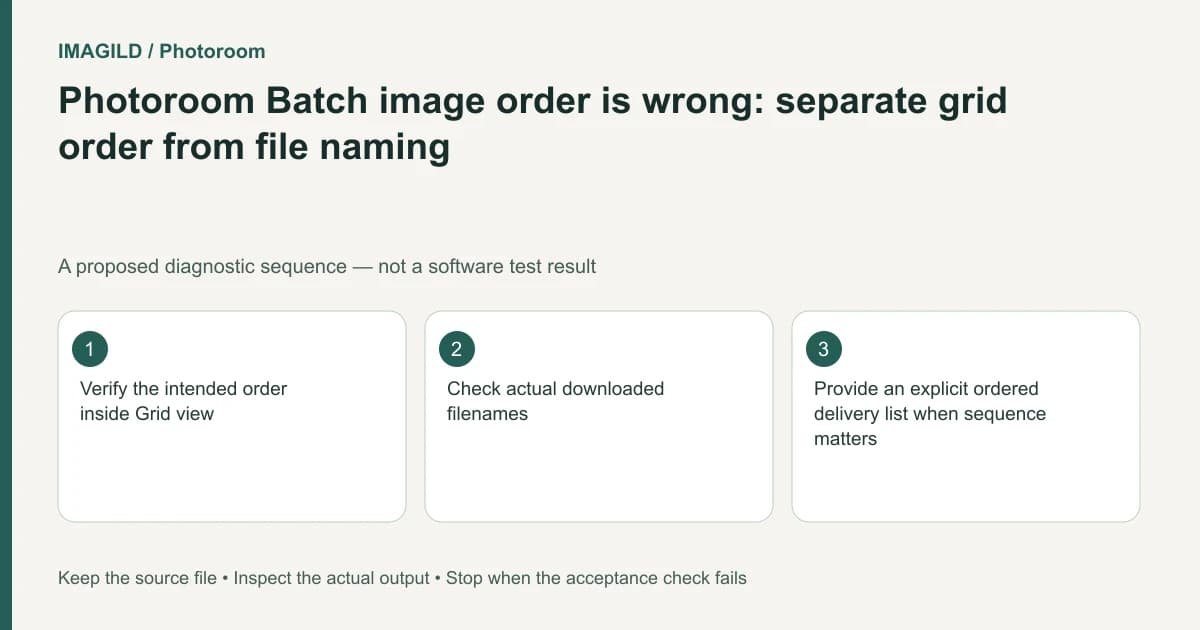
Reorder the images in Photoroom Grid View, then verify the downloaded files separately. The editor's tile order is not proof of the order a recipient's file browser will show. Match each output to its product and role, inspect the actual filenames, and provide an explicit sequence record when delivery order matters.
Decide which order you are repairing
There may be an order inside the editing grid, an order of sections, a naming sequence in a ZIP and an order in the destination store gallery. Identify the one that is wrong before moving assets. A corrected grid does not establish a corrected storefront sequence.
Photoroom's grid-order instructions describe dragging selected tiles to an insertion position. Use that operation for the editor's visual organization. Do not add a filename or ZIP-order guarantee that the documentation does not provide.
Preserve a source list containing product identifiers and view roles. A front, side and detail photograph can look similar enough that order alone is not a safe identity check. Use the actual product and distinguishing features to match them.
Move the intended set, then verify the insertion
Work in Grid View and identify every selected tile before dragging. For multiple images, verify both the moved group and its destination. After the move, inspect the neighbors on either side of the insertion point rather than assuming the drag landed correctly.
Keep section order separate. Photoroom's section documentation describes grouping and section-specific download choices. A section being first in the editor does not itself define how a receiving file browser sorts its contents.
Use a small representative set before reorganizing a large collection. If the task includes removing obsolete images, confirm identity and preserve required originals before deleting anything. Reordering is not a reason to discard material that still has a production role.
Build a sequence record independent of the grid
| Intended position | Product identity | View role | Verification after download |
|---|---|---|---|
| First | Agreed product identifier | Hero/front | Correct product and accepted crop |
| Second | Same identifier | Side | Actual side view, not another front |
| Third | Same identifier | Detail | Required feature is visible |
| Fourth, if required | Same identifier | Scale or context | Accurate context, not another variant |
| Alternate product | Its own identifier | Appropriate view | Not silently mixed into the first product |
| Final delivery record | Exact output filename | Intended destination slot | Recipient can reproduce the sequence |
These are proposed fields, not Photoroom's automatic filename rules. Replace the illustrative positions with the actual order agreed for your deliverable.
Download and inspect the package
Photoroom's Web Batch workflow distinguishes the editing context from its exported images. After downloading the appropriate scope, open the package and compare actual files with the sequence record.
Check filenames, dimensions and visible identity. If the receiving application sorts by filename, decide whether a separately prepared filename convention is needed. Make those changes on delivery copies, preserve the originals, and update every reference to the renamed files. Do not claim that renaming changes embedded metadata or a store's already published gallery automatically.
Our SKU-to-image mapping guide helps keep identity intact during this step. A neat sequence is not useful if its second image belongs to the wrong color variant.
A hypothetical three-view product handoff
Suppose a seller wants front, side and detail views of a blue mug in that order. The editing grid looks correct, but the recipient sees the detail view first in a filename-sorted folder. This is an illustrative handoff problem, not a measured Photoroom export behavior.
Compare the actual filenames with the sequence record. Supply an ordered list or prepare agreed sequence-prefixed delivery names when appropriate. Then ask the recipient to inspect the same files under the intended sorting method. Keep the product identifier in the record so a later replacement detail image goes into the correct sequence.
Do not regenerate images to fix an ordering problem. The missing piece may be only a handoff convention, not a visual asset.
Verify the final destination
If the assets go to a store, inspect the actual published gallery after the authorized upload. If they go to another editor, open them in that editor's intended import order. Keep a separate record of the editor grid and the delivery mapping.
The download-versus-saved-design guide covers persistence, while the approved-version guide keeps later revisions traceable. This documentation-based article reports no observed ZIP naming, automatic sequence guarantee or store-publication test.