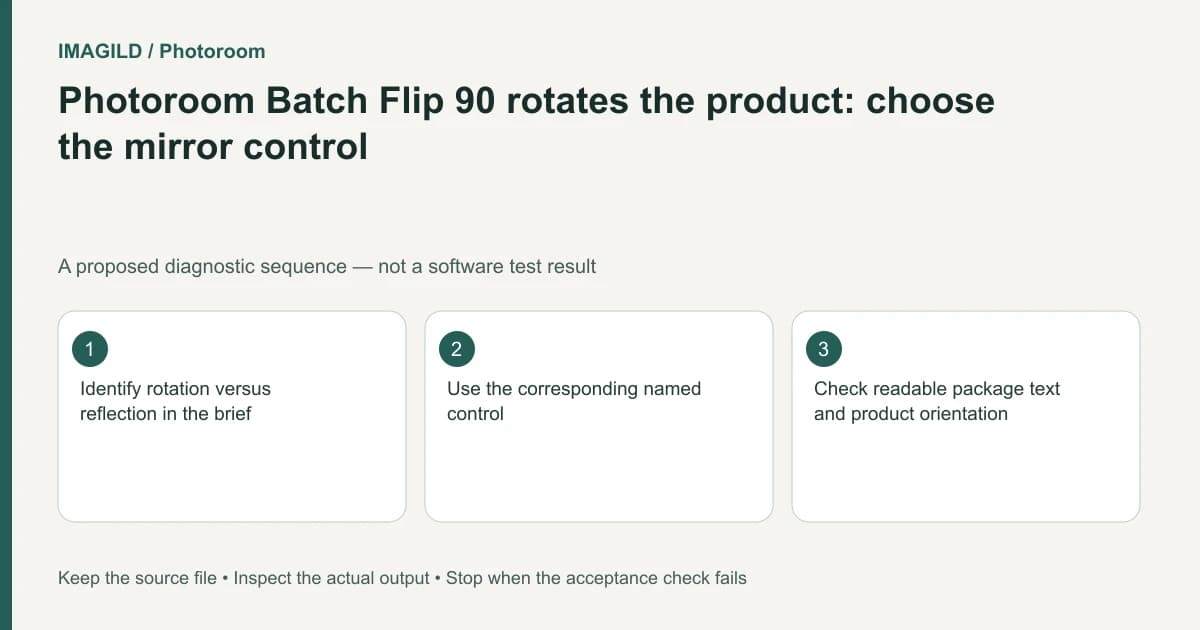
In Photoroom Batch's documented Position controls, Flip 90 rotates a layer. Horizontal or vertical flip performs a reflection. Choose the intended transformation explicitly, because mirroring a product can reverse package text or imply a physically different version of an asymmetrical item.
Name the transformation in the brief
“Turn the bottle” can mean rotate its flat image, mirror it left to right, or show a different camera view of the real bottle. A two-dimensional rotation or flip cannot reveal an unseen side of the physical product.
Photoroom's Position, flip and rotate instructions identify Flip 90, Flip Horizontal and Flip Vertical as separate controls. Read the specific action instead of treating every command containing “flip” as a mirror operation.
For a proposed shoe catalog, the client may ask for the shoe to point right. Mirroring may achieve that silhouette while also reversing a logo or showing the wrong side. If the actual right-facing view is required, obtain an appropriate source photograph rather than presenting a mirrored left view as documentary evidence.
Test the selected layer only
Keep the original image and select the intended product layer. Apply the required transformation once. Inspect both a geometric landmark and a readable word. A symmetric product can make a reflection difficult to notice until the label is examined.
The layer-order guide is relevant if the selected object is obscured or hard to identify. Do not transform a background or a logo independently when the task concerns the product itself.
| Requested result | Operation to investigate | Required check |
|---|---|---|
| Quarter-turn in the image plane | 90-degree rotation | Correct orientation without reversed lettering |
| Left-right reflection | Horizontal flip | Text and asymmetrical features remain acceptable |
| Top-bottom reflection | Vertical flip | Orientation is intentional, not an accidental upside-down product |
| Different physical side | A new appropriate source view | No invented evidence about hidden geometry |
Confirm the layer committed its new state
The same Position documentation describes an issue with losing position changes when clicking away. If the transformation appears to revert, inspect persistence and use the documented second-layer selection workaround where applicable. Do not conclude that the transformation type was wrong solely because a state change failed to persist.
If the result lies outside the canvas after rotation, inspect placement and scale separately. Avoid nonuniform stretching that changes the product's proportions merely to make it fit.
Check the final image at readable size
Use the Batch download workflow, open the exported image and read package words, logos and directional markings. Check the final crop as well as the transformed subject.
The task passes when the requested flat transformation is correct and the delivered representation remains truthful to the brief. If a mirror reverses required product markings or implies the wrong physical side, stop and use the appropriate photograph. A visually balanced composition is not sufficient evidence that a transformed product view is accurate.
Worked transform check: a readable package label
For a proposed package image, write rotate upright or mirror left-right in the job note instead of “flip it.” Select the package layer and use the corresponding Position action. Flip 90 is the documented quarter-turn action; Flip Horizontal and Flip Vertical are reflections. After one action, inspect both a geometric corner and a readable package word.
If the package becomes upright but its word is reversed, the transformation does not meet a truthful catalog brief. Undo and choose the intended operation. If the client wants a physical side not visible in the photograph, request that source view rather than suggesting a mirror reveals it. Recheck placement after rotation so a newly upright edge is not outside the canvas.
- check the lettering consequences of mirroring: Use the text-preservation principle for the package; the linked video workflow does not define Photoroom’s controls.
- select the actual product layer: Use this to avoid rotating a label graphic or the whole image when only the package should change.
- request the appropriate product view: Use this when the task requires another observed side or detail rather than a transformed flat photograph.
Prepared by Imagild Editorial. AI assisted research and drafting. Documentation checked on 4 November 2026; the examples are proposed review plans, not claims of hands-on software testing. Report a correction.