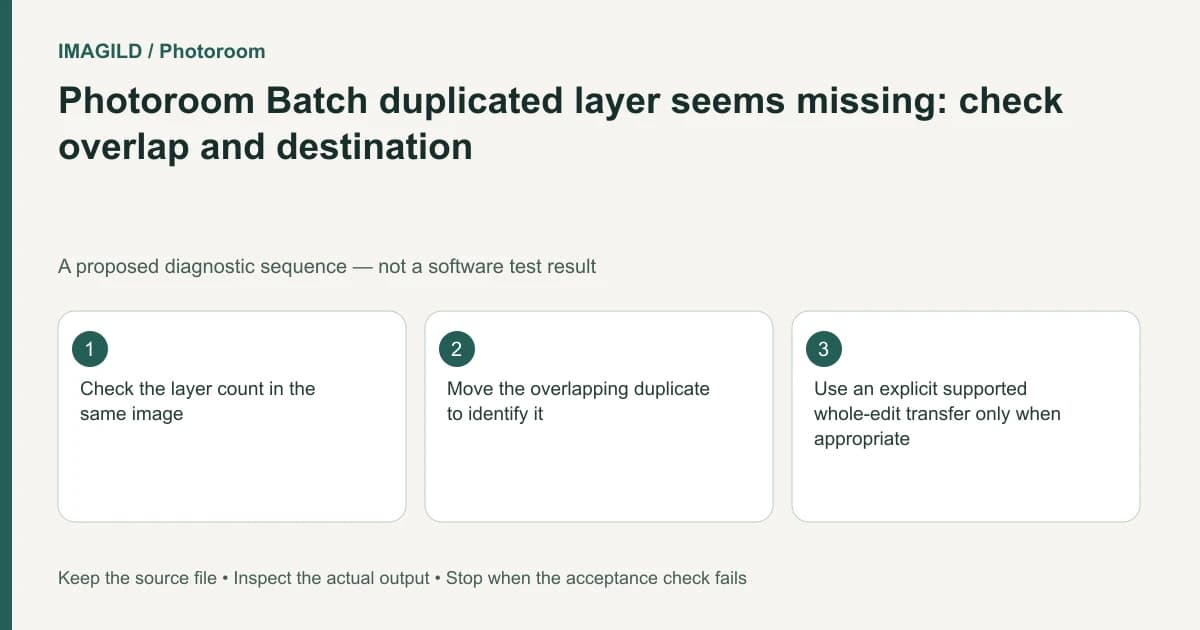
A duplicated Photoroom Batch layer may be directly over its original in the same image. Check that image's layer list and move the copy on a working version to identify it. This action does not transfer one selected layer to a different image; copying an edit set has a broader scope that needs its own review.
Identify the unit being duplicated
A batch contains images, and each image contains layers. Write whether you want another layer within the current image, another complete image or the same edits applied to another product. Similar thumbnails can conceal that these are three different tasks.
Photoroom's duplicate-layer instructions describe a copy placed near or on the original within the same image. An unchanged-looking preview does not prove the action failed. Repeating it several times can create additional overlapping copies.
Preserve the current design and note the selected image and layer. If the aim is to make a second text label, identify the text and intended new wording before duplicating. If the aim is to move a logo to another product image, stop and choose a supported cross-image workflow instead.
Inspect the layer list and position separately
Follow the layer-order documentation to inspect the image's stack. That route begins with the image tile, which is a different selection level from the foreground layer itself. Confirm that you are looking at the intended image's layers.
On a working copy, move the suspected duplicate enough to distinguish it from the original, then inspect its content and styling. Undo the diagnostic move or place it intentionally. Do not judge duplication from an apparently thicker edge alone; misalignment, outline and transparency can create similar symptoms.
Keep an explicit count of the layers relevant to the task. If you asked for one extra label, the intended outcome is one additional identified label, not an unknown pile of similar objects.
Choose the correct transfer scope
| Requested action | Correct unit to consider | Main review risk |
|---|---|---|
| Second caption on one image | Duplicate a layer within that image | Overlapping copy remains unnoticed |
| Another product tile | Complete image or supported batch action | Layer count confused with image count |
| Same recent edits elsewhere | Supported copy-edits workflow | Unwanted changes transfer too |
| One isolated logo on another image | A specifically supported source-placement route | Assuming layer duplication crosses images |
| New wording with same appearance | Identified text-layer copy | Old wording remains in the duplicate |
| Final delivery | Accepted complete image | Hidden duplicates alter the output |
Photoroom's copy-edits documentation describes a different scope from duplicating one layer. Inspect exactly which edits that workflow transfers before applying it to other products. A useful shortcut is not a promise of selective single-layer transport.
Test a cross-image operation on one recipient
If a supported edit-set transfer fits the job, choose a representative destination and inspect all affected properties. Check crop, background, text, logos and subject placement, not just the one feature you intended to reuse.
Keep the destination's original accepted state recoverable. If the transfer also changes a property that should stay unique to that product, stop and revise the method rather than copying it across the remaining batch.
The explicit-current-source guide concerns a different input-contract problem, but the same evidence habit helps: identify the exact current source and destination rather than relying on an earlier thumbnail elsewhere in the workflow.
A hypothetical two-price-label design
Suppose one product tile needs both an old price and a new price with coordinated styling. After Duplicate, the designer still sees only the original number. This is an illustrative diagnostic scenario, not a Photoroom test.
Inspect the layers, identify the copy and move it to its intended position. Change the copied text to the approved new value, then verify that the original price remains correct. Inspect whether both labels are required and whether their visual hierarchy is understandable.
If another product needs similar labels, do not assume the same-image Duplicate action sends one label there. Establish the supported broader operation, test one recipient, and verify its actual prices independently. Reusing typography must not copy the wrong commercial value.
Remove uncertainty before exporting
Select or identify every relevant layer and remove only unintended duplicates. Keep the approved-version record and distinguish the editable master from flattened delivery. Reopen the export to check wording, overlapping edges and the number of visible labels.
This documentation-based workflow reports no duplication test or guarantee that an entire edit-set transfer preserves destination-specific content.