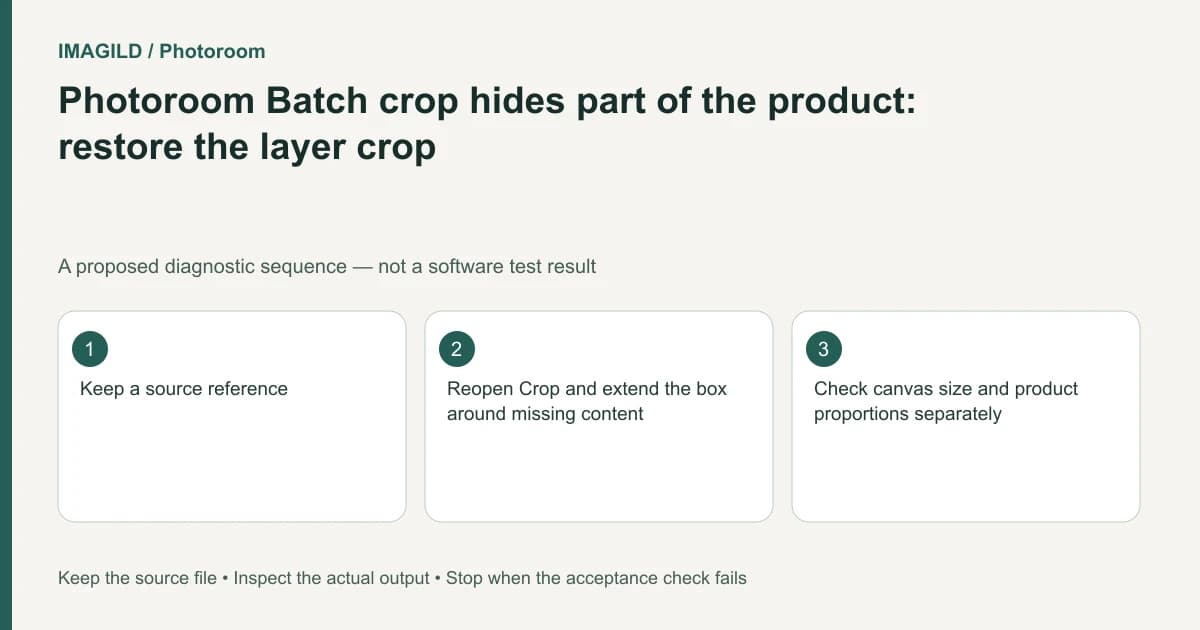
If a Photoroom Batch layer crop hides part of a product, reopen that layer's Crop control and enlarge the crop box. The documented crop hides content outside the box rather than destroying it. Check the layer before generating a replacement or changing the canvas size.
Identify which boundary hides the product
There are several ways a product can look cut off: a layer crop, the outer canvas, a resized image that fills the canvas, or an incorrect cutout. They need different corrections. Start by selecting the actual product layer in the new Batch Web editor.
Photoroom's Crop layers instructions explain that the cropped-out part is hidden and can be restored by reopening Crop and extending its box. This applies to that layer crop. It does not establish that a generated missing feature can be recovered from a source that never contained it.
For a proposed shoe-catalog image, the heel may disappear after a layer crop while the shoe's source still includes it. Keep the original source visible for comparison. Do not ask AI to invent another heel before checking the reversible crop.
Restore only the required area
Select the intended layer, reopen Crop and extend the box to include the missing product detail. Confirm the crop through the documented control before repositioning the layer. If you remain in crop mode, dragging can change the crop instead of moving the whole product.
Inspect the product's proportions. Restoring a hidden area should not require stretching the shoe. If the full layer is visible but still sits outside the final picture, investigate its position or canvas fitting separately.
The Batch resize guide distinguishes Fill image, which can crop outside the canvas, from Fit image, which keeps the full image visible. Those are canvas-fitting operations rather than the same Crop command. The existing resize decision guide covers that separate branch.
| Observation | Check next | Avoid |
|---|---|---|
| Detail returns when crop box grows | Layer crop was hiding it | Regenerating unchanged source detail |
| Full layer remains beyond canvas | Position and canvas fit | Stretching the product to force it inside |
| Cutout itself lacks the detail | Cutout/source evidence | Assuming all missing pixels are recoverable by crop |
| Source never shows the detail | A better authorized photograph | Presenting generated detail as recovered fact |
Test one image before spreading the crop
Different products can occupy different positions in their sources. A crop suitable for the first image may hide another product's handle or sleeve. Inspect representative exceptions before applying edits broadly.
Do not confuse this task with restoring an original background. The layer/background guide explains a different structure boundary. Recovering the heel and recovering a room background are not the same operation.
Verify the exported image
Use the documented Batch download route, then unzip and open the image independently. Check the restored edge at delivery size, the overall canvas dimensions and the unchanged product shape.
The correction passes when the required source detail is visible in the final image and the crop remains intentional. Stop if the missing area was never present in the source or was altered by a different operation. A new photograph or a clearly identified creative reconstruction is a separate decision.
Worked crop recovery: the heel exists outside the layer box
For a proposed shoe image, the source shows the whole heel but the Batch layer ends midway through it. Select the shoe layer, reopen Crop and extend the crop box until the source heel is included. Confirm the crop before dragging the layer. Check whether the heel is now visible inside the final canvas without stretching the shoe.
If the crop box already includes the whole source, investigate outer-canvas fit instead. If the source itself lacks the heel, the reversible crop cannot recover it. A generated heel would be a different creative artifact. Inspect a downloaded pilot with the same source beside it; only then consider transferring changes to other shoes whose positions may differ.
- distinguish hidden pixels from invented content: Use this when deciding whether the missing heel can be restored from source evidence or requires a different photograph.
- inspect canvas fitting as a separate branch: Use this if the full layer is present but part of it still lies outside the delivered canvas.
- keep the crop correction on the intended image and layer: Use this before propagating edits so one shoe’s crop does not become an unintended whole-batch change.
Prepared by Imagild Editorial. AI assisted research and drafting. Documentation checked on 4 November 2026; the examples are proposed review plans, not claims of hands-on software testing. Report a correction.