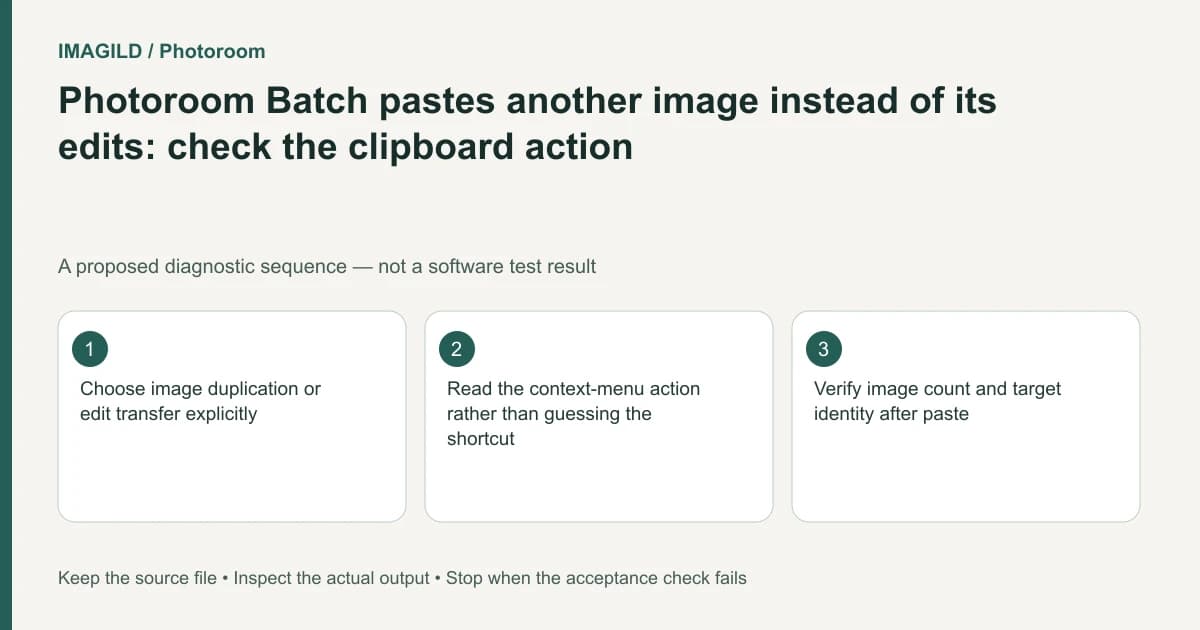
If Photoroom Batch paste creates another image instead of applying a treatment to existing images, check whether you copied the image or its edits. These are different clipboard operations. Use the context-menu labels first, then learn the matching shortcut for your operating system.
State whether the output should be a new image
For a proposed shoe catalog, the editor wants several existing product images to share a text treatment. Creating another copy of the first shoe does not satisfy that task. Conversely, if the goal is a separate variant of one image, transferring edits to a different product is the wrong result.
Photoroom's Batch keyboard-shortcut guide lists image Copy/Paste separately from Copy edits/Paste edits. Read the operating-system-specific combination in the official table rather than assuming a shortcut copied from another application's tutorial.
Record the image count and the intended targets before testing. Those two observations quickly distinguish a content-creation operation from a settings transfer.
Use the explicit command while diagnosing
Open the relevant image's context menu and select the operation by name. For edit transfer, follow the Copy/Paste edits instructions: copy edits from the prepared image, select the intended existing target images, and paste edits through that route.
If you intend a separate image copy, use the copying and duplicating images. Remember that a copy captures its state at copy time rather than following later edits to the source.
| Intended task | Operation family | What to inspect afterward |
|---|---|---|
| Create an independent variant of one image | Copy/Paste image or Duplicate | New image count and correct source identity |
| Apply treatment to selected existing products | Copy/Paste edits | Target products remain the intended products |
| Apply edits to every other batch image | Explicit whole-batch action | All affected images were actually intended |
Review what transferred, not just the shortcut response
Check a target's product identity, text, background, layout and dimensions after edit transfer. Do not assume the action means “copy only the one slider I was thinking about.” If other edits are part of the source treatment, review their effect before spreading it further.
The existing scope guide covers selecting a layer, image or set. This article's distinct check is the operation type: even the correct target selection can receive the wrong artifact when the clipboard command is wrong.
Count and inspect before delivery
For image copying, confirm that exactly the intended new variant exists. For edit transfer, confirm that the intended products were not replaced by duplicates of the source. Check for accidental extra layers or changed wording in a pilot before proceeding.
Download the final selected set and inspect the files independently. Keep the operation name in the handoff notes if another editor will repeat it. Stop using a shortcut that produces an unclear result; an explicit menu action is a better diagnostic step than repeating keyboard combinations and removing unexplained copies afterward.
Worked clipboard check: one new tile or three treated products
For a proposed set of three shoe images, the goal is the same label treatment on each existing shoe. Record the starting image count. On the prepared source image, use the named Copy/Paste edits → Copy edits action, select the intended existing receivers, then choose Paste edits. Confirm each receiver still shows its own shoe and the count did not increase as a result of image duplication.
If the action instead creates another copy of the first shoe, undo or preserve it as a clearly identified candidate and return to the operation choice. Read the shortcut table for the current operating system only after the menu action is understood. Do not interpret a successful paste as proof that it transferred only the one setting you had in mind; inspect text, background and layout.
- check the image and selected-target scope: Use this for choosing the intended receivers; the present task additionally distinguishes copied content from copied edits.
- decide which changes are safe to share: Use this before transferring a source treatment that may include image-specific layout changes.
- keep the prepared source revision identifiable: Use this so a later paste is not based on an unapproved earlier treatment.
Prepared by Imagild Editorial. AI assisted research and drafting. Documentation checked on 4 November 2026; the examples are proposed review plans, not claims of hands-on software testing. Report a correction.