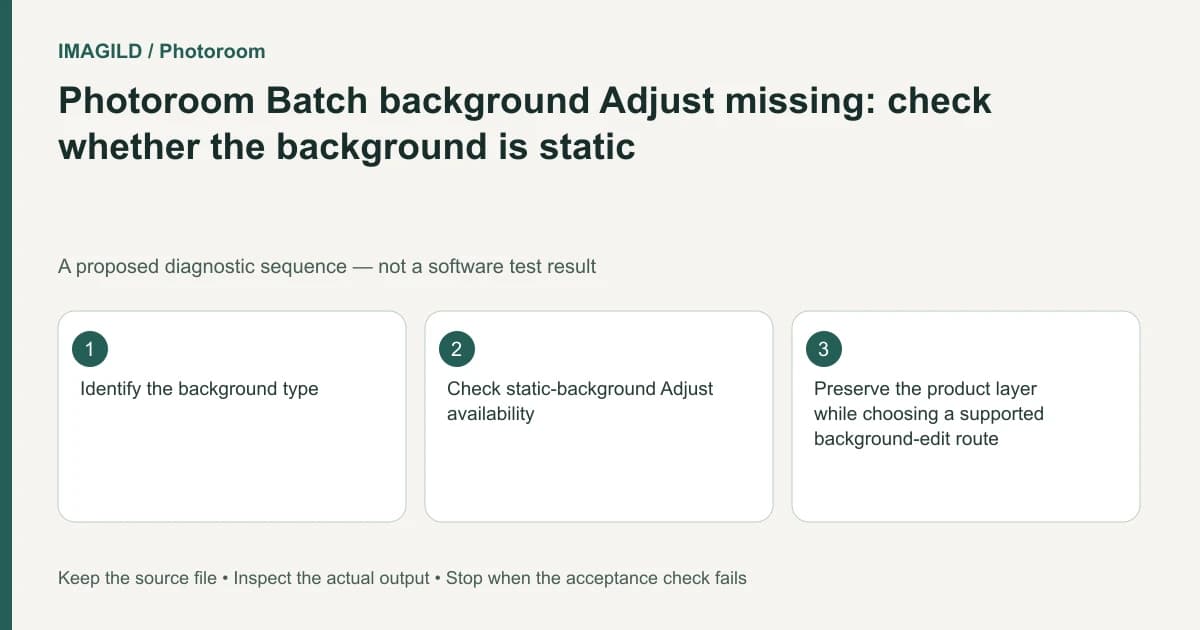
If Photoroom Batch does not offer background Adjust controls, identify the background type first. The documented brightness and contrast adjustments for a background require a static uploaded image. An AI-generated background and a solid color background do not expose the same adjustment route.
Identify the layer and background representation
Select the intended image and inspect whether its background is an uploaded picture, a generated scene or a solid color. Do not infer type only from appearance: a white studio scene can be a picture, while a plain white fill is a different representation.
Photoroom's Batch brightness and contrast instructions distinguish the foreground-layer adjustment route from background adjustment and limit the latter to a static background image. Missing controls can therefore reflect a supported-type boundary rather than a corrupt project.
For a hypothetical catalog image, the product may be correctly exposed while the background is too bright. Applying foreground brightness to compensate can change the product's color without fixing the intended background.
Keep the product and scene decisions separate
Confirm the selected target before changing brightness or contrast. If the requirement is a darker solid color, investigate the background color choice rather than looking for a photo-adjustment slider. If it is a generated scene, choose a supported scene-editing or regeneration route only after retaining the approved product reference.
The background-reference versus static-image guide explains why a reference used to guide a generated scene is not necessarily a fixed background layer. A familiar picture in a reference slot does not establish that it is the actual static background being adjusted.
| Background state | What to check | Do not assume |
|---|---|---|
| Static uploaded image | Its background Adjust controls | Foreground selection changes the same pixels |
| Solid color | The selected fill color | Photo brightness controls must be present |
| AI-generated scene | Supported scene-editing controls | A reference image is the fixed output background |
| Uncertain | How the background was created | A white appearance identifies its data type |
Avoid a workaround that changes the product
The existing foreground lighting guide covers Light on versus brightness. That is a different problem from the absent background controls here. Changing the product's lighting to make an overly bright backdrop feel darker can alter the product representation unnecessarily.
If a static upload is an acceptable alternative, prepare an authorized background image and keep the original design intact. Do not claim that replacing the background will preserve every generated scene relationship automatically. Review contact, shadow and scale afterward.
Verify scene and product after export
The template workflow can also change backgrounds. If you applied a template after adjustment, confirm that it did not replace the background type you had just checked.
Download through the Batch export route and inspect the image independently. Compare the background against the intended target and the product against its approved source. The correction passes when the appropriate background operation produces the intended scene without an unintended product change. Stop if no supported operation meets that requirement; a different background construction is a deliberate design choice, not a hidden missing-slider fix.
Worked background check: white fill, uploaded wall or AI studio
For a proposed bottle image, identify which of three representations supplies the white-looking background: a solid color, an uploaded wall photograph or an AI studio scene. They can look similar in a thumbnail. For the static uploaded wall, use the background’s supported Adjust route; for a solid fill, investigate its color rather than a photo-brightness slider. Do not select the bottle and darken it to compensate for a background-only problem.
If the studio was generated, document that type before choosing a supported scene change. Preserve the approved bottle reference and inspect contact/shadow relationships after any replacement. A missing Adjust control is evidence about the selected representation, not proof that the entire image cannot be edited.
- identify a static background versus generation guidance: Use this to determine whether an uploaded image is the actual background or merely a reference for a generated scene.
- avoid correcting the wrong lighting target: Use this if the bottle changes when the intended problem is only the backdrop.
- inspect intact versus separated source structure: Use this when product and background cannot be selected as the independent objects the brief assumes.
Prepared by Imagild Editorial. AI assisted research and drafting. Documentation checked on 4 November 2026; the examples are proposed review plans, not claims of hands-on software testing. Report a correction.