Choose Object > Pattern > Objects to Pattern to turn selected Inkscape artwork into a reusable pattern fill. The result appears as a pattern-filled rectangle and becomes available in Fill and Stroke. Use Pattern to Objects for the reverse direction when you need to extract or modify the source artwork.
Choose what belongs in the tile
The Inkscape-linked custom-pattern guide states that a pattern can contain a group, paths, shapes or an imported raster texture. A pattern is therefore not automatically vector-only simply because the containing document is SVG.
For a hypothetical fish motif filling a larger silhouette, identify the fish artwork and any background element that must repeat with it. Keep an untouched source copy if those ingredients need separate future revisions.
This guidance follows Beginners Guide 1.3; it does not claim an executed seamless-pattern test or a current-version toolbar layout.
Convert the selection into a resource
Select the intended tile artwork and choose Objects to Pattern. Inspect the new pattern-filled rectangle. Open Fill and Stroke to verify the new resource is available alongside the supplied patterns, then apply it to an appropriate receiving shape.
A rectangle appearing after conversion is consistent with the documented result. It is not evidence that the pattern resource was lost or that the artwork must remain confined to that rectangle forever.
Check the receiving shape's boundary independently from the repeated motif. Enlarging that shape reveals more repeated paint; it does not necessarily change the source motif's intended design.
Extract the source when redesign is required
Use Pattern to Objects when the job is to recover the pattern's artwork for modification. Inspect the resulting objects rather than treating the fill itself as a group you can edit directly in every context.
A source that included a raster image remains a raster-derived ingredient. The Krita vector-import guide helps distinguish an imported image or vector representation in another editor; it does not establish that converting a pattern can invent vector detail.
Test the repeat boundary as a separate condition
For the proposed fish pattern, inspect a region spanning several repeats. Look for abrupt background changes, accidental overlaps or unwanted empty bands. A successful Objects to Pattern command does not certify a seamless illustration.
The seamless-edge test guide addresses that separate visual condition. Keep the Inkscape resource master and any extracted source artwork clearly identified so a later motif correction does not become an untracked edit to an exported proof.
Accept the workflow when the new fill is reusable, its intended ingredients can be traced and the actual repeated appearance meets the design brief.
Related tasks
- How Can I Keep Imported SVG Artwork Editable in Krita?
- Why Does My SVG Change When I Upload It to Canva?
- Why Does My SVG Shadow Disappear at the Icon Edge?
Sources and scope
- Creating Custom Patterns — Inkscape Beginners' Guide 1.3 documentation: Object-to-pattern converts selected artwork into a reusable fill resource; the task concerns creating a tile definition rather than cropping preview copies.
Based on the Inkscape-linked Beginners Guide 1.3 documentation read on October 23, 2026 (Asia/Shanghai). Examples are proposed checks, not hands-on tests. Confirm installed-version controls and receiving-editor compatibility.
Prepared by Imagild Editorial, the company editorial team responsible for these guides. AI assisted research and drafting. This is documentation-based guidance with proposed examples, not a claim of hands-on testing or an independent product review. Report a correction.
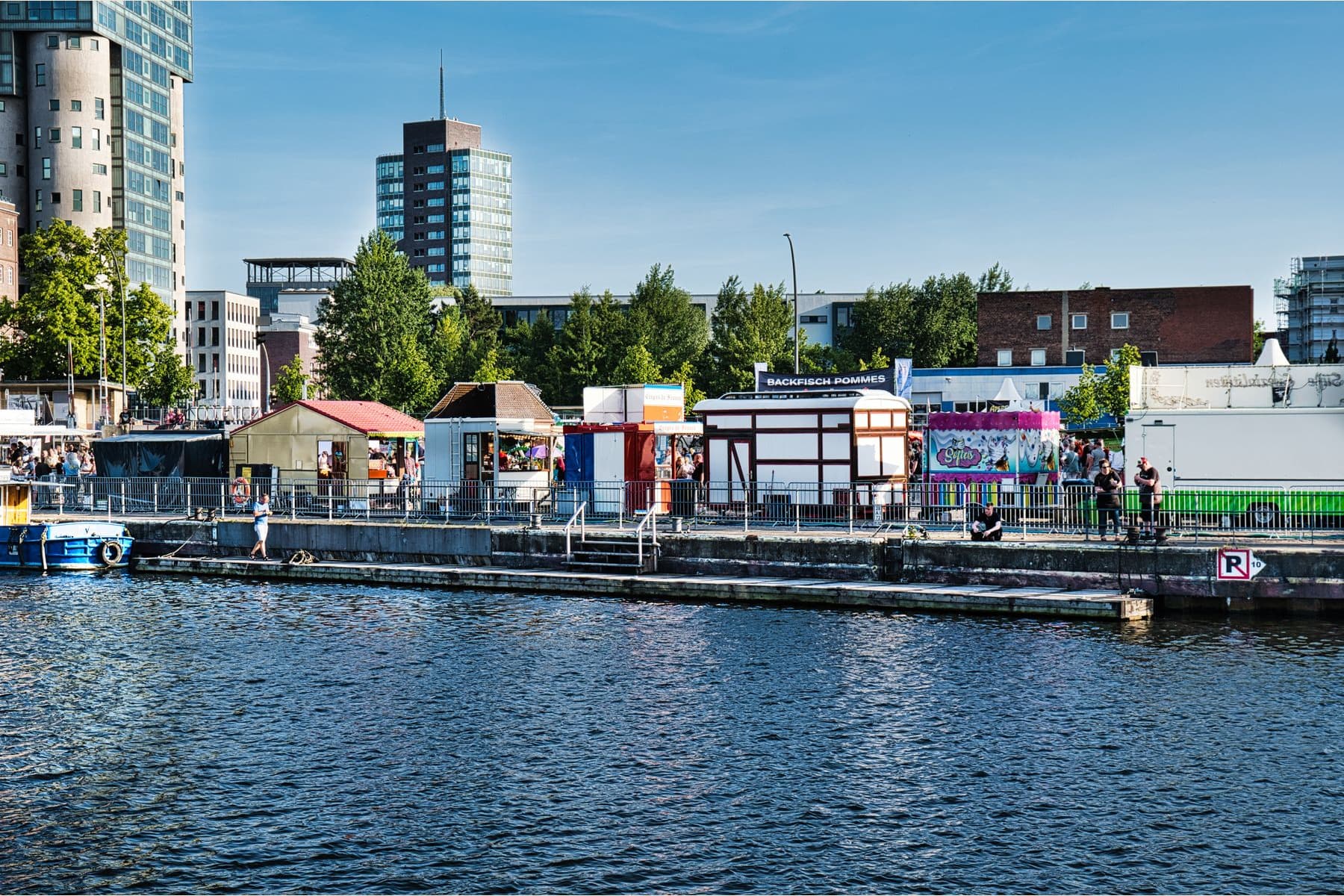
Cover: Paparazzi Ratzfatzzi / Pexels, Pexels License. This is an illustrative source photograph, not an application screenshot or a generated test result.