Upload the authorized photo to POST /files using multipart field photo, then pass the returned file_id to a video-generation request. The upload and generation are different steps: the first creates an owned reference asset, while the second creates a paid video task.
Key takeaways
- Upload the actual image file, not a local path or arbitrary external URL inside JSON.
- Use the returned
file_idwith an explicit video role, such asfirst_frame. - Verify ownership, cropping and the submitted reference before evaluating the generated motion.
Prepare a reference that can serve the shot
Use an original or authorized photo whose subject is visible and whose composition leaves room for the requested action. A tightly cropped face cannot supply reliable evidence about an unseen costume or room. If those details matter, describe them carefully and review the output rather than treating an upload as a guarantee of preservation.
Choose an image under the current 20 MiB upload limit. Keep a local master separate from the version you submit. If a transparent cutout is difficult to interpret, compare it with a plain-background reference using the transparent character reference guide.
Upload with the correct multipart field
This Bash command assumes a server environment containing your saved API key and a file named reference.jpg:
curl 'https://imagild.com/api/relay/v1/files' \
  -H "Authorization: Bearer $IMAGILD_API_KEY" \
  -F 'photo=@reference.jpg'
Let the multipart client construct its content type and boundary. The same principle applies when using FormData in a browser or server JavaScript client. Do not copy the JSON Content-Type header from a generation request onto a multipart upload.
Read data.file_id from the upload response. Store it alongside the original filename and the user's approval. A successful upload is evidence that an asset is available to this account; it is not a completed video and should not produce a playable result card.
Bind that asset to one video request
Use the returned ID in the generation body, rather than constructing an uploads/... path yourself. This small body illustrates the fields to send:
{
  "model": "MiniMax-H3",
  "prompt": "The person turns gently toward the window as the camera moves slightly closer. Preserve the visible outfit and room arrangement.",
  "file_id": "RETURNED_FILE_ID",
  "image_role": "first_frame",
  "seconds": 4,
  "resolution": "768P",
  "aspect_ratio": "9:16",
  "context_ir": false
}
Submit it to POST /videos/generations with Bearer authentication and a fresh operation ID in Idempotency-Key. RETURNED_FILE_ID is a placeholder for the upload response, not a literal value to keep. Do not also send image_task_id. That alternative is for an already completed, owned image-generation task.
Check the reference when the request is rejected
An ID from another account or an asset that is unavailable is not a valid reference for this task. Re-upload under the correct account or select an existing owned asset; changing the motion description will not repair ownership.
Read the error response and keep its request identifier for support. If submission outcome is unclear, preserve the original operation identity and parameters. Do not automatically create a new generation merely because your application timed out. The API console explains task polling, idempotency and uncertain-result handling.
Review the first frame and the rest of the clip
A four-second 768P generation currently uses 60 points, with another five if context_ir is enabled. This cost is distinct from any separately generated or edited reference image. API access requires active membership as well as sufficient points; a points purchase alone does not grant eligibility.
After data.status becomes succeeded, download the video with authentication and compare its opening composition with the intended reference. Then inspect motion, facial detail, clothing and background over the complete clip. For a shot that spends too long accelerating, consult the already-moving first-frame guide. Accept the clip only when the actual saved file communicates the shot you intended; an attached thumbnail is insufficient proof.
Related tasks
- Should My AI Character Reference Have a Transparent or Solid Background?
- How Can My AI Clip Start in Motion Instead of Spending Seconds Accelerating?
Sources and scope
- Imagild API integration guide: Actual asynchronous request fields, reference selectors, access conditions, retries and result download.
- Imagild model hub: Current H3 model ID, duration, resolution, ratios and displayed points.
- Using FormData Objects: General multipart handling and automatic boundary construction; not evidence of Imagild-specific field names.
Product instructions were checked against the current Imagild API contract and the public model catalog. Code, budgets and acceptance checks are illustrative; this article does not claim a new paid generation test, an uptime measurement, a search-volume study or a ranking of AI citations.
Prepared by Imagild Editorial, the company editorial team responsible for these guides. AI assisted research and drafting. This is documentation-based guidance with proposed examples, not a claim of hands-on testing or an independent product review. Report a correction.
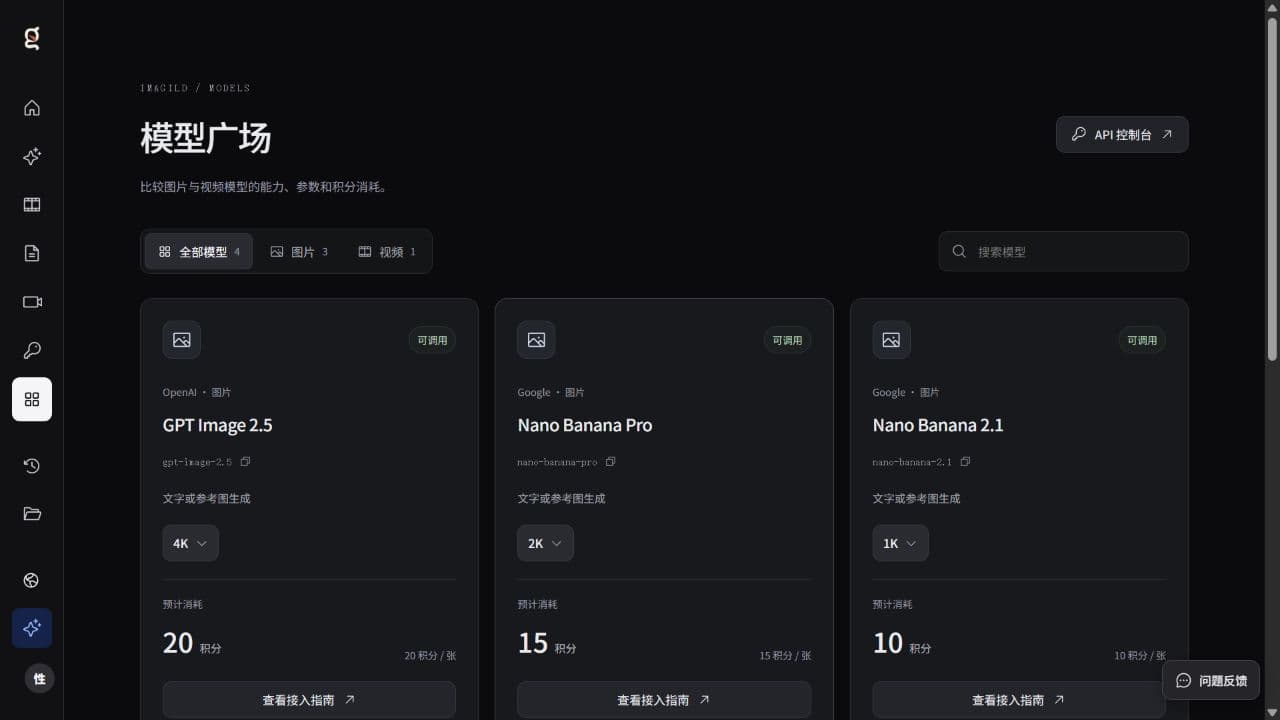
Cover: Original Imagild product screenshot captured on 28 October 2026; model availability and prices may change. This image is not an API response or a performance benchmark.