Verify the downloaded image's actual dimensions before publishing it. Imagild's 1K, 2K, and 4K settings are request and price tiers; the label is not an independent measurement of the returned file. Inspect the task result, response content type, decoded width and height, and the destination's acceptance criteria.
Key Takeaways
- Task success and a requested resolution tier do not replace output-file inspection.
- Check the image bytes with a decoder rather than trusting a filename or CSS display size.
- Preserve the task ID, requested tier, measured dimensions, and review decision together.
Define the destination requirement first
“Needs 2K” is an incomplete publishing specification. A better requirement identifies the actual use: a product detail page needs a source large enough for its intended display and crop, with legible product markings and no unintended borders.
Keep pixel requirements separate from content requirements. An image with enough pixels may still contain the wrong wording or object. Conversely, shrinking an image on a page does not alter the source file's stored dimensions.
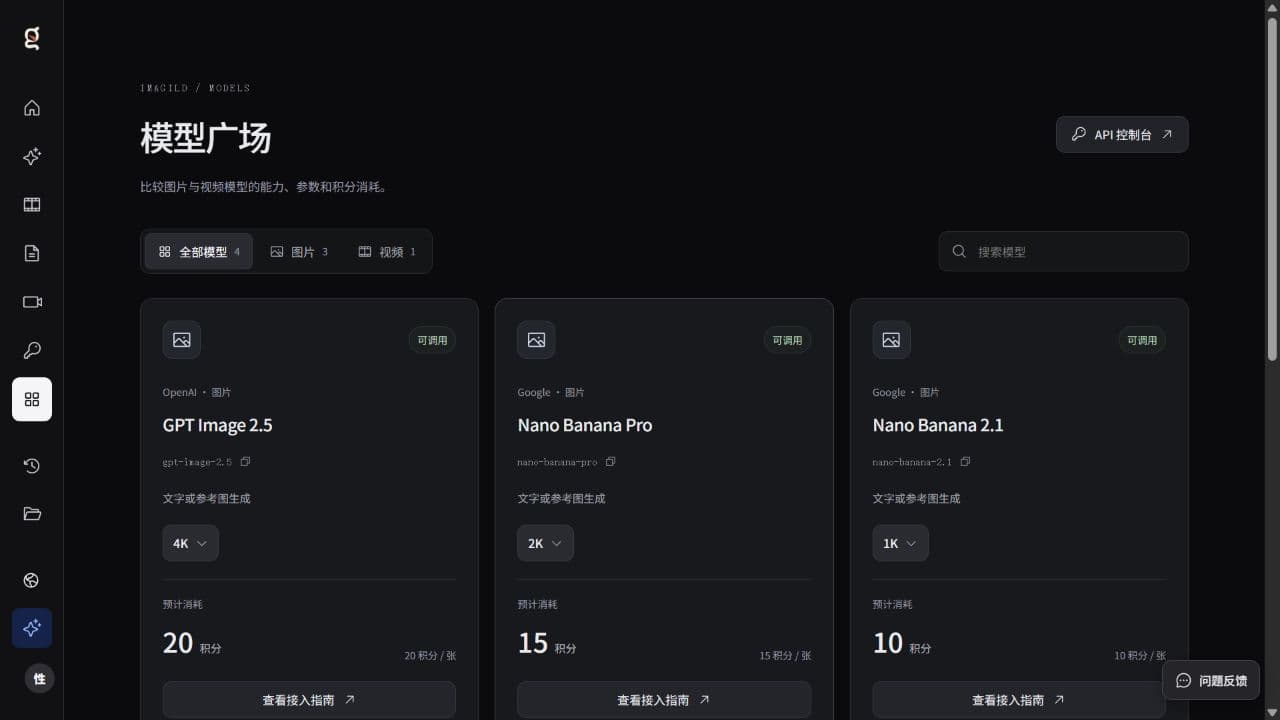
The model market currently lists 1K at 10 points, 2K at 15, and 4K at 20 across the public image choices. Those prices help choose a request, but they do not constitute a measured quality benchmark.
Download the completed result with authentication
Use the API console workflow: submit once, save data.id, and poll the task until data.status is succeeded. The returned output_url requires Bearer authentication and active API membership. Do not assume it is a public CDN asset.
Save response headers alongside the downloaded bytes. Check for a successful media response and an image content type. Output can be PNG, JPEG, or WebP; naming every file image.png does not make its encoding PNG.
If the downloaded object opens as a web page, stop before feeding it into your publishing system. The existing HTML-instead-of-image guide explains that failure mode.
Measure the file in your media worker
The following Python example assumes Pillow is already available in your media-processing environment. It measures a downloaded file called result.bin. The 1,600-by-1,000 minimum is an example destination requirement, not an Imagild output guarantee.
from PIL import Image

path = "result.bin"
required_width, required_height = 1600, 1000

with Image.open(path) as image:
    width, height = image.size
    encoding = image.format
    image.load()
    print({
        "format": encoding,
        "width": width,
        "height": height,
        "meets_example_minimum": (
            width >= required_width and height >= required_height
        ),
    })
Pillow documents image dimensions through the Image module's size property. Handle decode errors as failed media validation, and apply your application's file and pixel limits before loading untrusted large images.
A browser's visible width is not the same check. CSS can constrain a large image into a small card. Even MDN's naturalWidth documentation describes a density-corrected intrinsic size and notes possible browser interventions. Use file-level inspection when the acceptance requirement is about stored output pixels.
Record an acceptance manifest
A useful result record contains:
| Field | Why it belongs |
|---|---|
| Task ID and model | Connects inspection to the submitted operation |
| Requested tier | Preserves the paid input choice |
| Content type and decoded format | Detects mismatched assumptions |
| Actual width and height | Tests the destination's dimensions |
| Content review | Checks crop, text, subject, and important details |
| Decision | Publish, transform a derivative, or request a new candidate |
For a crop-heavy layout, review the crop itself instead of approving only the uncropped master. If the content is wrong, simply enlarging or compressing it will not correct the underlying mistake.
Optimize delivery after accepting the source
Generate web derivatives from the approved master according to your delivery stack. Cloudinary's optimization guidance distinguishes delivery dimensions, compression quality, and format. Those are downstream choices, not additional fields to insert into Imagild image JSON.
The resolution capability guide provides more context for media specifications. Keep the original result and its measured manifest so a later thumbnail or web conversion cannot obscure what the generation actually returned.
Related tasks
- Why Does My Downloaded Image Open as a Web Page?
- Why Can This Image Model Generate 4K but Not Edit My Reference at 4K?
Sources and scope
- Imagild API console: Authenticated async task and media download workflow.
- Imagild model market: Requested resolution tiers and published points.
- Pillow Image module: Image.size returns dimensions; Image.open/load supplies file-level inspection rather than CSS display dimensions.
- MDN naturalWidth: Browser naturalWidth is density-corrected intrinsic width and can reflect browser interventions.
- Cloudinary image optimization: Downstream delivery dimensions, encoding quality and format are separate optimization decisions.
Product instructions were checked against the current Imagild API contract and the public model catalog. Code, budgets and acceptance checks are illustrative; this article does not claim a new paid generation test, an uptime measurement, a search-volume study or a ranking of AI citations.
Prepared by Imagild Editorial, the company editorial team responsible for these guides. AI assisted research and drafting. This is documentation-based guidance with proposed examples, not a claim of hands-on testing or an independent product review. Report a correction.
Cover: Original Imagild product screenshot captured on 28 October 2026; model availability and prices may change. This image is not an API response or a performance benchmark.