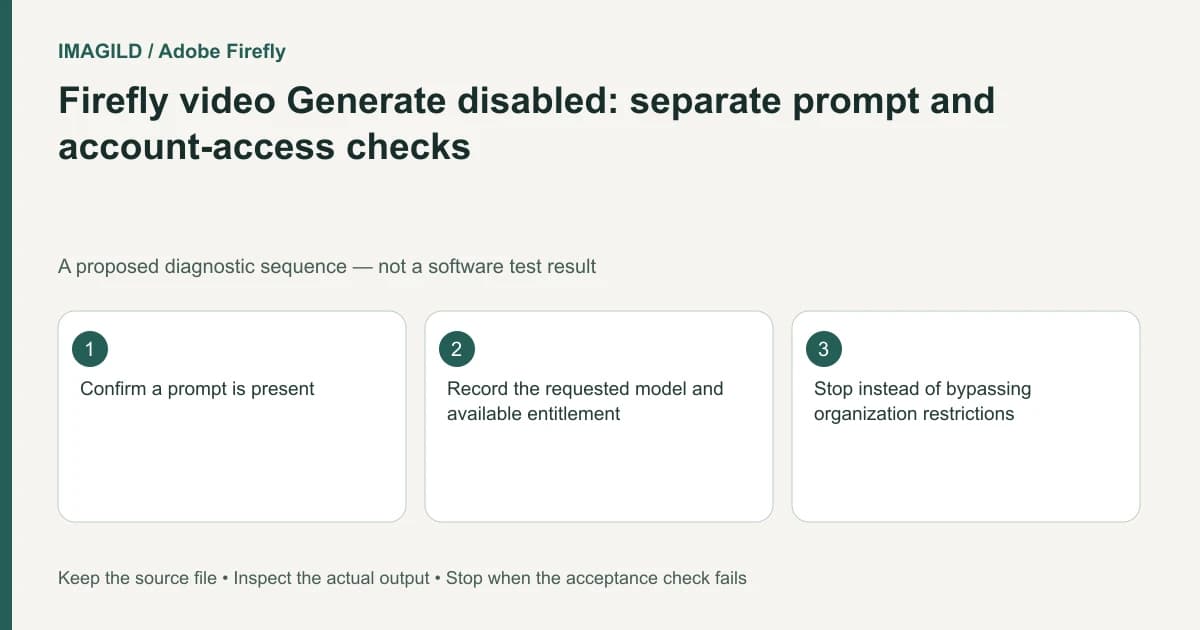
A disabled Firefly video Generate control needs a setup check before a browser reset. Confirm that a prompt is present, then check whether the current account or organization permits the selected Firefly or partner model. Missing input and missing model access are different conditions with different next steps.
Record what the disabled control actually says
Note the selected model, active workspace and any visible explanation beside Generate. Do not paraphrase every unavailable state as “the server is down.” A control that cannot be clicked is different from a submitted request that is still processing.
Adobe's video-generation troubleshooting guide identifies a missing prompt and account or organization access as checks for an unavailable Generate button. The guide covers Timeline beta, so inspect the current interface rather than assuming a tutorial's button state applies to every environment.
For a hypothetical agency account, the creator may be allowed to use an Adobe model but not a third-party model. Changing the photograph cannot solve that permission boundary. Likewise, purchasing another unrelated tool does not establish access to the selected model.
Check inputs before entitlement
Confirm the prompt field is not empty and that the intended media mode is active. Inspect required reference inputs only where the chosen workflow requires them. Keep the prompt concise enough to verify; copying a large brief into an unrelated panel is not evidence that the generation prompt was populated.
The unified generation instructions document model-dependent controls. Record the exact selected model and inspect the controls that appear for it. A reference route available in one model may not exist in another.
| Observed condition | Appropriate next action | Unhelpful action |
|---|---|---|
| Prompt absent | Enter the intended prompt in its actual field | Repeatedly refreshing the same empty setup |
| Model access restricted | Ask the account or organization administrator about access | Using another person's credentials |
| Required controls unavailable | Choose an authorized supported setup | Inventing an undocumented parameter |
| Generate accepts a click but no result appears | Move to job-state troubleshooting | Treating it as the same disabled-button condition |
Respect the account boundary
For an organization-managed account, preserve the visible restriction and ask the authorized administrator to confirm policy. Do not recommend bypassing a disabled partner model through a different person's account. If a different authorized model is available, check whether it meets the creative requirements before changing the brief.
The workspace overview describes multiple Firefly surfaces, including assistant-driven and manually configured generation. Keep those contexts separate when reproducing a problem. A model chosen automatically in one surface does not prove manual access in another.
Confirm the state changed before spending a run
Once input and access conditions are satisfied, inspect the enabled control and the final setup. Submit one deliberate job, record its state, and check for an existing result before retrying. The pending-generation guide explains that second boundary.
The diagnosis is complete when you can identify the missing condition or document the access limitation accurately. If an authorized account with a valid prompt still cannot start, retain the visible error, time, model and workspace for support. Do not claim that repeated clicks, a new reference image or another subscription will fix an unverified account restriction.
Worked disabled-button sequence: prompt, model, access message
Use a short proposed sequence before any generation: (1) confirm Timeline and the intended generation mode; (2) read the actual prompt field; (3) record the selected model; (4) read the account or organization access message; (5) inspect whether Generate becomes available after a supported correction. Do not switch several models and references during the same check.
For an agency account, suppose the prompt field is populated but the selected partner model is restricted. Adding another photo is not evidence of resolving that restriction. An authorized administrator can confirm access, or the brief can be revised to an available permitted model if acceptable. If Generate is clickable and a request then remains pending, leave this disabled-control branch and investigate that task's state. The button's availability proves setup eligibility, not a completed video.
- check the generation input contract: Use this when media is present in the timeline but does not satisfy the selected generation route.
- inspect a task that actually started: Use this only after submission; it is different from an unavailable Generate control.
- record a changed model or production constraint: Use this when an authorized alternative changes a condition already approved in the brief.
Prepared by Imagild Editorial. AI assisted research and drafting. Documentation checked on 4 November 2026; the examples are proposed review plans, not claims of hands-on software testing. Report a correction.