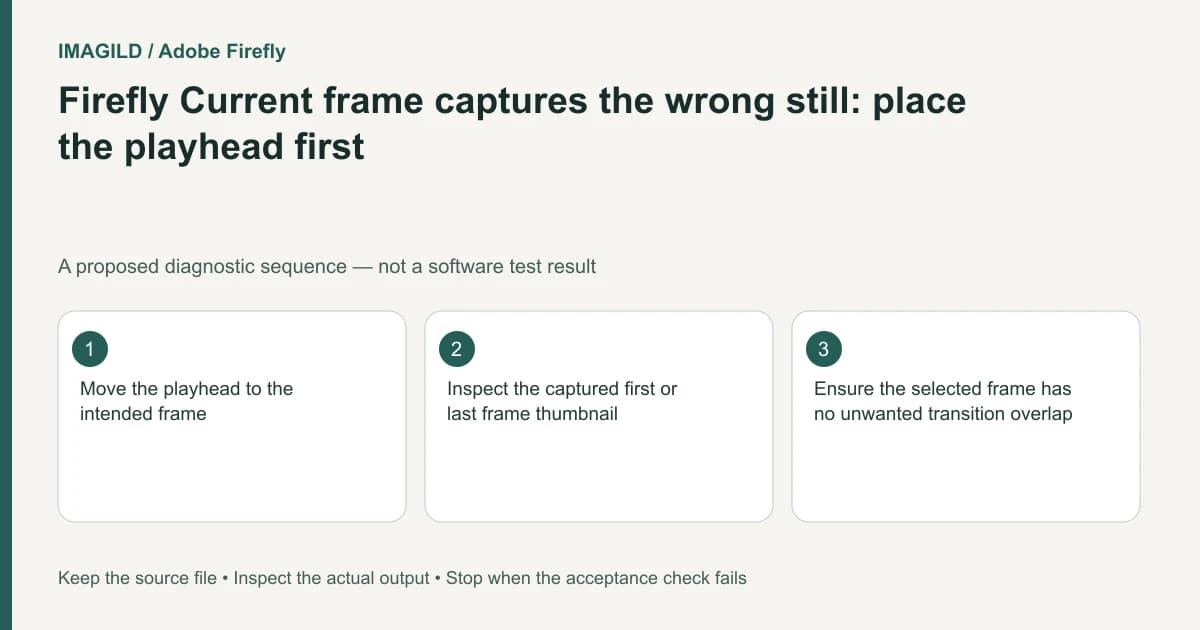
Firefly's Current frame option samples the timeline playhead. Move that playhead to the intended image, then inspect the resulting first- or last-frame thumbnail before generating. The source clip's poster image, the viewer's earlier preview and the frame under a hover cursor are not reliable substitutes for checking the sampled input.
Choose the actual boundary frame
For a proposed product-film continuation, the editor wants the new clip to start from the final clear view of a bottle. The last timeline frame may instead contain a dissolve, a title or a partly obscured hand. Identify the image that should anchor the new generation before invoking Current frame.
Adobe's Firefly-model video instructions describe Current frame as a way to use the timeline's playhead frame for a first or last frame. The control establishes an input image; it does not automatically establish a seamless motion continuation or matching audio.
Record which end you are setting. A correct still assigned to Last frame does not satisfy a requirement for the new clip to open on that still. Keep the original timeline and source clip intact while preparing the next shot.
Distinguish playhead position from hover preview
Move the playhead deliberately and check the viewer. If the visible frame changes when the pointer moves away, inspect whether skimming is active. Adobe's Skimmer documentation describes a thin hover-preview line independent of the thicker playhead. Disable skimming temporarily if it makes the boundary ambiguous.
Then invoke Current frame and inspect the populated slot. The slot is the decisive configuration evidence. If it contains a transition frame or wrong image, correct it before submitting rather than expecting a longer prompt to compensate.
| Check | Question to answer | Reason to stop |
|---|---|---|
| Timeline position | Is the actual playhead at the intended instant? | Only the hover preview moved |
| Composite content | Does this frame include titles or overlaps? | An unwanted overlay becomes part of the input |
| Reference role | Is it First frame or Last frame? | Correct image assigned to wrong endpoint |
| Input thumbnail | Does the sampled still match the viewer? | Different or stale frame is present |
Review the generated boundary and the motion separately
The unified generation guide explains endpoint inputs and model-dependent settings. Check the current model's supported combinations. Do not assume that sampling a still preserves every available style or motion control.
Generate only when the endpoint setup meets the brief. Review the downloaded clip's first and last decoded frames, then watch the full movement. A matching still can pass the boundary check while the motion or product detail fails. Conversely, an appealing move does not excuse a wrong opening frame when the opening was fixed by approval.
The frame-boundary trimming guide provides a separate check when the problem originates in a source file's trimmed beginning. Here the first investigation is the timeline playhead and sampled slot. Keep those two failure mechanisms distinct in the handoff notes so another editor can reproduce the correct input without guessing.
Worked sampled-frame check: clear bottle versus dissolve frame
For a proposed continuation, accept a frame with the bottle fully visible, its front label readable and no outgoing-shot overlap. Reject a frame midway through a dissolve where a second bottle silhouette or title is blended over it. The rejected frame can be the timeline's real composite even if the original source clip is clean.
Place the actual playhead on the chosen clear image, then select Current frame for the intended First frame or Last frame slot. Inspect that slot's thumbnail. If moving the pointer changes the viewer while the playhead stays still, disable Skimmer for this check. A correct hover image does not establish that Current frame sampled it. Retain the chosen boundary image with the motion brief; a useful input still must be followed by a separately reviewed clip.
- choose the representative frame deliberately: Use this to state what a selected still can prove and what still requires motion review.
- check the proposed endpoint action: Use this before asking a new shot to continue from the sampled pose or object contact.
- verify file-level trim boundaries separately: Use this if the wrong frame originated in a trimmed reference file rather than the timeline sample.
Prepared by Imagild Editorial. AI assisted research and drafting. Documentation checked on 4 November 2026; the examples are proposed review plans, not claims of hands-on software testing. Report a correction.